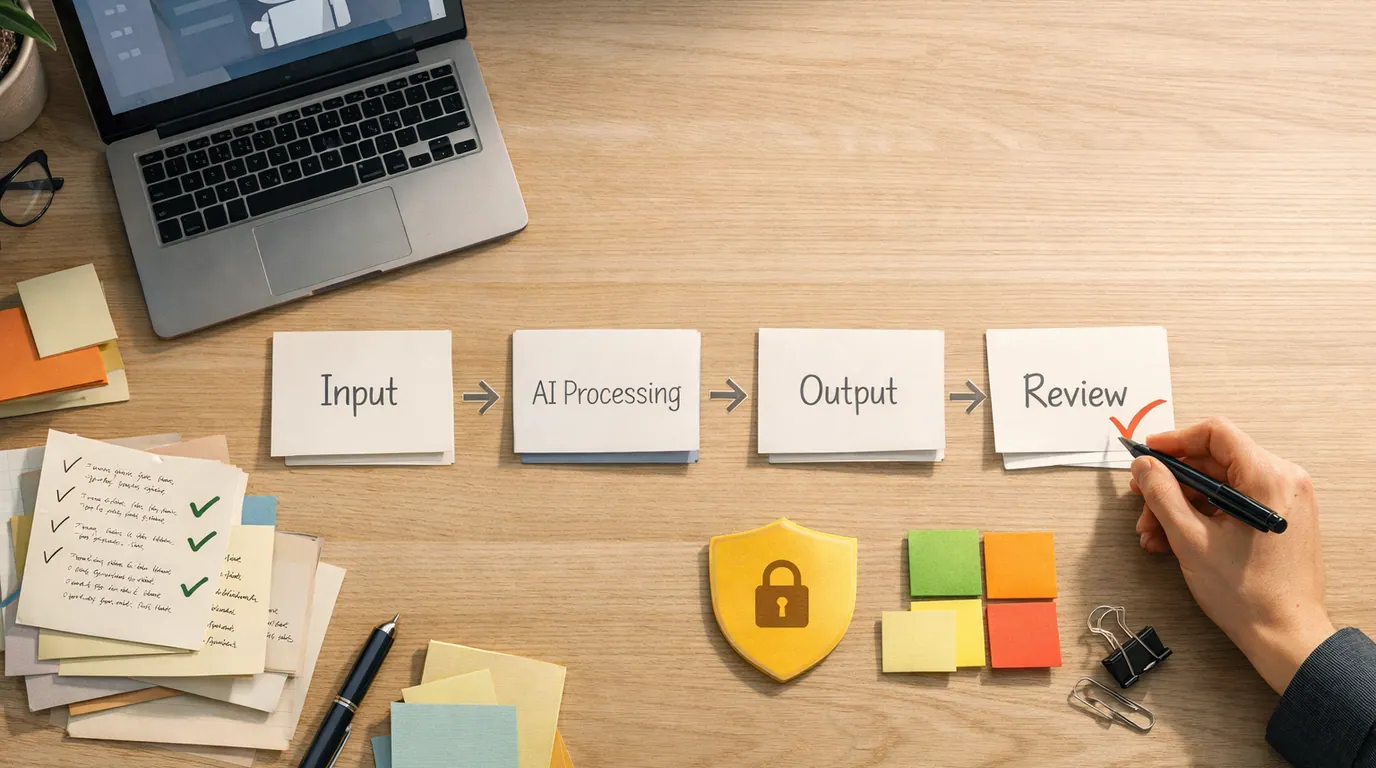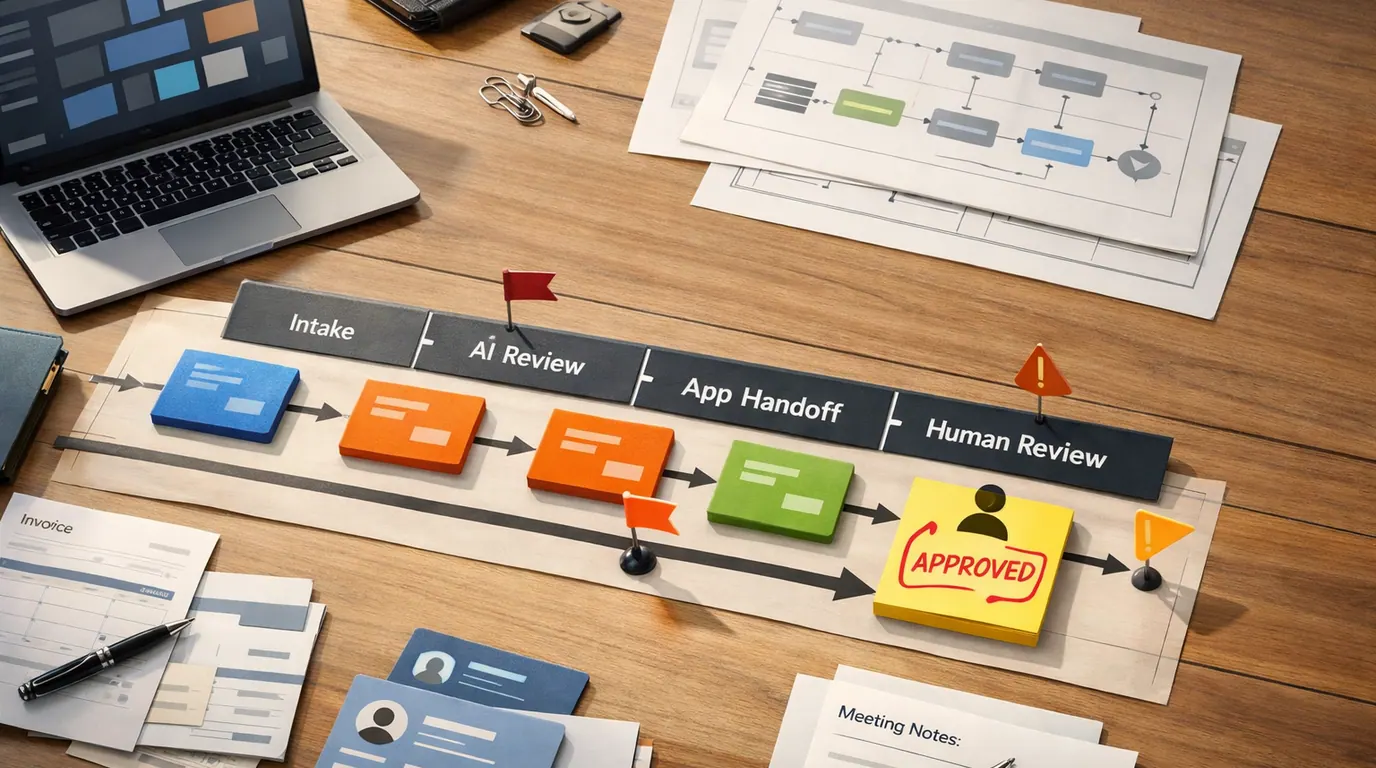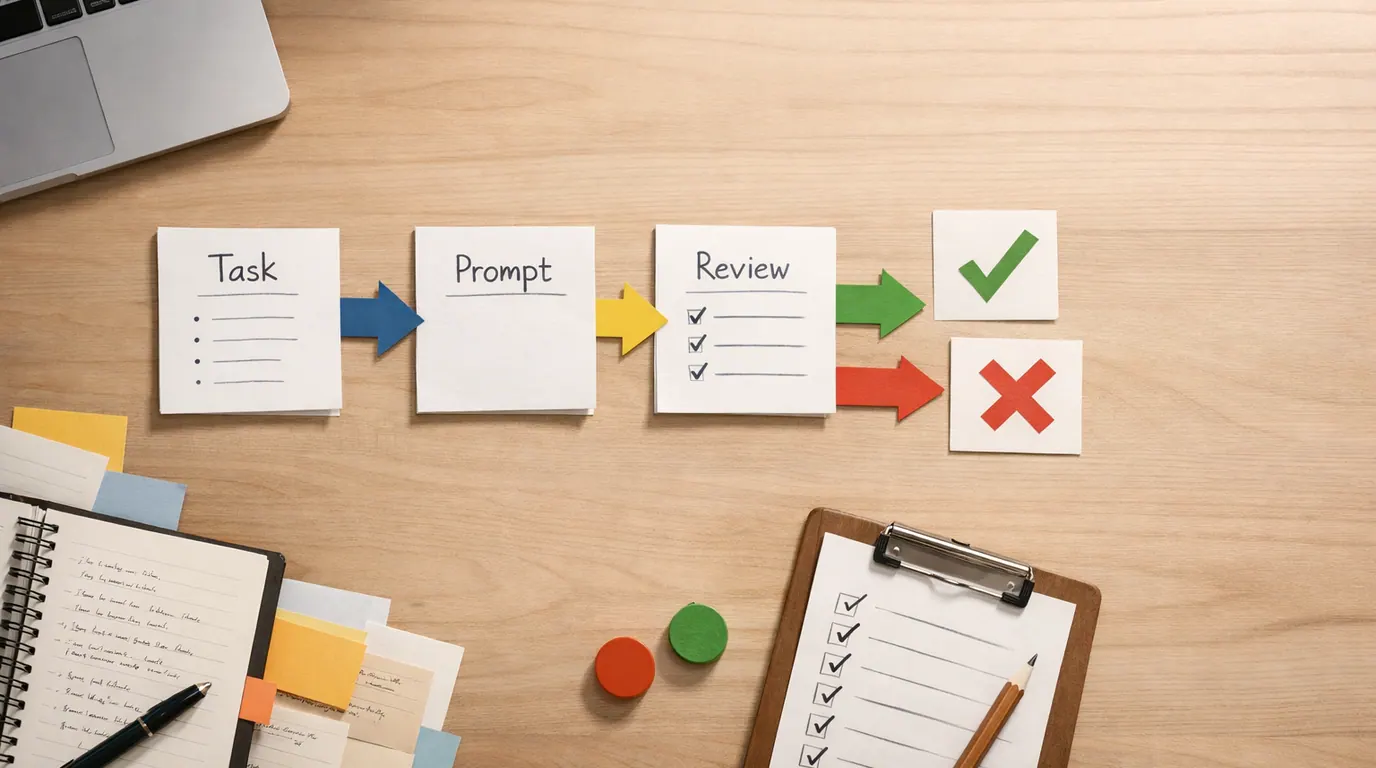
If you searched for “best ai tools for productivity,” the useful answer is not a giant app directory. The useful answer is a small stack matched to the kind of work that actually slows you down: drafting, research, meetings, notes, scheduling, tasks, automations, or review.
The best AI tools for productivity are not all trying to solve the same problem. ChatGPT, Claude, Gemini, Copilot, Perplexity, Notion AI, Otter, Fireflies, Motion, Todoist, Zapier, Writer, and Grammarly can all be useful, but only when their output has somewhere sensible to go next.
Use this guide as a practical AI tools for productivity comparison. Pick the bottleneck first, choose one tool category, define the human review point, and avoid turning productivity into another subscription cleanup job.
Choose the repeated job that costs time every week: write, research, meet, plan, route, or review.
The tool should produce a draft, source trail, note, task, schedule, or automation you can inspect.
Check what files, meetings, emails, docs, calendars, and app permissions the tool can access.
Quick Picks: Best AI Tools for Productivity by Job
Start with the “Best for” column. A chatbot, meeting recorder, calendar planner, writing platform, and automation builder may all be AI productivity tools, but they do different work.
| Pick | Best for | Why it fits | Limit | Pricing/free-plan note |
|---|---|---|---|---|
| ChatGPT | General assistant work, drafting, brainstorming, tables, file analysis, voice, images, and everyday problem solving | It is the most flexible first stop when you need one assistant for messy knowledge work before choosing a specialized app. | One-off chats can become invisible work. Save reusable prompts and verify facts, numbers, sources, and private data handling. | Free, paid individual, business, and enterprise plans exist. Check current ChatGPT pricing, usage limits, app access, and data controls. |
| Claude | Longer writing, document synthesis, careful revision, coding help, and structured thinking | It is a strong fit when the productivity problem is turning dense notes, long docs, or rough drafts into a clearer output. | Polished language can hide unsupported claims. Review citations, calculations, and final wording before sharing. | Claude lists free and paid plans with usage limits. Check current model, file, workspace, and region details before relying on it. |
| Gemini | Google Workspace users, quick multimodal work, Gmail, Docs, Sheets, Drive, and Google-side assistant tasks | It fits readers whose daily work already lives in Google apps and who want AI close to email, docs, files, and search habits. | Availability and feature depth vary by account, region, Workspace plan, and product surface. | Check current Google and Workspace plan packaging, admin controls, and feature availability. |
| Microsoft 365 Copilot | Outlook, Word, Excel, PowerPoint, Teams, SharePoint, and OneDrive-heavy workflows | It is most useful when the work is already in Microsoft 365 and the assistant can operate near the files, calendar, and meetings. | Output quality depends on permissions, file hygiene, and current source material. Treat summaries as drafts. | Copilot Chat may be included for eligible accounts; paid Copilot plans and app access need a current Microsoft pricing check. |
| Perplexity | Research orientation, source discovery, market scanning, and fast question answering with links | It is useful when you need a starting source trail instead of a blank chatbot answer. | A linked answer is not final evidence. Open sources, check dates, and cite the original material. | Free and paid plans exist, but search depth, advanced models, file features, and enterprise controls vary. Check current pricing. |
| Notion AI | Notes, docs, project pages, lightweight knowledge bases, task databases, and meeting note cleanup | It works well when your work already lives in Notion and you want summaries, drafts, search, and database help in the same workspace. | Messy pages produce messy answers. Archive stale docs and name owners for important pages. | Notion has free and paid plans; AI, agents, credits, guests, storage, and business controls depend on plan details. |
| Otter or Fireflies | Meeting transcription, summaries, action items, searchable calls, lectures, interviews, and follow-ups | Meeting tools turn live conversations into notes, next steps, and searchable records without forcing you to type during the call. | Recording consent, transcript accuracy, speaker labels, and confidential content still need review. | Both publish free or entry plans with limits and paid tiers for more storage, exports, minutes, integrations, or team controls. |
| Motion | Calendar-aware task planning, schedule protection, project planning, and people with overloaded days | It fits users who need tasks and calendars to talk to each other, not another isolated to-do list. | It requires disciplined calendar and task hygiene. Bad inputs create a smarter-looking bad plan. | Motion lists paid AI plans and trials. Check current seat pricing, credits, trial terms, and cancellation rules. |
| Todoist | Simple task capture, project lists, personal planning, filters, and lightweight AI task assistance | It fits people who want a calm task manager first, with AI assistance as a helper rather than the whole operating system. | It will not solve messy priorities by itself. You still need clear projects, due dates, filters, and weekly review. | Todoist lists Beginner, Pro, and Business plans, with Todoist Assist availability varying by plan and session limits. |
| Zapier | AI for productivity automation tools that connect forms, email, docs, calendars, Slack, CRM, spreadsheets, and databases | It is useful when the productivity problem is moving information between apps and adding AI steps to classify, summarize, or draft. | Automations need owners, logs, failure alerts, and rollback paths. Do not automate sensitive decisions first. | Zapier lists a free plan and paid plans. Check task volume, app limits, agent features, AI usage, and team controls. |
| Writer or Grammarly | Writing quality, brand-safe drafts, tone cleanup, style guides, and governed content workflows | Writer fits controlled brand and business writing; Grammarly fits everyday rewriting and clarity close to where people type. | Neither replaces subject-matter review, legal review, reporting, or original thinking. | Pricing, credits, enterprise controls, and data terms vary. Check current plan details before using them for sensitive writing. |
A tool that cannot create a reviewable handoff is entertainment, not productivity infrastructure.
How We Chose This Shortlist
This article uses the supplied research packet, SERP patterns for “Best AI tools for productivity,” and official product or pricing pages checked during drafting on June 15, 2026 for broad plan and free-tier caveats. It is not a hands-on benchmark, lab test, security certification, or claim that every product was run through the same prompts.
The evaluation criteria were practical:
- Workflow fit: Does the tool solve a common productivity bottleneck, or only add a generic AI feature?
- Output quality: Does it create something useful enough to edit, verify, export, or hand off?
- Context access: Can it work near the files, meetings, docs, tasks, calendars, or apps where the work already lives?
- Reviewability: Can a person inspect the source, edit the result, and approve the next step?
- Commercial fit: Are free tiers, usage caps, credits, data terms, integrations, exports, and cancellation risks clear enough to evaluate?
- Risk shape: What happens if the answer is wrong, private, stale, biased, copyrighted, or sent to someone else?
For current details, check vendor pages before subscribing or uploading sensitive work: ChatGPT pricing, Claude pricing, Google Workspace AI, Microsoft 365 Copilot pricing, Notion pricing, Otter pricing, Fireflies pricing, Motion pricing, Todoist pricing, Zapier pricing, and Writer plans. Pricing, AI credits, storage, admin controls, and model access can change faster than roundup articles.
Compare AI Productivity Tools by Workflow
Use this AI tools for productivity comparison to narrow the field. The best AI productivity tools usually cluster by workflow, not by brand.
| Workflow | Tools to compare first | Useful output | Human review point |
|---|---|---|---|
| Everyday assistant work | ChatGPT, Claude, Gemini, Microsoft 365 Copilot | Drafts, outlines, tables, plans, file summaries, code explanations, and rewritten notes | Check facts, calculations, private data, source material, and whether the final output still sounds like you. |
| Research and source discovery | Perplexity, Gemini, ChatGPT, Claude, NotebookLM | Question map, source trail, brief, comparison notes, and follow-up research prompts | Open original sources, verify dates, and do not cite the AI answer as evidence. |
| Notes and knowledge | Notion AI, NotebookLM, Microsoft 365 Copilot, Google Workspace with Gemini | Summaries, Q&A over docs, database updates, meeting note cleanup, and project briefs | Confirm source freshness, permissions, missing context, and whether old notes should be archived. |
| Meetings and follow-ups | Otter, Fireflies, Read AI, Avoma, Notion AI Meeting Notes | Transcript, summary, decisions, action items, sentiment notes, and follow-up drafts | Confirm consent, speaker labels, commitments, deadlines, and confidential details. |
| Tasks and scheduling | Motion, Todoist, Microsoft Planner with Copilot, Notion | Task breakdowns, calendar plans, reminders, priority views, and status summaries | Review deadlines, dependencies, meeting moves, and whether the tool is allowed to change your calendar. |
| Automation and app handoffs | Zapier, Make, n8n, Microsoft Power Automate | Triggered workflows, classification, summaries, alerts, drafts, task creation, and record updates | Test edge cases, monitor failures, document ownership, and keep a rollback path. |
| Writing polish and brand control | Writer, Grammarly, ChatGPT, Claude | Rewrites, tone edits, style-guide checks, content drafts, and reusable templates | Review facts, claims, originality, tone, compliance language, and subject-matter accuracy. |
This is where generative AI tools for productivity are strongest: they reduce the blank-page, summary, and handoff cost around work a human already owns. They are weakest when the tool is expected to decide priorities without trustworthy context.
Product Recommendations by Everyday Job
ChatGPT, Claude, and Gemini for general assistant work
Use a general assistant when the task starts as language: draft an email, turn a meeting note into a checklist, explain a spreadsheet, outline a proposal, brainstorm options, or make a messy idea clearer. ChatGPT is the broad first stop for many readers. Claude is a strong fit for long documents, careful revision, and structured writing. Gemini makes sense when the work already sits inside Google habits and multimodal prompts.
Everyday example: paste a rough project update and ask for three outputs: a one-paragraph executive summary, a task list with owners, and a list of assumptions that need verification. Then check the facts before sending.
Human review point: general assistants can sound certain when they are guessing. Review facts, source claims, dates, names, calculations, private data, and anything customer-facing. For better inputs, use the task, context, criteria, format, and review pattern in How to Write Better AI Prompts.
Perplexity and NotebookLM-style workflows for research
Use Perplexity when the job is research orientation: find useful sources, understand a market, compare arguments, or get a current source trail. Use NotebookLM-style workflows when you want answers grounded in documents you provide rather than the open web.
Everyday example: before buying a project management tool, ask for a comparison of common complaints, pricing models, export risks, and migration questions. Then open the sources yourself and build a short decision memo from the evidence.
Human review point: AI research summaries are starting points. Do not quote them as sources. For deeper source discipline, use the workflow in How to Use AI for Research.
Notion AI for notes, docs, and lightweight knowledge work
Use Notion AI when your notes, docs, projects, databases, and internal knowledge already live in Notion. It is useful for cleaning meeting notes, drafting project pages, summarizing long docs, creating database fields, and asking questions across workspace material.
Everyday example: create a weekly review page with open projects, meeting decisions, blockers, and next actions. Ask Notion AI to summarize what moved, what stalled, and what needs a decision. Then update the actual tasks yourself.
Human review point: AI does not fix a messy knowledge base. Archive stale pages, name owners for important docs, and check whether answers come from current source material.
Otter, Fireflies, and Read AI for meetings
Meeting tools can create fast value because the input already exists. Otter, Fireflies, and Read AI can help turn calls into transcripts, summaries, topics, next steps, and searchable records. This is especially useful for interviews, customer calls, lectures, demos, and recurring project meetings.
Everyday example: after a client call, the tool produces a transcript and action list. You verify the decision, deadline, budget assumption, and follow-up tone before sending the recap.
Human review point: meetings contain private information, recording-consent requirements, and imperfect speaker attribution. Never let a meeting assistant send commitments without a person checking the transcript.
Motion and Todoist for tasks, calendars, and daily planning
Use Motion when the bottleneck is calendar-aware planning: overloaded days, shifting priorities, project deadlines, and work that needs actual time blocks. Use Todoist when the bottleneck is capture and follow-through: tasks, filters, projects, reminders, and a lightweight weekly review.
Everyday example: collect all loose tasks from email, notes, and meetings. Put the hard-scheduled work into the calendar, ask for a task breakdown, then review whether the plan matches your energy and deadlines.
Human review point: no planner knows your real priorities unless you keep the inputs clean. Review due dates, project labels, task durations, recurring work, and anything that moves someone else’s time.
Zapier for AI productivity automation
Zapier is useful when the problem is not the draft but the handoff. It can move data across apps and add AI steps that classify, summarize, route, or draft. This category matters for readers comparing AI for productivity automation tools because small handoffs often waste more time than the visible task.
Everyday example: when a form submission arrives, a workflow summarizes the request, tags the category, creates a task, sends a Slack alert, and drafts a first reply for human review.
Human review point: automation creates leverage and failure at the same time. Start with low-risk workflows, log errors, route exceptions to a person, and use the rollout habits in AI Workflow Automation.
Writer and Grammarly for writing review
Use Writer when writing needs controlled language, brand rules, repeatable workflows, and governance. Use Grammarly when the main need is everyday clarity, tone, grammar, and rewrite suggestions close to where you type.
Everyday example: draft a customer email with a general assistant, then use a writing tool to tighten tone and clarity. Before sending, check whether the rewrite changed the meaning, softened an important caveat, or added a promise you cannot support.
Human review point: writing tools polish. They do not know whether a claim is true, approved, original, compliant, or strategically wise.
Free and Paid Plan Caveats
In practice, free AI tools for productivity are useful for experiments, but they are not all safe for recurring work. A free chatbot for brainstorming has a different risk profile from a free meeting recorder, document search tool, or automation connected to business apps.
Check these details before relying on any plan:
- Usage limits: messages, uploads, meeting minutes, storage, AI credits, search depth, or automation volume.
- Data handling: whether prompts, files, transcripts, or outputs can be used for training, retained, deleted, or exported.
- Workspace controls: admin roles, SSO, permissions, audit logs, guest access, and shared project visibility.
- Export options: whether you can take notes, transcripts, tasks, automations, or documents with you if you leave.
- Integration scope: which apps the tool can access and whether it needs full inbox, calendar, drive, or CRM permissions.
- Credit surprises: whether agents, deep research, meeting analysis, model choice, or workflow runs consume separate credits.
If budget is the main constraint, pair this article with Best Free AI Tools. Use free plans to test the workflow, then upgrade only when a repeated task is blocked by limits, privacy needs, exports, or collaboration.
Human Review Points That Matter
AI productivity tools should make review easier, not optional. Slow down when a tool touches money, access, legal language, health, hiring, customer promises, confidential records, or public claims.
Works Well When
- The tool works on a repeated task with a clear input and output.
- A person can inspect the source material before using the result.
- The output becomes a draft, task, note, summary, or suggestion, not an invisible decision.
- The workflow has an owner who checks data access, failures, and cleanup.
- The tool saves enough effort to justify its cost and review burden.
Watch Out For
- The tool is connected to private apps before anyone has checked permissions.
- Meeting summaries, research answers, or generated claims are treated as final evidence.
- Automations send messages or edit records without a stop rule.
- Several overlapping tools are bought before one workflow proves useful.
- No one knows how to export the work or cancel without losing process history.
For shared teams, the review burden grows quickly. The rollout model in AI Productivity Tools for Teams is useful when individual tools become shared workflows.
A 30-Minute Framework for Choosing Your Stack
Do not start by comparing every AI tool. Start by writing one sentence:
I lose time every week when [input] has to become [output], and the next person or system needs [handoff].Then run this quick decision process:
- Name the bottleneck: writing, research, notes, meetings, tasks, scheduling, automation, or review.
- Pick one tool category: assistant, research, knowledge base, meeting notetaker, planner, automation builder, or writing reviewer.
- Use real work: test one recent email, meeting, document, task list, research question, or app handoff.
- Measure edit distance: ask how much you had to correct before the output was usable.
- Check the boring details: pricing, credits, exports, retention, training use, app permissions, and cancellation.
- Set the review rule: decide what the tool may draft, what it may update, and what a person must approve.
- Keep or cut: keep the tool only if it reduces a weekly workflow without creating a second place to manage work.
For most individuals, the first useful stack is small:
- One assistant: ChatGPT, Claude, Gemini, or Copilot for drafting and thinking.
- One evidence tool: Perplexity or NotebookLM-style workflows for research and source grounding.
- One execution tool: Notion, Todoist, Motion, Otter, Fireflies, or Zapier depending on the bottleneck.
- One review habit: a checklist for facts, privacy, commitments, sources, and final sends.
That is enough AI for productivity software to create real gains without burying your day in tool switching.
The Bottom Line
The best ai tools for productivity are not the longest list of new apps. They are the small set that turns repeated work into a clearer handoff: a draft you can edit, a source trail you can verify, a meeting note you can trust, a task you can schedule, or an automation you can monitor.
Start with one bottleneck. Test one real workflow. Keep the human review point visible. Add another tool only when the first one saves more time than it costs to manage.
Frequently asked questions
What are the best AI tools for productivity?
The best AI tools for productivity depend on the job. Start with ChatGPT, Claude, or Gemini for general assistant work; Perplexity for research; Notion AI for notes and knowledge; Otter or Fireflies for meetings; Motion or Todoist for planning; Zapier for automation; and Writer or Grammarly for controlled writing.
How should I compare AI productivity tools?
Compare AI productivity tools by the output they create, where that output goes next, what data they need, whether you can edit or export the result, and who checks mistakes. A useful tool turns messy work into a reviewable handoff, not just a nicer chat window.
Are free AI tools for productivity enough?
Free AI tools for productivity are enough for testing prompts, occasional drafts, basic research, simple meeting notes, and light task planning. They are usually weaker for higher limits, team controls, privacy commitments, exports, advanced models, automations, and reliable recurring workflows.
Which AI productivity tool should I try first?
Try the tool that touches your most repeated bottleneck. If you lose time writing, start with a general assistant. If meetings disappear, start with a notetaker. If work gets stuck between apps, start with automation. Avoid buying a broad stack before one workflow proves useful.
Can AI productivity software replace a project management app?
AI productivity software can help create tasks, summarize status, draft updates, and plan calendars, but it should not replace the source of truth unless the tool also handles ownership, deadlines, permissions, history, and exports. Keep final commitments visible in a system people already trust.
What AI productivity work still needs human review?
Human review is required for facts, numbers, customer promises, legal or financial language, HR decisions, private data, source citations, code, calendar changes, and any automation that sends or edits something for other people. AI should prepare work, not quietly become the accountable owner.