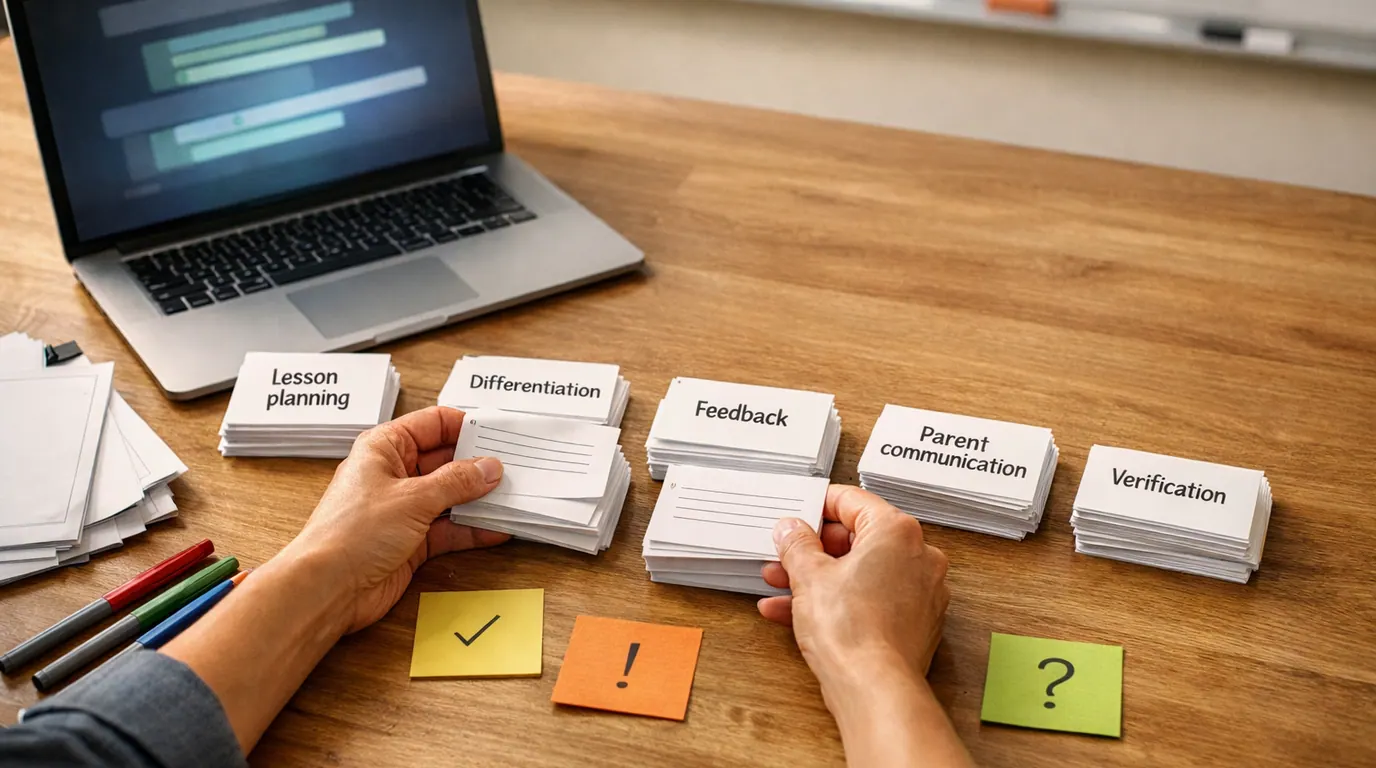
If you searched for “ai productivity tools for teams,” the useful answer is not a giant app directory. It is a short list matched to how your team actually loses time: meetings that never become action, scattered knowledge, slow first drafts, inbox drag, calendar churn, manual reporting, and automations that break without an owner.
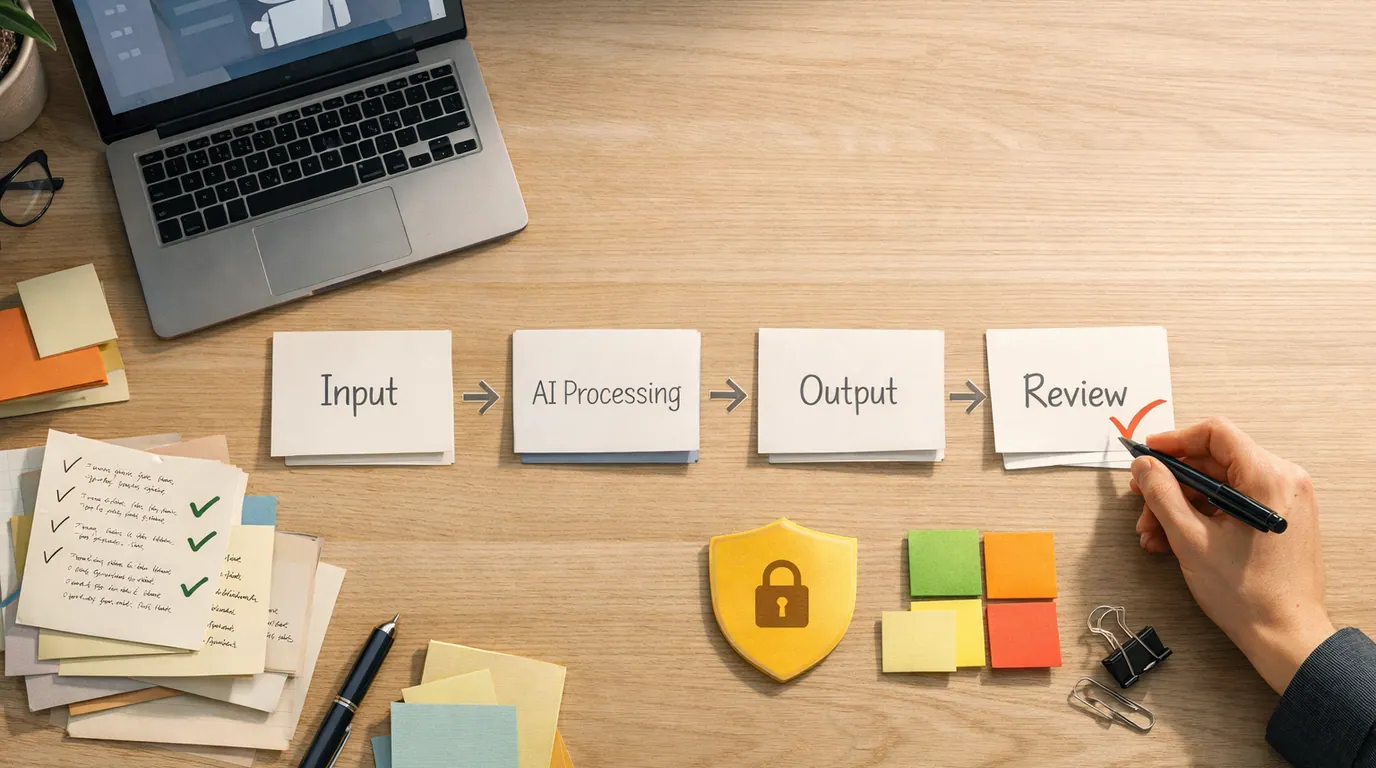
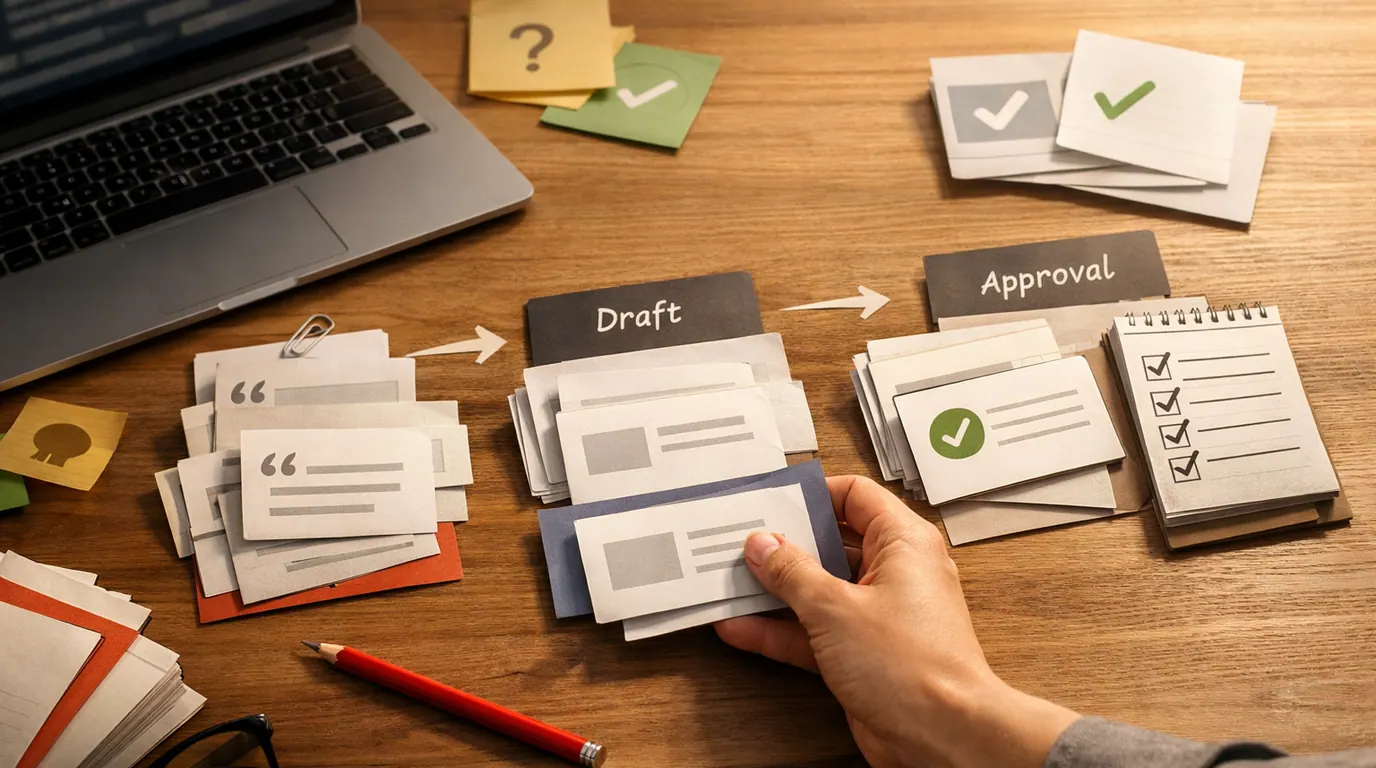
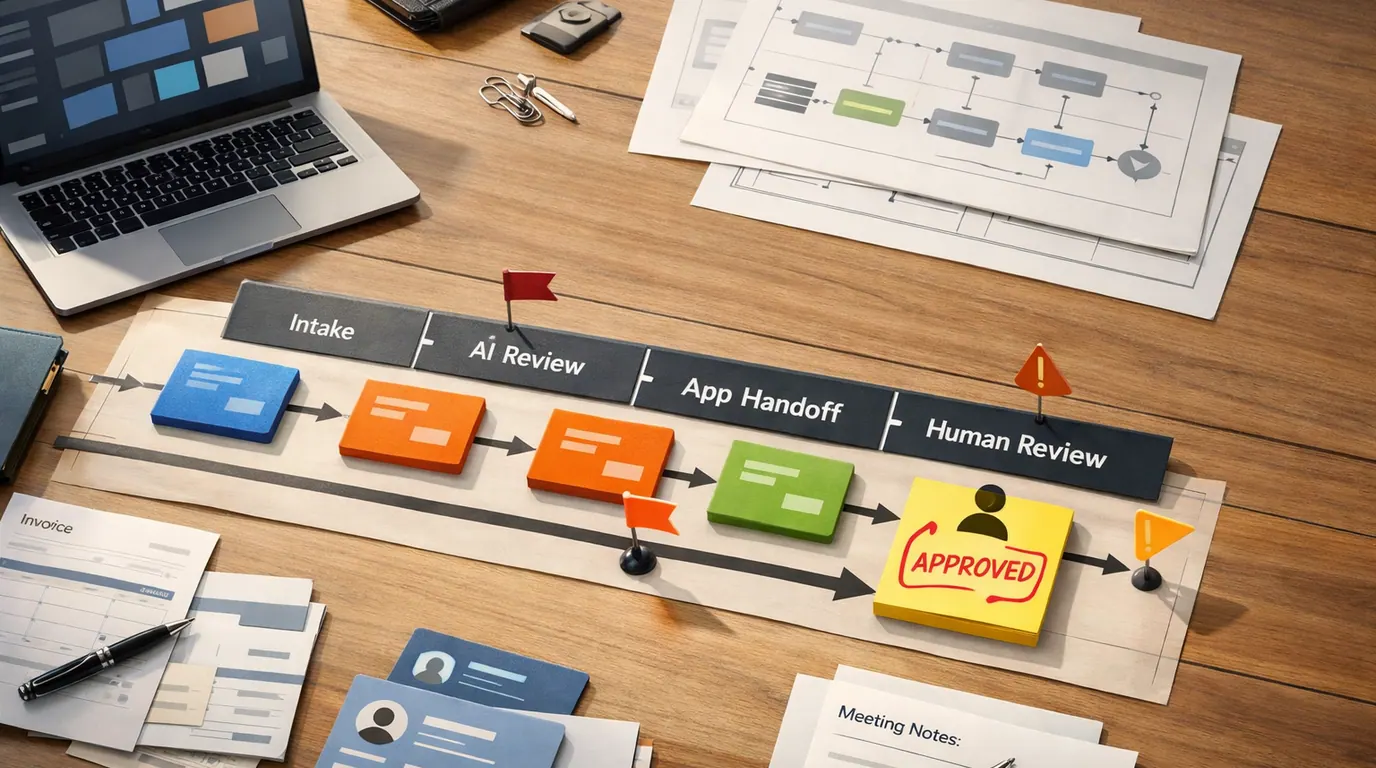
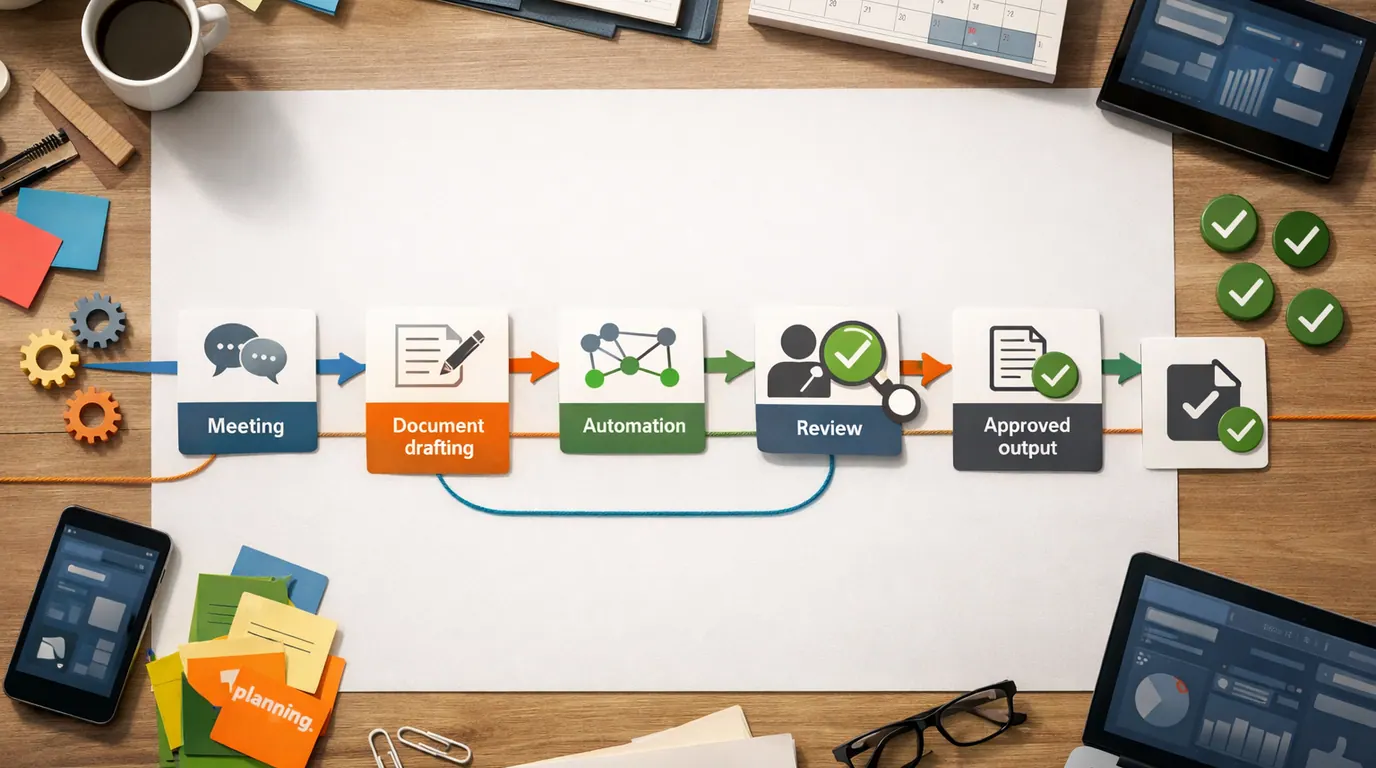
AI productivity tools for teams work best when they create a visible handoff. A meeting transcript becomes next steps. A customer call becomes CRM notes and a follow-up draft. A product brief becomes a first outline, then a reviewed decision log. The value is not “AI everywhere”; it is less drift between work starting and work shipping.
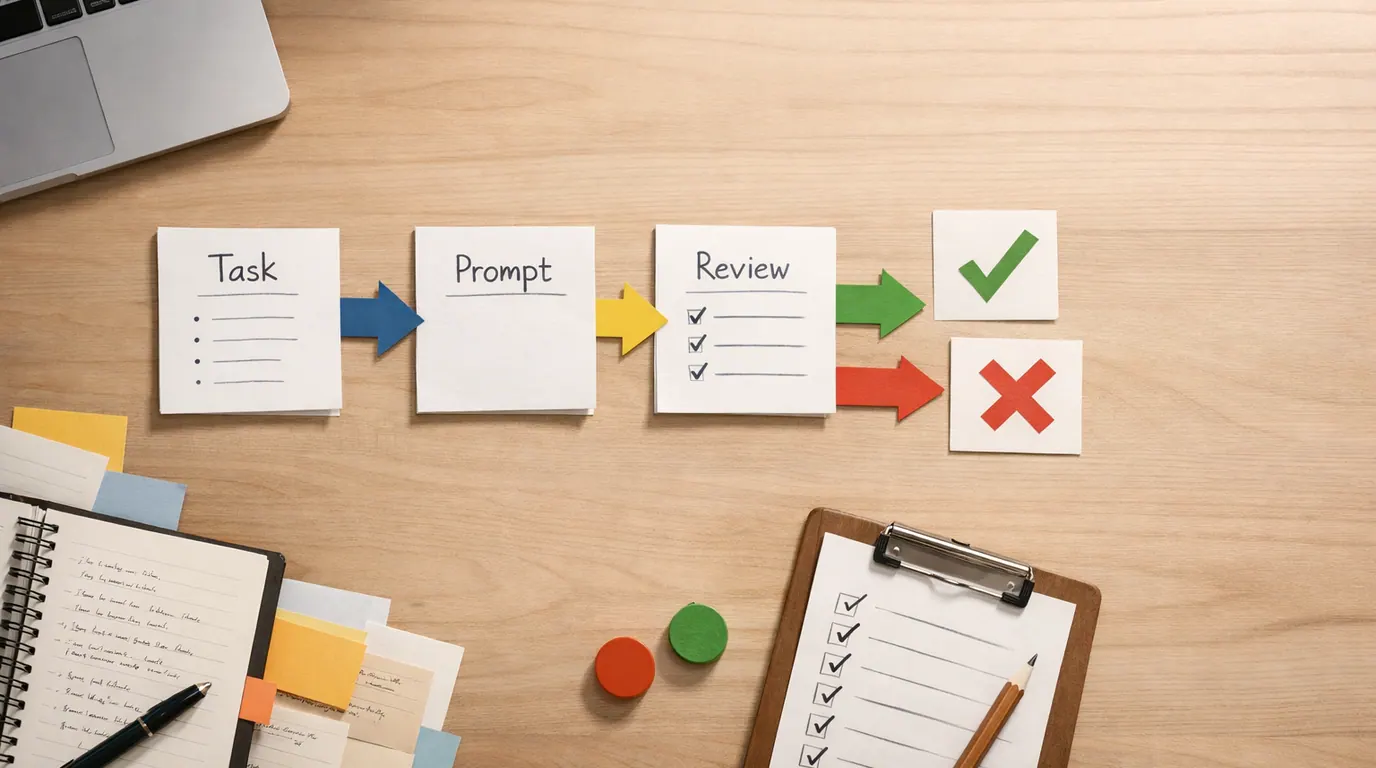
Use this AI productivity tools for teams guide as a practical buying and rollout map. Pick one bottleneck, select the tool category that fits, set the human review point, and avoid turning a productivity problem into a larger software-administration problem.
Choose the workflow that repeats every week and has a clear before-and-after output.
The tool should produce a draft, summary, task, answer, or automation a person can inspect.
Check data handling, seat costs, exports, permissions, and ownership before scaling across a team.
Start With the Team Bottleneck
Before comparing AI productivity tools, write down the repeated problem in plain language:
- Meetings: decisions, objections, owners, and follow-ups disappear after the call.
- Knowledge: people search Slack, docs, emails, and drives before they can answer simple questions.
- Writing: every update, campaign, proposal, and support reply starts from a blank page.
- Planning: priorities, calendars, capacity, and project status live in separate systems.
- Automation: repetitive handoffs still require someone to copy, paste, tag, notify, or summarize.
- Governance: teams are already using AI, but leaders cannot see what data, claims, or outputs are being used.
The best stack is usually small: one broad assistant, one workflow-specific tool, and one review process. Adding five tools at once makes adoption look impressive for a week, then creates another place to search.
Quick Picks: Best AI Productivity Tools for Teams by Workflow
If you want the best AI productivity tools for teams, start with the job column. A tool that is excellent for meeting capture may be a weak choice for company search, brand writing, or cross-app automation.
| Pick | Best for | Why it fits | Limit | Pricing/free-plan note |
|---|---|---|---|---|
| ChatGPT Business or Enterprise | Shared AI workspace for drafting, analysis, brainstorming, research, and internal assistants | It gives teams a flexible general assistant for many knowledge-work tasks instead of a different point tool for every draft. | One-off chats can become invisible work. Teams need shared prompts, review rules, and limits on sensitive data. | ChatGPT has free, individual, business, and enterprise plans. Check current OpenAI pricing and admin/data controls before rollout. |
| Microsoft 365 Copilot | Teams already working in Outlook, Word, Excel, PowerPoint, Teams, SharePoint, and OneDrive | It is strongest when the work already lives in Microsoft 365 and the team needs summaries, drafts, spreadsheet help, and work-grounded chat. | Output quality depends on clean permissions, current files, and reliable source data. | Copilot Chat may be available with eligible Microsoft 365 accounts; paid Copilot requires qualifying plans and current Microsoft pricing checks. |
| Notion AI | Knowledge bases, project docs, meeting notes, company search, and lightweight project systems | It works well when Notion is already the team's operating surface for docs, databases, tasks, and internal knowledge. | Messy workspaces produce messy answers. Page ownership, verified docs, and permissions matter. | Free and Plus workspaces may have trial AI capabilities; broader AI, search, agents, and enterprise controls depend on plan and credits. |
| Motion | Calendar-aware project planning, capacity planning, task scheduling, and small-team project execution | It ties tasks, calendars, docs, meetings, and project planning into one AI-assisted work surface. | It requires disciplined task and calendar hygiene. Teams that ignore the plan will not benefit from smarter scheduling. | Motion lists paid seat plans and trials. Verify current credit limits, team features, and pricing before buying. |
| Fireflies, Otter, or Avoma | Meeting transcription, summaries, searchable calls, sales handoffs, and follow-up drafts | Meeting tools turn live conversations into transcripts, topics, next steps, clips, and records that other teams can search or reuse. | Transcript errors, recording consent, and overconfident summaries can create risk. | Free tiers, trials, credits, storage, and team features vary by vendor. Check current meeting-recording and privacy terms. |
| Zapier | AI productivity for teams automation tools that connect forms, CRM, docs, Slack, email, databases, and notifications | It is useful when the main problem is handoff: move data, summarize inputs, trigger actions, and keep tools in sync. | Automations need owners, alerts, rollback plans, and periodic cleanup. | Zapier offers free and paid plans; team collaboration, admin controls, and higher automation volume may require paid tiers. |
| Writer | Brand-controlled writing, content operations, regulated messaging, and reusable team workflows | It is built for teams that need AI writing with brand voice, rules, approvals, and governance rather than casual chat output. | It is not a substitute for subject-matter review, legal review, or original reporting. | Plans and enterprise controls vary. Check Writer's current plan page and procurement requirements. |
| Grammarly Business | Everyday writing quality, tone, rewrite suggestions, and team writing consistency | It sits close to the places teams write and can help polish email, docs, support replies, and internal updates. | Accepting every rewrite can flatten expertise or change meaning. | Free and paid options exist, but business features, admin controls, and AI limits depend on current Grammarly plans. |
| Slack AI | Channel recaps, thread summaries, workflow generation, and faster internal communication review | It can reduce time spent catching up when Slack is already the team's collaboration layer. | Channel chaos becomes summary chaos. Teams still need naming, permissions, and source-of-record rules. | AI feature availability depends on current Slack plan packaging and workspace settings. |
| NotebookLM | Source-grounded research, internal briefings, training material, and document-based Q&A | It is useful when the team wants answers grounded in uploaded sources rather than open-ended chat. | It only knows the material you give it and can still summarize badly structured sources poorly. | Access and advanced features can depend on account type, region, and current Google plan details. |
Do not treat older lists as permanent. Clockwise appears in some AI productivity roundups, but the company’s official notice says the product is no longer available starting March 27, 2026. For a new team rollout in June 2026, put scheduling alternatives through a fresh availability check before recommending them.
How We Chose These Tools
This shortlist is based on the supplied research packet, current SERP patterns around team productivity software, and a limited official-page check for availability and pricing caveats on June 1, 2026. It is not a lab benchmark, full security review, live implementation, or claim that every product was hands-on tested under the same company data.
The evaluation criteria were practical:
- Workflow fit: Does the tool solve a real team bottleneck, or is it just a broad AI feature?
- Shared context: Can it work with the team’s docs, meetings, calendars, tasks, or apps without manual copying every time?
- Reviewability: Can a human inspect the source, edit the draft, correct the task, or approve the automation?
- Admin and data controls: Are permissions, retention, training use, audit needs, and guest access clear enough for business use?
- Handoff quality: Does the output move naturally into the next system, such as a project board, CRM, doc, inbox, or Slack channel?
- Cost shape: Is pricing seat-based, usage-based, credit-based, bundled, or enterprise-only?
For current details, verify vendor pages before procurement: ChatGPT pricing, Microsoft 365 Copilot pricing, Notion pricing, Motion pricing, Zapier pricing, Fireflies pricing, Writer plans, Grammarly Business pricing, and Slack plans. Pricing, credits, free trials, AI packaging, and data terms can change faster than a team’s annual budget cycle.
AI Productivity Tools for Teams Comparison by Workflow
Use this AI productivity tools for teams comparison when you need a compact decision view. The goal is to choose the next useful tool, not to create a procurement spreadsheet for every AI product category.
| Team bottleneck | Tools to compare first | Useful output | Human review point |
|---|---|---|---|
| Meeting follow-through | Fireflies, Otter, Avoma, Notion AI Meeting Notes, Motion | Transcript, summary, decisions, next steps, CRM notes, and follow-up draft | Confirm consent, speaker attribution, commitments, deadlines, and sensitive details. |
| Shared assistant work | ChatGPT Business, Microsoft 365 Copilot, Gemini, Claude for Work | Drafts, analysis, outline, spreadsheet help, research questions, and reusable prompts | Check facts, assumptions, source material, private data, and final accountability. |
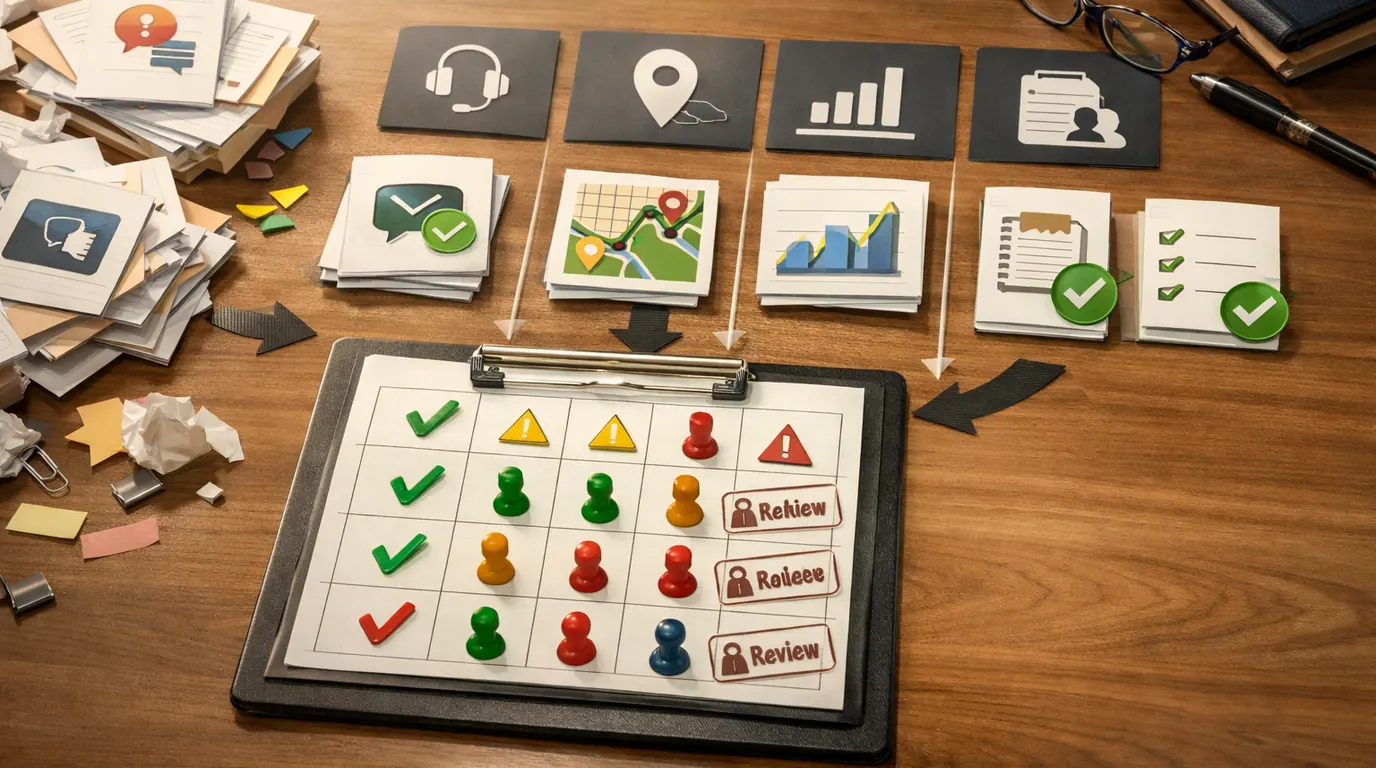
| Company knowledge search | Notion AI, Microsoft 365 Copilot, Slack AI, NotebookLM | Answers from docs, project pages, channels, uploaded files, and connected knowledge | Verify source freshness, permissions, and whether the answer cites the right record. |
| Project planning and capacity | Motion, Notion, monday.com, Microsoft Planner with Copilot | Tasks, owners, timeline, calendar load, capacity warnings, and status summaries | Review priorities, dependencies, dates, and whether the tool is allowed to change schedules. |
| Cross-app automation | Zapier, Make, n8n, Microsoft Power Automate | Triggered workflows, AI classification, summaries, routing, alerts, and records | Test edge cases, monitor failures, document ownership, and keep a rollback path. |
| Brand-safe writing | Writer, Grammarly Business, Jasper, ChatGPT Business | On-brand drafts, rewrite suggestions, guidelines, templates, and content operations workflows | Review claims, tone, legal risk, originality, and subject-matter accuracy. |
| Research and enablement | NotebookLM, Perplexity, Elicit, Microsoft 365 Copilot | Briefs, source summaries, training guides, comparison notes, and question lists | Open original sources and do not let a summary become the source of record. |
This is where generative AI productivity tools for teams are strongest: they reduce the blank-page and handoff cost around work that already has a human owner. They are weaker when the organization has no source of record, no naming rules, no data boundary, and no approval standard.
Product Recommendations by Team Job
Shared assistants: ChatGPT Business and Microsoft 365 Copilot
Use a shared assistant when the team needs flexible help across writing, planning, analysis, research, and everyday drafting. ChatGPT Business or Enterprise fits teams that want a general AI workspace with shared practices. Microsoft 365 Copilot fits teams whose work already lives in Microsoft 365 and who need AI close to Outlook, Teams, Word, PowerPoint, Excel, SharePoint, and OneDrive.
Everyday example: a customer success lead uploads anonymized renewal notes and asks for risk themes, follow-up questions, and a draft success plan. A manager then reviews the claims, edits the action plan, and decides what enters the CRM.
Human review point: do not let assistants become invisible decision-makers. Save reusable prompts, state data rules, and require people to verify names, dates, numbers, contract terms, customer claims, and anything that leaves the company.
For teams building repeatable prompts, the task, context, criteria, format, and review pattern in our guide to writing better AI prompts is a useful starting structure.
Knowledge and project workspaces: Notion AI and NotebookLM
Use Notion AI when Notion is already the team’s home for docs, projects, databases, meeting notes, and internal knowledge. It can help draft docs, summarize pages, autofill databases, find answers, and connect related project material. NotebookLM is a better fit when the job is source-grounded briefing from a known set of documents.
Everyday example: a product team collects support themes, sales objections, release notes, and user research into a workspace. Notion helps summarize status and draft a launch checklist. NotebookLM helps a new team member ask questions against an uploaded onboarding pack.
Human review point: an AI search layer does not fix stale documentation. Assign page owners, archive outdated docs, verify source pages, and keep private teamspaces for sensitive work.
Meeting systems: Fireflies, Otter, Avoma, and Notion meeting notes
Meeting tools are often the fastest team win because the input already exists: calls, demos, standups, interviews, and handoffs. Fireflies, Otter, and Avoma can produce transcripts, summaries, topics, action items, and searchable meeting libraries. Avoma is especially relevant when sales or customer conversations need structured follow-up.
Everyday example: after a sales discovery call, the tool drafts a summary, flags objections, extracts next steps, and prepares a follow-up email. The account owner checks the transcript, removes unsupported claims, confirms timelines, and then sends the message.
Human review point: recording consent, confidential data, speaker labels, and transcript accuracy matter. Do not send AI-generated follow-ups to customers without a person checking commitments and tone.
Planning and capacity: Motion, Notion, and Microsoft planning tools
Motion is strongest when the team wants calendar-aware planning, project tasks, capacity visibility, and scheduling support in one product. Notion can work when projects are lighter and documentation is central. Microsoft planning tools make sense when the organization already runs on Microsoft 365 and wants planning close to Teams and Outlook.
Everyday example: an agency loads client deliverables, meetings, review deadlines, and internal tasks into a planning system. The AI-assisted planner suggests when work can actually happen and flags overload before Friday afternoon.
Human review point: scheduling AI needs authority boundaries. Decide whether it can move meetings, create tasks, change deadlines, or only suggest changes for a manager to approve.
Automation: Zapier and workflow platforms
Zapier belongs in the stack when the work is not a draft but a handoff. It can connect tools, trigger workflows, classify inputs, summarize forms, notify teams, and keep lightweight records in sync. It is a strong category for AI productivity for teams automation tools because it turns AI output into action across the rest of the stack.
Everyday example: a website demo request arrives. A workflow enriches the record, classifies the company size, summarizes the message, creates a CRM task, alerts the sales channel, and drafts the first reply for review.
Human review point: every automation needs an owner. Log failures, test weird inputs, route exceptions to a person, and avoid automating regulated or customer-impacting decisions without approval.
Writing governance: Writer and Grammarly Business
Writer is a better fit for teams that need brand rules, content workflows, controlled language, and governance. Grammarly Business is useful when the team wants writing assistance close to daily tools, especially for clarity, tone, grammar, and rewrite suggestions.
Everyday example: a marketing team uses Writer to keep campaign drafts aligned with approved messaging, while support uses Grammarly Business to make replies clearer before sending them to customers.
Human review point: AI writing tools are editors, not accountable experts. Review product claims, compliance language, citations, customer promises, and whether the rewrite still sounds like the team.
For spreadsheet-heavy operations, pair writing and analysis workflows with the review habits in our guide to using AI in Excel. The same principle applies: let AI prepare work, then verify the logic before it spreads.
Free and Paid Plan Caveats
Free plans and free AI productivity tools for teams are useful for testing, but they are rarely enough for a serious rollout. Free tiers often limit messages, file uploads, automations, meeting minutes, storage, admin controls, guest permissions, integrations, model access, data protections, or export options.
Check these details before upgrading:
- Seat model: Do you pay for every employee, every active user, a workspace, or only usage?
- Credit model: Do agents, meeting analysis, automations, or deep research consume credits separately from seats?
- Admin controls: Can IT manage data retention, SSO, audit logs, domains, guests, and app connections?
- Training and retention: Are prompts, files, transcripts, and outputs used for model training or stored by providers?
- Export options: Can you export transcripts, notes, tasks, docs, automations, or audit history if you leave?
- Cancellation and lock-in: Will the team lose access to work history, workflows, credits, or custom agents?
- Support level: Who handles broken automations, billing surprises, data requests, and security reviews?
Use free plans to prove that a workflow deserves budget. Use paid or enterprise plans when the work requires shared context, security controls, predictable limits, and support.
Build a Small Team Stack
AI productivity for teams platforms can look attractive because they promise one place to work. Sometimes that is the right move. More often, a practical stack has a few narrow layers:
- Core assistant: ChatGPT Business, Microsoft 365 Copilot, or a similar approved assistant for drafts, analysis, and reusable prompts.
- Meeting capture: Fireflies, Otter, Avoma, Notion, or a platform-native meeting recorder for decisions and follow-ups.
- Knowledge surface: Notion, Microsoft 365, Slack, or NotebookLM for searchable internal material.
- Automation layer: Zapier, Make, n8n, or Power Automate for repeatable handoffs between systems.
- Review protocol: A lightweight checklist that says what AI can draft, what people must approve, and where final records live.
The real win is not a smarter chatbot; it is a shared loop where meeting evidence turns into tasks, drafts, decisions, and reviewed follow-through.
Do not buy all five layers at once. Start with the bottleneck. If meetings are the pain, start with meeting capture. If knowledge search is the pain, clean the source docs before adding an AI search layer. If handoffs are the pain, map the handoff before adding automation.
Governance and Human Review Points
AI productivity tools can make weak processes faster. That is useful only when the team knows which outputs are drafts and which records are authoritative.
Works Well When
- Use AI to summarize meetings, then have the owner confirm decisions and next steps
- Use AI to draft customer replies, then require a person to approve commitments and tone
- Use AI to classify requests, then route uncertain cases to a human queue
- Use AI to search approved knowledge bases, then cite the source page in the answer
- Use AI to prepare status reports, then let project owners confirm blockers, dates, and risk
Watch Out For
- Do not paste sensitive customer, employee, financial, legal, or health data into unapproved tools
- Do not let AI-generated summaries become the only record of a meeting
- Do not automate customer-impacting decisions without an approval path
- Do not let each team buy overlapping tools with different data policies
- Do not assume a vendor's AI feature has the same controls as its core product
The privacy risk is not only model training. It is also who can access uploaded files, whether transcripts include guests, how long data is retained, what gets exported, and whether an AI answer exposes information across teams. For a deeper risk checklist, use our guide to AI privacy concerns.
A 30-Day Rollout Framework
Use this rollout when you want a usable next step without turning selection into a six-month software committee.
- Week 1: pick one workflow. Choose one team, one bottleneck, one output, and one human reviewer. Examples: sales meeting follow-up, weekly project status, support triage, campaign draft review, or onboarding Q&A.
- Week 2: run a controlled pilot. Use approved data only. Save before-and-after examples. Track how often the AI output was accepted, edited, rejected, or escalated.
- Week 3: document the operating rules. Write the allowed data types, review checklist, source-of-record location, owner, exception path, and what the tool must never decide alone.
- Week 4: decide whether to expand. Keep the tool if it saves repeated effort and improves handoffs. Stop if it adds review burden, creates duplicate records, or moves sensitive work into a system the team cannot govern.
A good pilot does not need a complex ROI model. It needs evidence that the team ships a repeated workflow with less friction and no loss of accountability.
The Bottom Line
AI productivity tools for teams should reduce handoff friction, not multiply subscriptions. Start with one repeated bottleneck, pick the tool category that directly fits it, and define the human review point before you scale.
For most teams, the right first move is simple: choose a meeting, writing, knowledge, planning, or automation workflow that happens every week; test one tool with approved data; document what people must verify; and expand only when the workflow becomes easier to run, inspect, and repeat.
Frequently asked questions
What are the best AI productivity tools for teams?
The best AI productivity tools for teams depend on the workflow. ChatGPT Business, Microsoft 365 Copilot, Notion AI, Motion, Fireflies, Zapier, Writer, Grammarly Business, Slack AI, and NotebookLM can all fit different jobs. Start with the tool that fixes the most repeated bottleneck, not the one with the longest feature list.
How should a team compare AI productivity tools?
Compare tools by workflow fit, data access, admin controls, integrations, export options, review steps, and total cost. A good comparison asks what the tool produces, who verifies it, where the output goes next, and what happens if the answer is wrong or the vendor changes pricing.
Are free AI productivity tools enough for a business team?
Free tools are useful for experiments, prompt patterns, and low-risk personal drafts. They are usually weaker for team rollout because admin controls, shared workspaces, audit logs, data protections, higher limits, and reliable integrations often sit behind paid or enterprise plans. Use free plans to validate the workflow before buying.
What AI productivity tasks still need human review?
Human review is required for customer-facing copy, legal or financial language, hiring decisions, private data, executive summaries, project commitments, sales forecasts, and anything used as a source of record. AI can draft, summarize, classify, and route work, but a named owner should approve the final decision.
Should we buy one AI platform or several specialized tools?
Most teams should start with one platform they already trust, then add a specialized tool only when a recurring workflow still hurts. One broad assistant may cover writing and research, while meetings, calendar planning, or app automation may need dedicated software. More tools are useful only when ownership and handoff are clear.
What is the safest first AI productivity rollout?
The safest first rollout is a low-risk, high-frequency workflow such as meeting summaries, internal draft feedback, support triage, or project status updates. Run it for 30 days with a small team, define allowed data, compare outputs against human work, and keep a review checklist before expanding to more sensitive processes.