If you searched for “ai in excel,” start smaller than a whole workbook. Ask AI to help with one visible spreadsheet job: explain a formula, clean a column, summarize a table, suggest a chart, or draft a macro you can review.
The useful unit is not a magical formula prompt; it is a small reviewable workbook change that you can inspect before it spreads. That matters because spreadsheet errors travel fast. One bad formula, wrong date assumption, or unreviewed macro can quietly affect every row downstream.
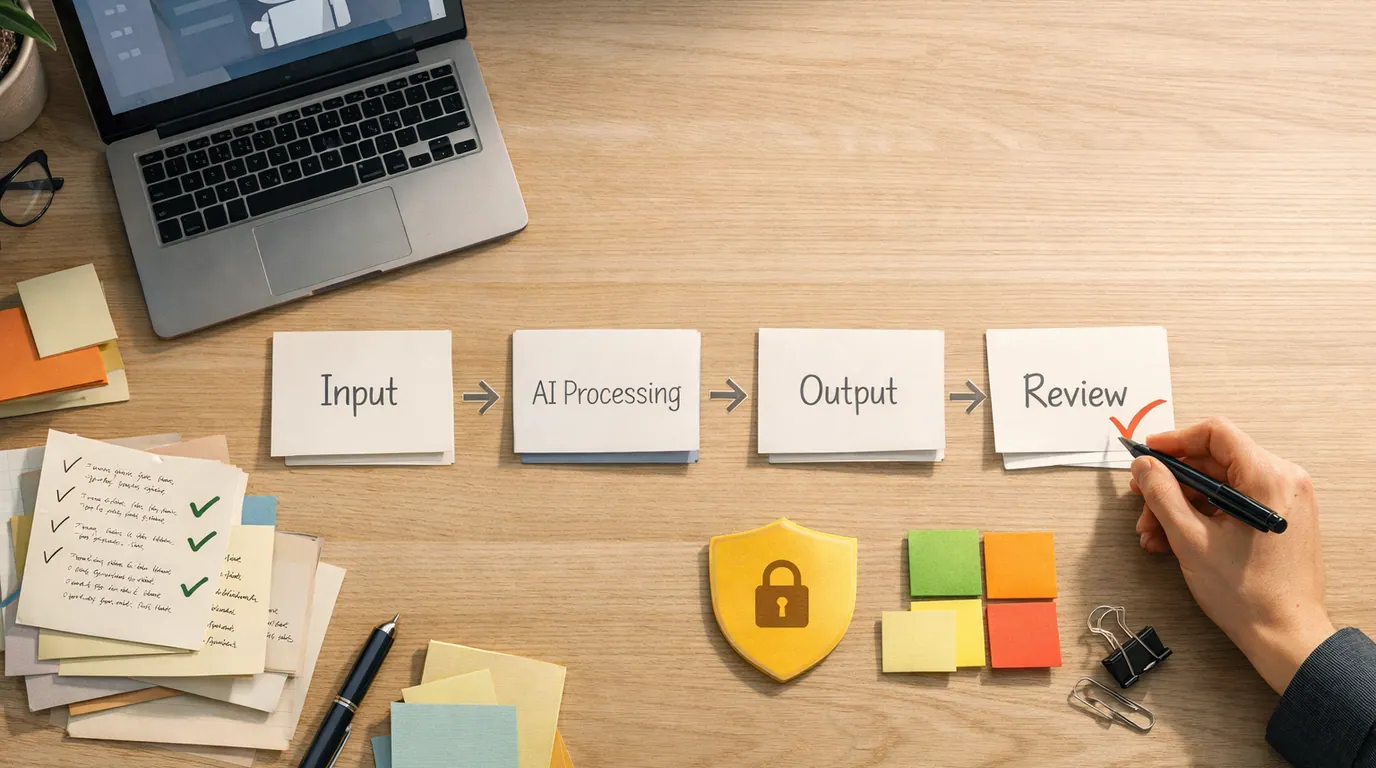
This AI in excel guide is built around a practical rule: let AI prepare the work, then let Excel and a human reviewer prove it. Use AI for drafts, checks, explanations, and options. Keep ownership of the source data, formulas, assumptions, privacy, and final decision.
Use AI on a copied range, helper column, or separate analysis tab before touching the live workbook.
Formula explanations, cleanup plans, chart ideas, summaries, and QA checks are easier to verify than broad automation.
Test edge cases, protect sensitive data, and confirm that the output matches the real business question.
What AI in Excel Is Good For
AI in Excel is not one feature. It is a way to use natural language, pattern detection, and generative help around spreadsheet work. Depending on your setup, that might mean Microsoft Copilot in Excel, built-in features such as Analyze Data or Forecast Sheet, an external chatbot that can read an XLSX or CSV file, or a specialized formula assistant.
If you are asking how to use AI in excel, think in terms of spreadsheet jobs rather than product names. AI is strongest when the input is structured, the desired output is easy to describe, and a person can verify the answer with formulas, filters, pivots, spot checks, or source records.
It is weaker when the workbook has hidden assumptions, undocumented business rules, merged cells, inconsistent labels, or sensitive data that should not leave an approved environment. Those are not reasons to avoid AI entirely. They are reasons to narrow the task before you prompt.
Start With Five Low-Risk Workflows
The strongest AI in excel use cases are small, repeatable, and easy to check. Start with these before asking AI to rebuild a model, create a full dashboard, or automate a finance process.
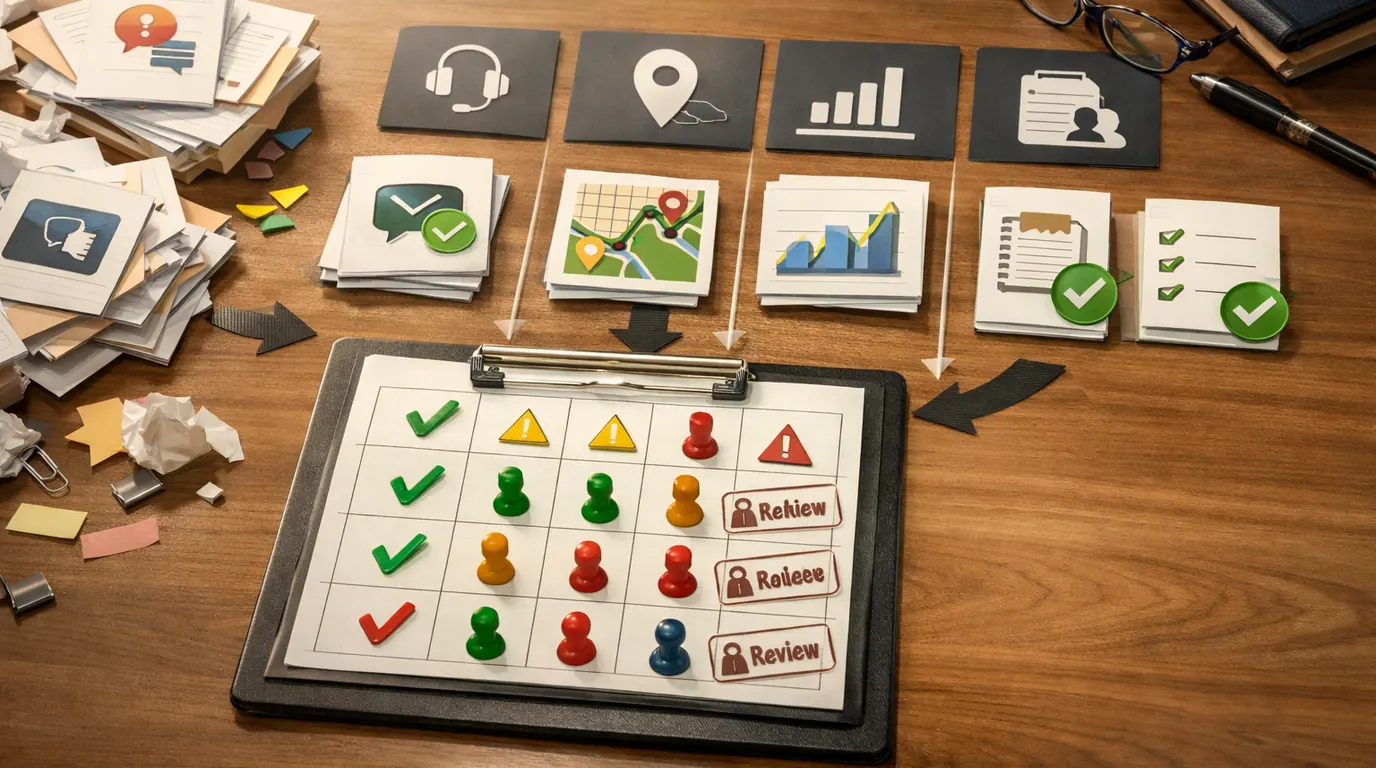
| Workflow | Ask AI for | Human review point |
|---|---|---|
| Formula help | A formula, a plain-English explanation, and common failure cases | Check references, blanks, date logic, rounding, and fill-down behavior |
| Data cleanup | A step-by-step cleanup plan for inconsistent names, dates, duplicates, or categories | Keep the original column, sample-check changed rows, and document rules |
| Trend analysis | Questions to ask, outliers to inspect, and possible explanations | Confirm with filters, pivots, formulas, and domain knowledge |
| Charts and summaries | Two or three chart options and an executive summary draft | Verify that the chart answers the real question and does not hide scale or sample issues |
| Automation drafts | A VBA, Office Script, or Power Query draft with comments | Run only on a copy, inspect permissions, and have a capable reviewer check the code |
Use this as an AI in excel workflow map. If you cannot name the human review point, the task is probably too broad for a first pass.
How to Use AI in Excel Step by Step
A practical AI in excel strategy starts with the workbook risk, not the prompt. The safer path is to isolate the work, define the expected result, ask for a reviewable output, and test it on a few rows before scaling.
- Make a copy or create a sandbox tab. Never let a generated formula, cleanup step, or macro touch the only copy of important data.
- Describe the table in plain language. Name the columns, the goal, the business rule, and what a correct result should look like.
- Ask for the output and the assumptions. For formulas, request an explanation. For analysis, request caveats. For code, request comments and a rollback plan.
- Test on a small range. Pick normal rows, blank rows, duplicate rows, unusual dates, and known answers. Compare AI output with what you already trust.
- Only then scale. Fill down, apply a Power Query step, refresh a chart, or run a script after the sample passes.
- Save the prompt and review notes. Reuse the pattern when the same monthly, weekly, or daily workbook returns.
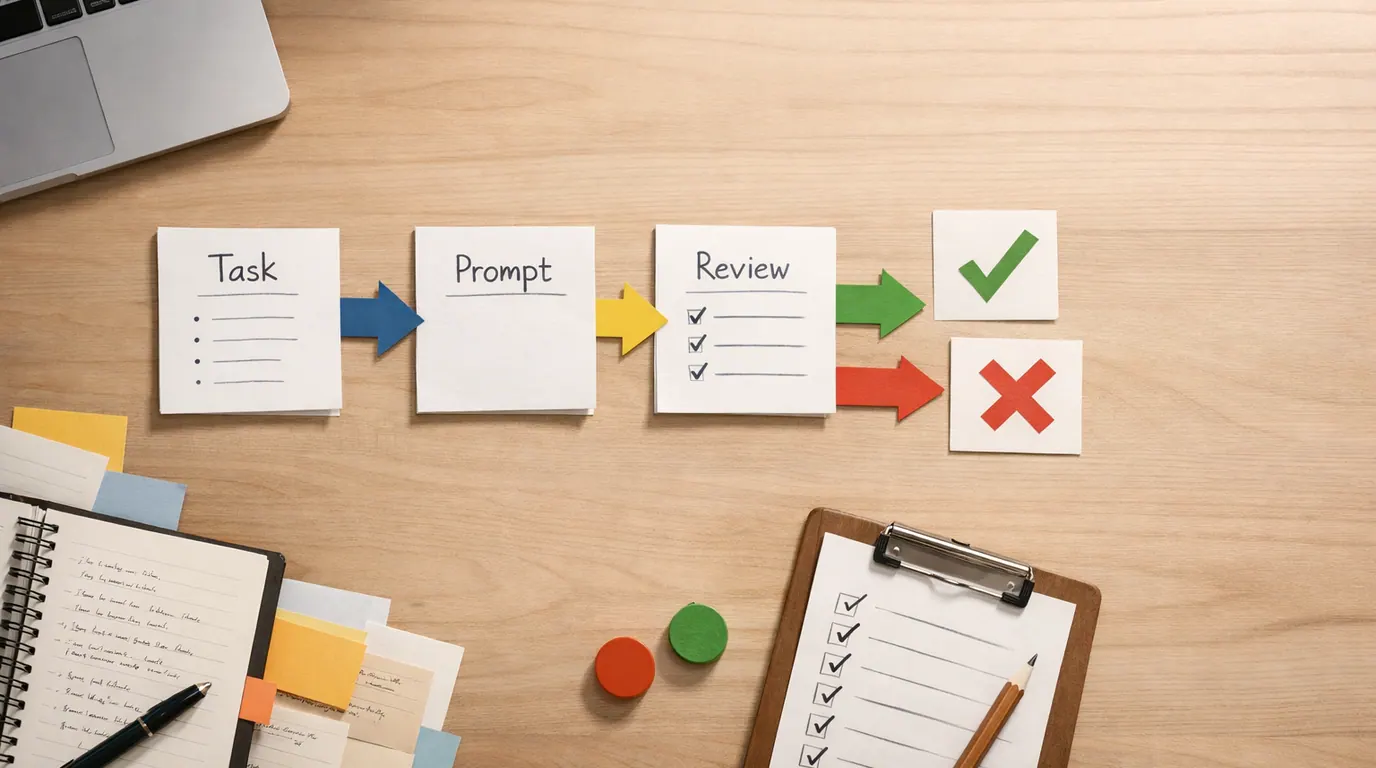
For prompt structure, the same task, context, criteria, format, and review pattern from our guide to writing better AI prompts works well in spreadsheets. The Excel-specific addition is that every useful prompt should say how the answer will be checked.
AI in Excel Examples You Can Reuse
The AI in excel examples below are written as reusable prompts. Replace the bracketed details with your workbook context. If the sheet contains private or regulated data, remove identifiers or use only an approved AI tool first.
Formula prompt
I have an Excel table with columns: [list columns]. I need a formula that [describe outcome]. The formula will go in [cell or column] and should handle [blanks, missing matches, dates, duplicates, currency, or errors]. Give me the formula, explain each part, and list three edge cases I should test before filling it down.Use this when you need XLOOKUP, INDEX/MATCH, SUMIFS, COUNTIFS, FILTER, TEXTSPLIT, date logic, conditional flags, or a nested formula that is hard to debug.
Cleanup prompt
I copied messy spreadsheet data with these issues: [examples]. Suggest a cleanup plan that preserves the original data, creates helper columns where useful, and flags rows that need human review. Return the plan as numbered steps and include the formulas or Power Query operations I should consider.This is useful for inconsistent date formats, extra spaces, duplicate customer names, mixed casing, product category cleanup, and imported CSV files.
Analysis prompt
Here is the structure of my workbook: [tables, columns, time period, business question]. I want to understand [trend, variance, segment, risk, or opportunity]. Suggest the best analysis steps in Excel, the pivot table or formulas to use, and the checks that would make the conclusion more reliable.Use AI here as an analyst’s scratchpad. It can suggest what to inspect, but you should still verify the calculation path and the business meaning of any outlier.
Chart prompt
I need to explain [business question] to [audience]. My data includes [columns and time period]. Recommend two chart types in Excel, explain when each would be misleading, and suggest the title, axis choices, and one caveat to include in the summary.This prompt keeps the work focused on communication, not decoration. AI can help you avoid using a pie chart for a trend, a crowded line chart for too many categories, or a dashboard that buries the main decision.
Choose the Best AI Setup for Your Spreadsheet Job
The best AI in excel is not always the tool with the longest feature list. It is the setup that fits the data sensitivity, output type, and review process for the workbook in front of you.
| Option | Best for | Watch for |
|---|---|---|
| Microsoft Copilot in Excel | In-workbook help with formulas, cleanup, charts, summaries, and promptable spreadsheet tasks | Plan, account, region, desktop, OneDrive, and AutoSave requirements can affect access; check current Microsoft terms |
| Built-in Excel features | Analyze Data, Forecast Sheet, Flash Fill, Power Query, and data-from-image workflows that stay close to Excel | They still need clean source data and a user who understands the result |
| Formula Bot or GPTExcel | Formula generation, formula explanation, SQL, scripts, table templates, and spreadsheet-specific help | Check current pricing, file handling, export limits, and whether company data may be uploaded |
| ChatGPT-style file analysis | One-off XLSX or CSV exploration, summaries, charts, and debugging outside the workbook | Good for drafts; weaker for preserving workbook formatting, formulas, and approved data controls |
| GPT for Excel or other add-ins | Row-by-row processing, classification, translation, enrichment, or repeated prompt workflows inside the sheet | Review model settings, credit usage, privacy terms, and whether outputs need manual approval |
For personal learning, start with built-in Excel features and a formula assistant. For workbooks with company data, start with the tools your organization already approves. For complex finance, reporting, or operations work, treat AI as a helper for drafts and checks, not as the owner of the model.
Use This Checklist Before You Trust the Output
Use this AI in excel checklist before accepting a generated formula, cleanup step, chart, script, or summary.
- Data boundary: Did you remove sensitive, regulated, customer, employee, or proprietary details before using an unapproved tool?
- Original preserved: Is there an untouched source tab or backup file?
- Formula logic: Do you understand what each part of the formula does and why it fits the business rule?
- Edge cases: Did you test blanks, duplicates, missing matches, unusual dates, negative values, and known examples?
- Scale: Did the result work on a small sample before being applied to the full table?
- Interpretation: Does the summary separate facts in the data from possible explanations?
- Ownership: Is a person responsible for the final workbook, not the AI tool?
Privacy is part of spreadsheet quality. Customer exports, payroll tabs, investor models, sales pipelines, and unreleased forecasts can expose more than raw numbers. If that is the risk you are managing, pair this workflow with our guide to AI privacy concerns.
What to Avoid
AI can make Excel faster, but it can also make weak spreadsheet habits look polished. The danger is not only a wrong answer. It is a wrong answer that looks structured enough to be trusted.
Works Well When
- Use AI to explain formulas you are learning
- Ask for cleanup plans that preserve the source column
- Request chart alternatives and caveats before presenting
- Use scripts and macros only after code review on a copied workbook
- Build a reusable prompt for recurring reports
Watch Out For
- Do not paste sensitive workbooks into unapproved tools
- Do not accept formulas you cannot explain
- Do not run generated macros on the only copy of a file
- Do not let AI invent business rules that are not in the source data
- Do not treat a fluent summary as proof that the math is right
The common failure pattern is asking for too much at once: “analyze this workbook and tell me what to do.” A better prompt says: “Here is the table structure, here is the question, here is the decision, here are the constraints, and here is how I will verify your answer.”
The Bottom Line
AI in Excel works best when it turns a vague spreadsheet problem into a reviewable next step: a formula to test, a cleanup plan to inspect, a chart choice to compare, a summary to challenge, or an automation draft to review.
Do not measure success by whether AI produces a confident answer. Measure it by whether the workbook becomes easier to understand, easier to check, and safer to reuse. That is the difference between using AI as a shortcut and using it as a spreadsheet workflow you can trust.
Frequently asked questions
Can AI write Excel formulas for me?
Yes, AI can draft formulas from a plain-language description, explain why a formula works, and help debug errors. You still need to verify cell references, absolute references, date handling, blanks, duplicates, and edge cases before filling the formula across a workbook.
Is Microsoft Copilot the only way to use AI in Excel?
No. Copilot is the built-in Microsoft route for many Excel users, but you can also use Analyze Data, Forecast Sheet, Flash Fill, ChatGPT-style file analysis, formula assistants, or add-ins such as GPTExcel and Formula Bot. Choose by data sensitivity, workflow fit, and review needs.
What Excel tasks should not be fully handed to AI?
Do not fully hand off final financial reporting, legal records, regulated decisions, payroll, confidential customer data, or high-stakes forecasts. AI can help draft formulas, checks, summaries, and alternatives, but a qualified person should own the source data, assumptions, and final decision.
Will AI replace learning Excel formulas?
No. AI reduces syntax friction, but it does not remove the need to understand the logic of the workbook. You should know what the formula is supposed to do, how to test it on a few rows, and when a pivot table, Power Query step, or simple helper column is safer.
Can I use AI with confidential spreadsheets?
Only use approved tools for confidential data. Check whether prompts and files are stored, used for training, shared outside your organization, or governed by enterprise controls. When in doubt, remove identifiers, work on a copy, or ask your data, security, or legal owner first.
What is the fastest first AI project in Excel?
Start with a low-risk copy of a messy sheet and ask AI to suggest cleanup steps, helper formulas, and checks for duplicates or inconsistent formats. This gives you visible value without letting AI overwrite the original data or make a decision you cannot inspect.