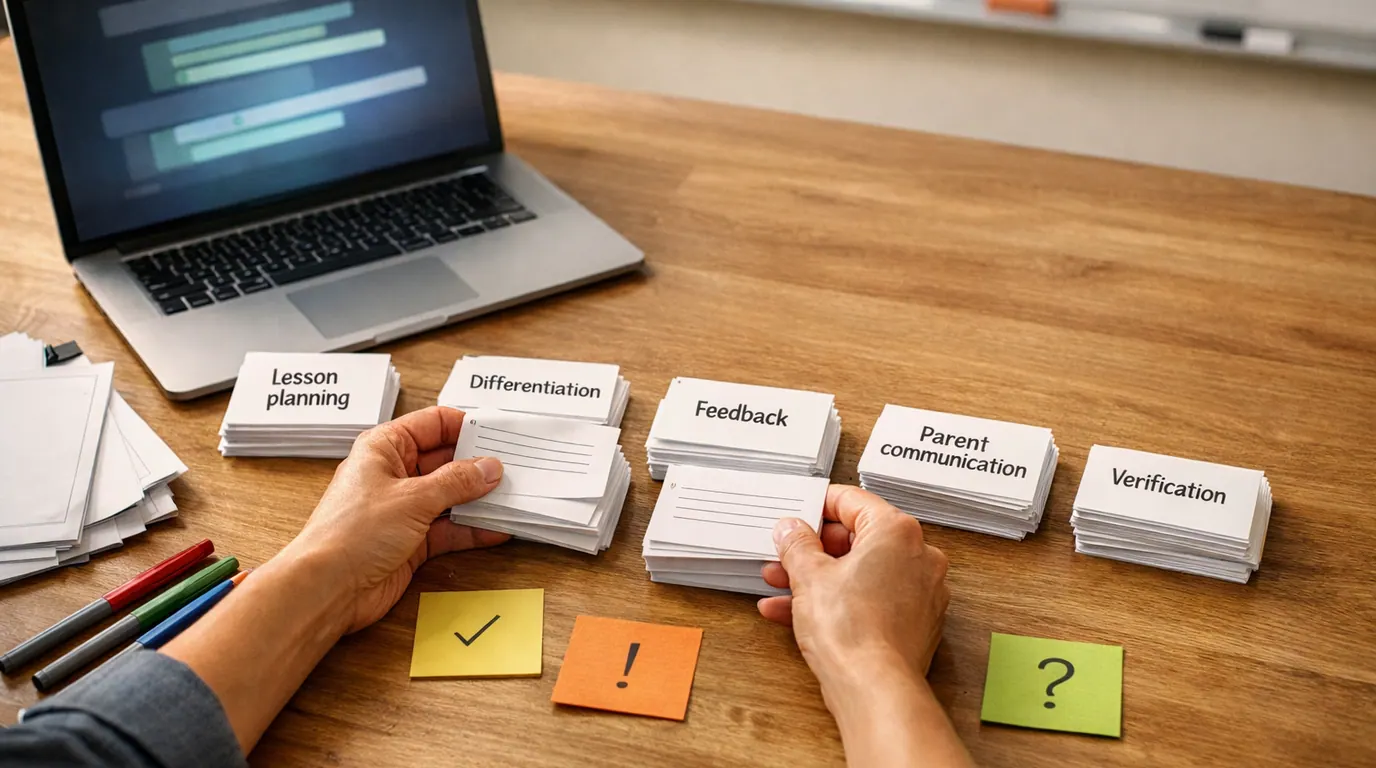
The search “how to create ai images” usually hides a more practical job: you need a usable picture for a post, presentation, mockup, mood board, product idea, or campaign, and you do not want to waste an afternoon guessing magic words.
This how to create AI images guide keeps the process plain. You will choose the right type of generator, write a prompt like a small creative brief, compare a few variants, refine the closest image, and review it before it leaves your draft folder.
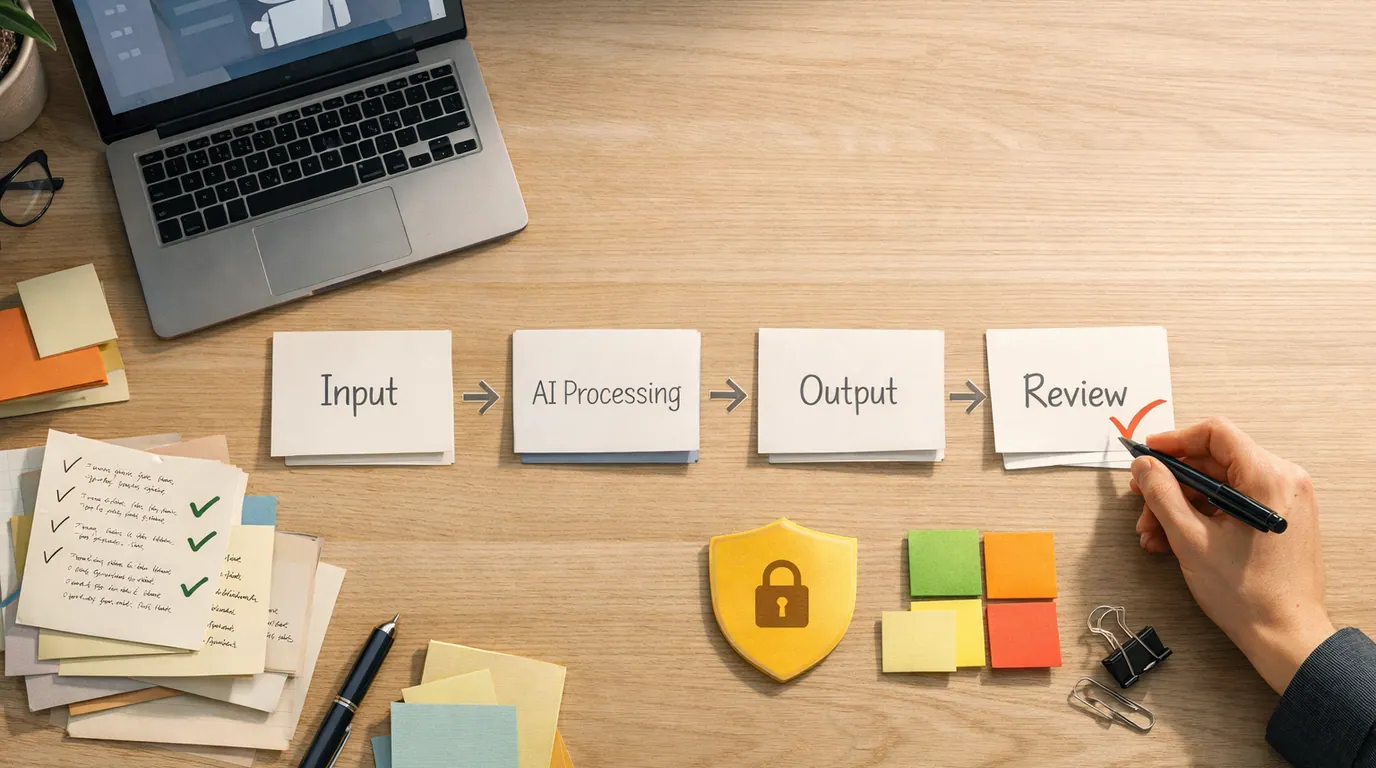
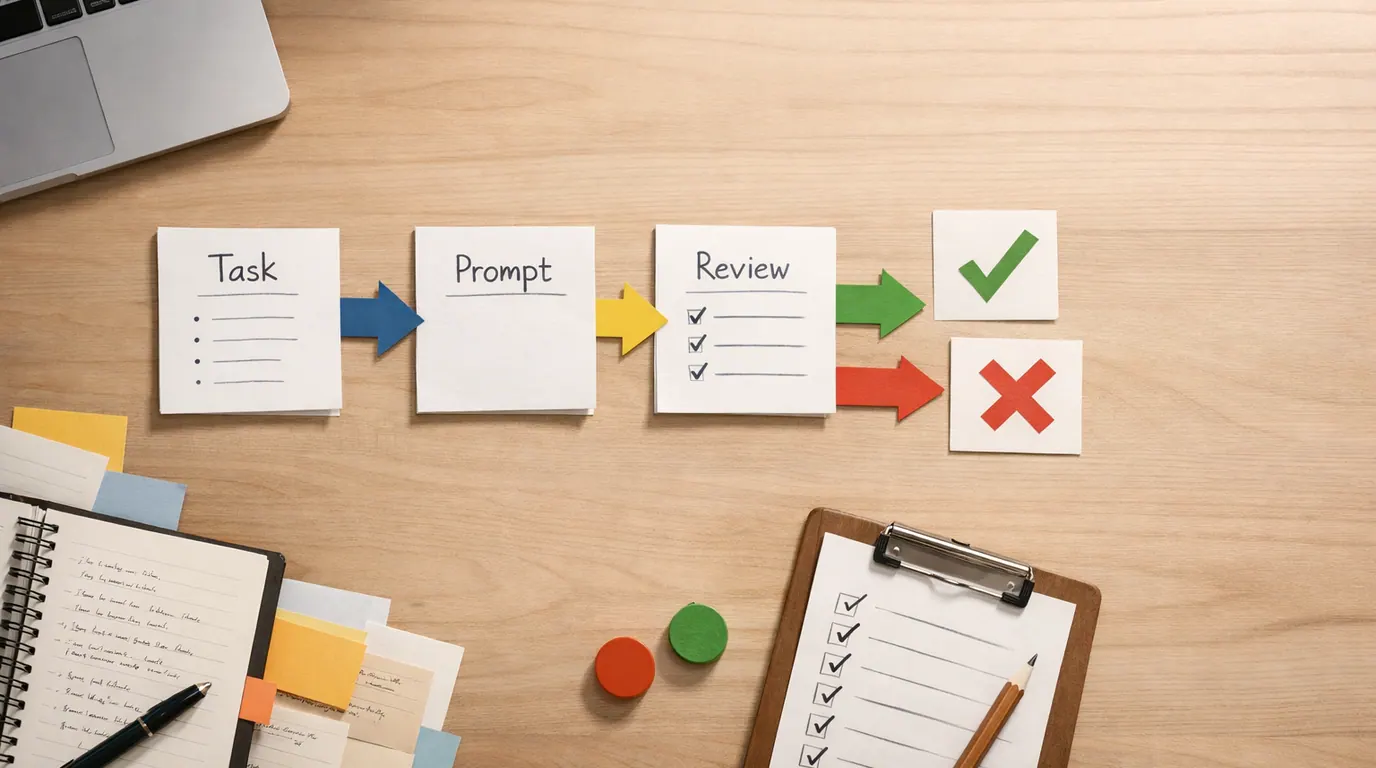
Name the subject, setting, mood, style, format, and final use before you open a generator.
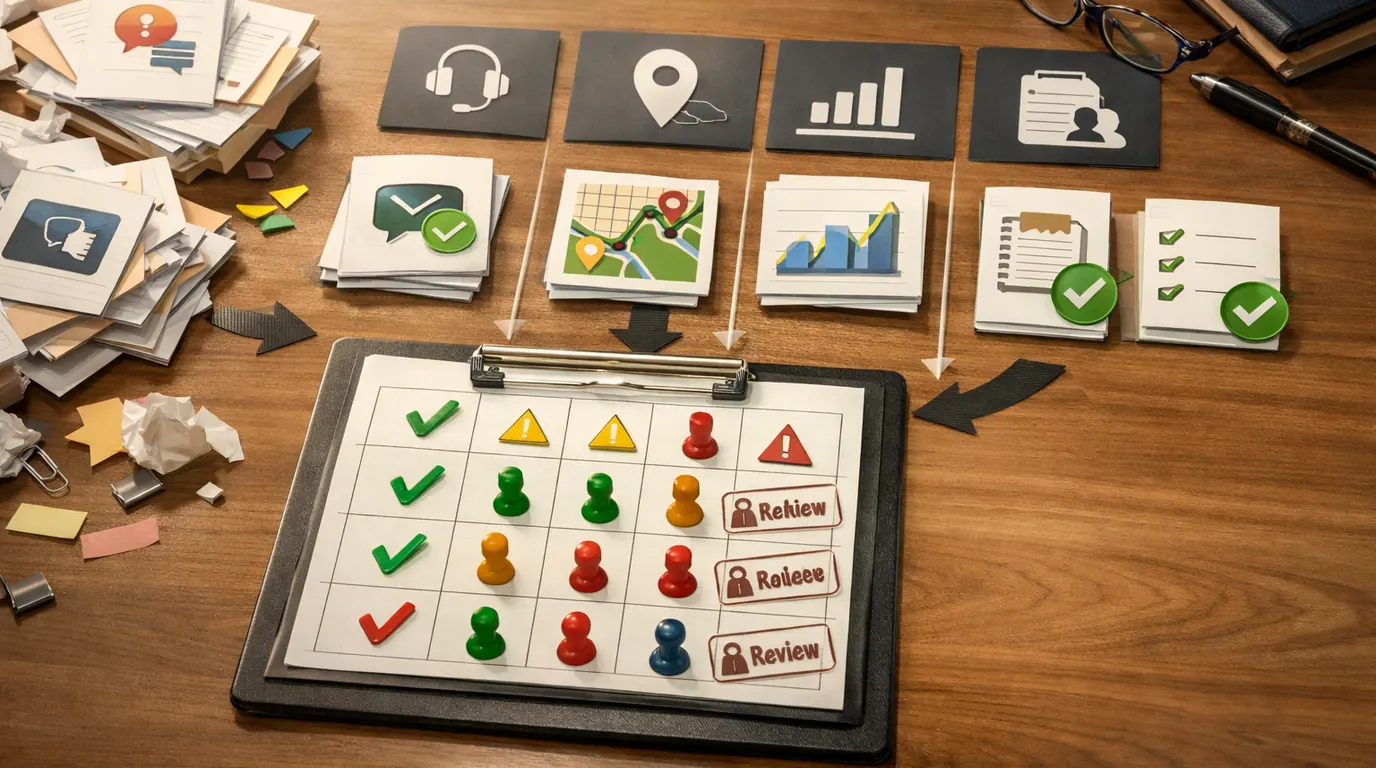
Change composition, lighting, style, or reference input one at a time so the useful signal is visible.
Check text, faces, hands, product details, source rights, disclosure rules, and whether the image fits the job.
How to Create AI Images: The Short Version
How to create AI images comes down to one loop: brief, generate, compare, edit, and review. The tool matters, but most weak results come from unclear direction or from publishing the first interesting image before checking it.
- Define the image job. Decide whether you need a blog hero, social post, product mockup, classroom visual, icon, background, mood board, or concept art.
- Choose the generator type. Use a chat assistant for conversational iteration, a design app for layouts, a specialist image tool for visual style, or a creative suite when editing matters.
- Write a compact visual brief. Include subject, setting, composition, style, lighting, color, aspect ratio, and anything the image must avoid.
- Generate several controlled variants. Compare outputs from the same brief before changing the prompt. Do not judge the workflow from one random result.
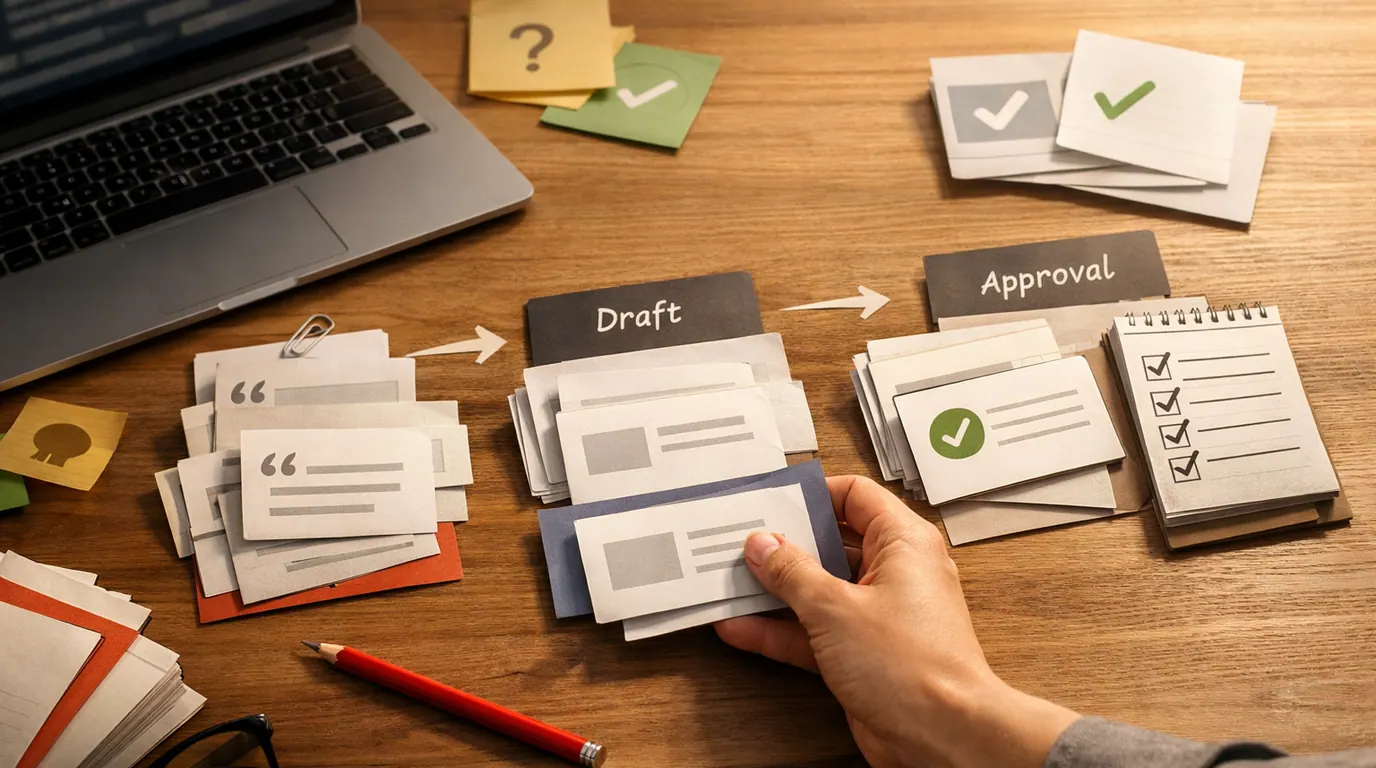
- Refine the closest draft. Edit the best option with follow-up prompts, inpainting, cropping, upscaling, or a design tool instead of starting over endlessly.
- Review before publishing. Look for broken anatomy, incorrect text, misleading claims, protected marks, private inputs, licensing limits, and accessibility problems.
Choose the Right Generator Before You Prompt
If your search was “best how to create AI images,” read that as a tool-fit question. The best route depends on the output: a social graphic, photorealistic product scene, editable poster, stylized mood board, or reference-guided variation each needs different controls.
| Image job | Tool pattern to try | Examples from the research packet | Watch for |
|---|---|---|---|
| Fast idea or draft | Chat assistant with image generation | ChatGPT Images, Microsoft Copilot, Meta AI | Great for plain-language iteration, but still review details, rights, and final export quality. |
| Social post or presentation visual | Design app with image generation inside the layout | Canva Magic Media, Canva Dream Lab | Useful when the image must sit inside a finished design, but generic prompts often create generic visuals. |
| Polished marketing or creative asset | Creative suite or specialist generator | Adobe Firefly, Leonardo.ai, Pixlr | Better controls can help, but check plan terms, credits, commercial use, and editability before depending on one workflow. |
| Reference-guided variation | Image-to-image or style-reference workflow | Canva Dream Lab, Leonardo, Pixlr | Use only references you have permission to use and state what should carry over: palette, texture, angle, or mood. |
| Custom likeness or character consistency | Model training or advanced creator workflow | LoRA-style workflows and model hubs | Higher control brings higher responsibility. Get consent, avoid deceptive likenesses, and document training inputs. |
| Quick experiment | Free or low-friction browser tool | DeepAI, Pixlr, Meta AI | Free access can be useful for learning, but limits, rights, watermarks, privacy, and quality vary by tool and plan. |
For a deeper product shortlist, use our guide to the best AI image generators. If your work sits inside a design system, the AI design tools guide is the better next read because image generation is only one part of the production process.
Use This AI Image Prompt Template
A good how to create AI images template is less about rare prompt words and more about clear visual direction. Use this structure as a starting point, then delete fields that do not matter for the job.
Create a [image type] for [audience and use]. Subject: [main subject]. Setting: [place or background]. Composition: [framing, angle, distance, layout]. Style or medium: [photorealistic, editorial photo, watercolor, 3D render, flat illustration, product shot, concept art]. Lighting and color: [specific mood, palette, time of day]. Format: [aspect ratio, orientation, crop needs]. Must include: [required details]. Avoid: [unwanted objects, text, brand marks, visual cliches, distortions]. Review priority: [what matters most for success].
Reusable AI image prompt template
This template works because it gives the model concrete choices. “A modern kitchen” can mean hundreds of things. “A bright editorial photo of a compact apartment kitchen, overhead angle, morning light, muted green cabinets, empty counter space on the right for a headline, 16:9” gives the generator a clearer target.
If prompt quality is the main blocker, use the structure in our guide to writing better AI prompts. The same pattern applies here: task, context, constraints, format, examples, and review criteria.
How to Create AI Images Examples You Can Reuse
The most useful how to create AI images examples are ordinary jobs with enough detail to avoid generic output. Start with the final use, then describe what the viewer should understand at a glance.
| Use case | Prompt starter | Human review point |
|---|---|---|
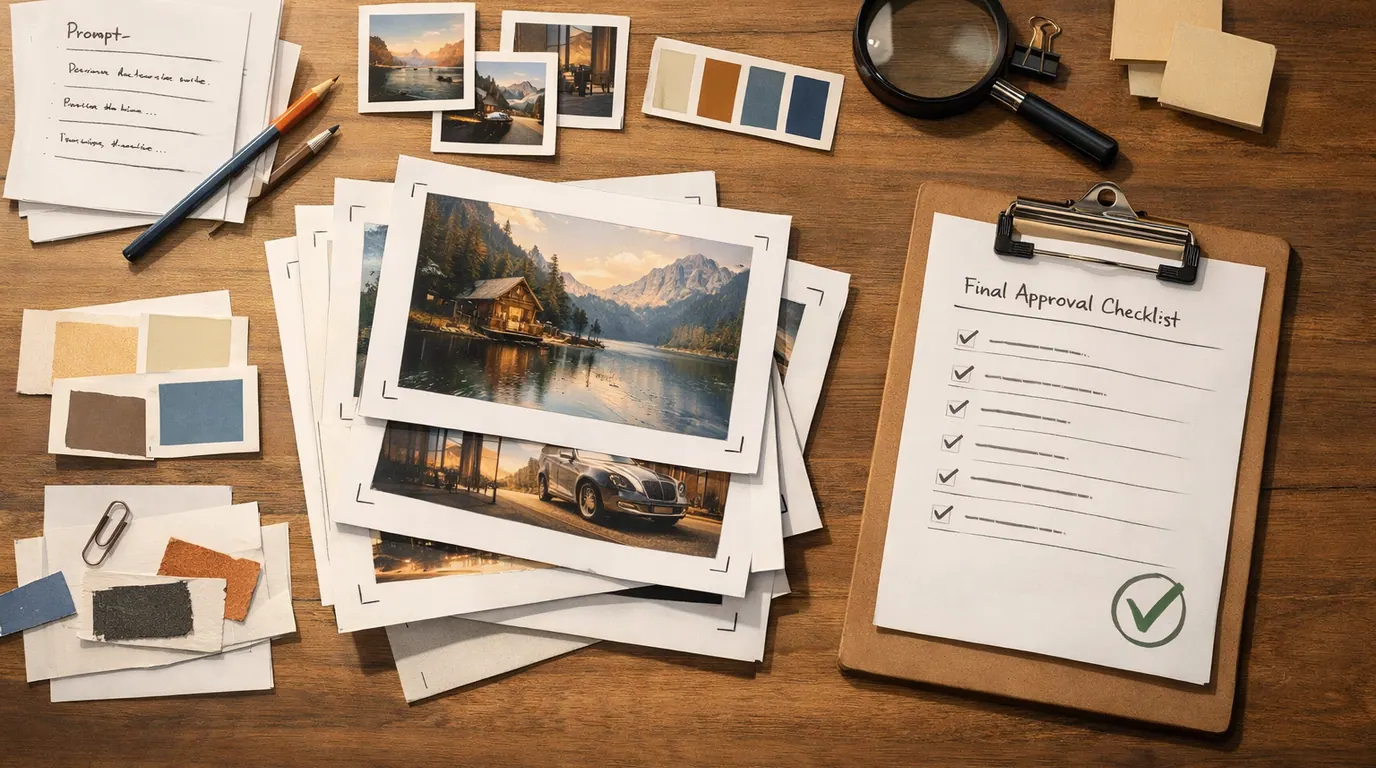
| Blog hero | Editorial desk scene showing a creator comparing four image drafts, reference tiles, and a checklist, natural side light, 16:9. | Leave clean space for title overlays and avoid fake product screenshots or readable text. |
| Social campaign image | Square lifestyle photo of reusable water bottles on a gym bench, bright but realistic lighting, energetic color palette, no logos. | Check that the image does not imply a false feature, endorsement, or brand affiliation. |
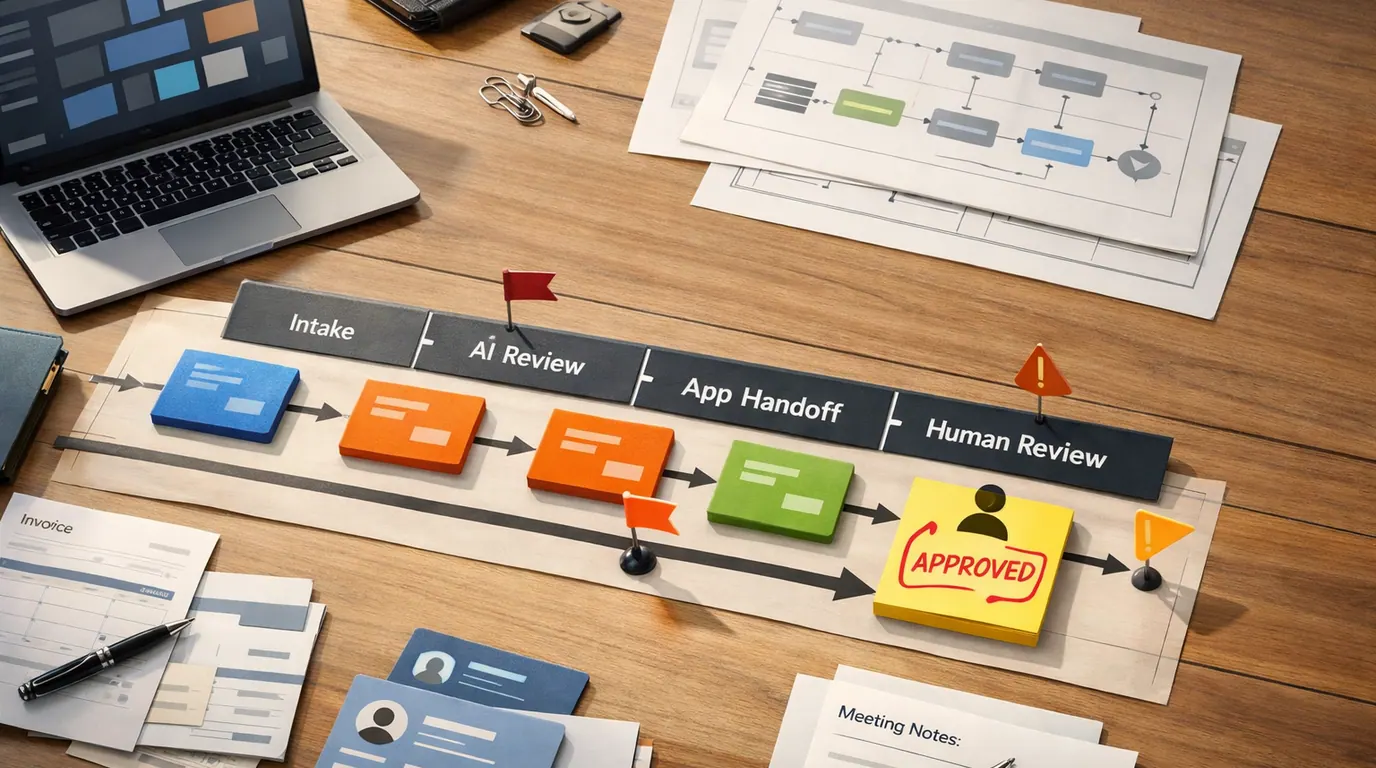
| Presentation visual | Flat editorial illustration of a five-step approval workflow moving from idea cards to a final asset, calm office palette, no words. | Add labels yourself in presentation software so the typography is accurate and accessible. |
| Product concept | Studio mockup of a matte ceramic desk lamp, three-quarter angle, warm shadow, neutral background, realistic materials. | Do not treat the generated object as a manufacturable design without engineering review. |
| Classroom handout | Simple cutaway illustration of a rainwater collection system for middle-school students, clear shapes, high contrast, no text. | Verify the science and add accurate labels manually. |
| Mood board | Three visual directions for a neighborhood cafe interior: warm wood, tiled counter, plants, soft morning light, candid but no faces. | Use the output for discussion only. Real spaces, budgets, safety codes, and accessibility still need human planning. |
These how to create AI images use cases also show why the same prompt formula needs different review criteria. A classroom diagram fails if it teaches the wrong concept. A social post fails if it implies an endorsement. A blog hero fails if it leaves no room for the page design.
Build a Repeatable AI Images Workflow
A reliable how to create AI images workflow creates reusable decisions, not just one lucky picture. Save the prompt, tool, model if visible, source references, selected output, edits, and review notes with the final asset.
Write the audience, channel, asset type, subject, mood, dimensions, and review criteria.
Create a small batch from one prompt. Keep the prompt stable so you can compare outputs fairly.
Pick the image with the strongest composition, not the one with the most surface detail.
Use targeted edits for background, lighting, crop, unwanted objects, or style consistency.
Review facts, rights, brand fit, accessibility, disclosure, and file quality before publishing.
This documentation habit matters when you need a series. A one-off image can tolerate more improvisation. A newsletter style, product line, ad campaign, or lesson set needs repeatable prompts and review notes.
A Practical Strategy for Better Results
A practical how to create AI images strategy starts with constraints, not style words. Decide what must stay true, what can vary, and what would make the image unusable.
Works Well When
- Use real production constraints: channel, crop, background space, audience, and approval criteria.
- Generate multiple images before judging the prompt. Random variation is part of the medium.
- Add approved reference images when the tool supports them and you have the right to use them.
- Repair the best draft with focused edits instead of rewriting the whole prompt every time.
- Keep a small prompt library for repeatable assets such as blog covers, product scenes, and lesson visuals.
Watch Out For
- Do not ask for a living artist's style when a broader visual direction would work.
- Do not upload private, client, medical, student, or employee images without an approved workflow.
- Do not trust generated text, charts, maps, anatomy, product details, or scientific diagrams without review.
- Do not treat a pleasing image as licensed, original, or brand-safe by default.
- Do not chase endless variants when the concept, audience, or channel is still unclear.
When a prompt misses, diagnose the failure type. If the subject is wrong, clarify the noun and required details. If the image feels generic, add setting, material, era, lighting, and use case. If the composition is wrong, specify camera angle, distance, crop, and where empty space should be. If the style is inconsistent, provide a reference or narrow the medium.
Use This Checklist Before You Publish
Use this how to create AI images checklist before an image goes live, especially for commercial, educational, client, or public-facing work.
- Prompt fit: Does the output match the intended subject, audience, mood, format, and channel?
- Visible defects: Check hands, faces, reflections, shadows, object geometry, repeated patterns, and background clutter.
- Text and facts: Read every word. Verify diagrams, labels, numbers, maps, product details, and anything educational.
- Rights and references: Confirm tool terms, plan limits, commercial use, reference-image permissions, and client policy.
- People and likenesses: Avoid recognizable faces without consent and be careful with age, identity, politics, health, and employment contexts.
- Brand safety: Remove accidental logos, protected characters, confusing product claims, and visual elements that imply endorsement.
- Accessibility: Check contrast, crop, alt text, and whether important meaning depends on tiny details.
- Disclosure: Decide whether your platform, publication, employer, client, or audience expects AI disclosure.
For private or sensitive inputs, read our AI privacy concerns guide before uploading source photos, customer files, student work, internal screenshots, or client-owned images to any generator.
Common Mistakes That Make AI Images Weak
Most bad AI images are not bad because the model is useless. They are bad because the prompt gives the model too much room to guess, the creator changes too many variables at once, or the image skips a review step.
The common mistakes are fixable:
- Vague subject: replace “cool tech image” with a specific subject, setting, audience, and use.
- Style overload: use one primary visual direction instead of stacking cinematic, 3D, watercolor, photorealistic, neon, and minimalist in one prompt.
- No composition: say whether the subject is close-up, overhead, centered, wide, symmetrical, cropped, or leaving empty space.
- No format: define square, vertical, horizontal, 16:9, thumbnail-safe, poster layout, or transparent-background needs.
- Wrong review point: a beautiful image can still fail if the text is wrong, the product is distorted, or the scene suggests a false claim.
Good AI images come from narrowing the task until the model has fewer bad guesses available.
The Bottom Line
Learning how to create AI images is mostly learning how to brief, compare, and review visual drafts. Start with a concrete job, choose a generator that fits the output, use a reusable prompt template, generate controlled variants, and polish the closest draft.
Then slow down before publishing. The image should match the brief, respect rights and privacy, survive human review, and fit the real channel where people will see it.
Frequently asked questions
What is the easiest way to create AI images?
Start with a simple image generator inside a tool you already understand, such as a chat assistant, design app, or creative suite. Write a prompt that names the subject, setting, style, composition, lighting, aspect ratio, and intended use. Generate several options, then edit the closest one instead of restarting from scratch.
Do I need design skills to create good AI images?
You do not need formal design skills, but you do need visual judgment. The model can create drafts, variations, backgrounds, and concept art quickly, but you still choose the direction, check whether the image matches the brief, fix weak details, and decide whether it is appropriate for the audience and channel.
What should an AI image prompt include?
A useful prompt includes the subject, environment, mood, medium, composition, camera or art style, lighting, color palette, aspect ratio, and any must-avoid details. If the tool allows references, add an approved reference image and explain what to borrow from it, such as texture, layout, or color, not private or copyrighted material you cannot use.
Can I use AI images commercially?
Sometimes, but check the current terms for the tool, plan, model, and inputs before using an output for clients, ads, merchandise, or a website. Review usage rights, reference-image permissions, recognizable people, trademarks, product claims, disclosure rules, and your employer or client policy before publishing.
Why do AI images look wrong even with a detailed prompt?
A prompt can be detailed and still underspecified. Common gaps include vague composition, missing aspect ratio, unclear lighting, too many competing subjects, impossible object relationships, weak reference guidance, or no review criteria. Improve one variable at a time so you can tell which change helped.
How many AI image versions should I generate?
For casual use, generate three to six versions from one prompt and choose the closest direction. For publishable work, create a small set of controlled variants, keep the same brief, change one variable at a time, then refine the best draft with edits, upscaling, cropping, or a design tool.