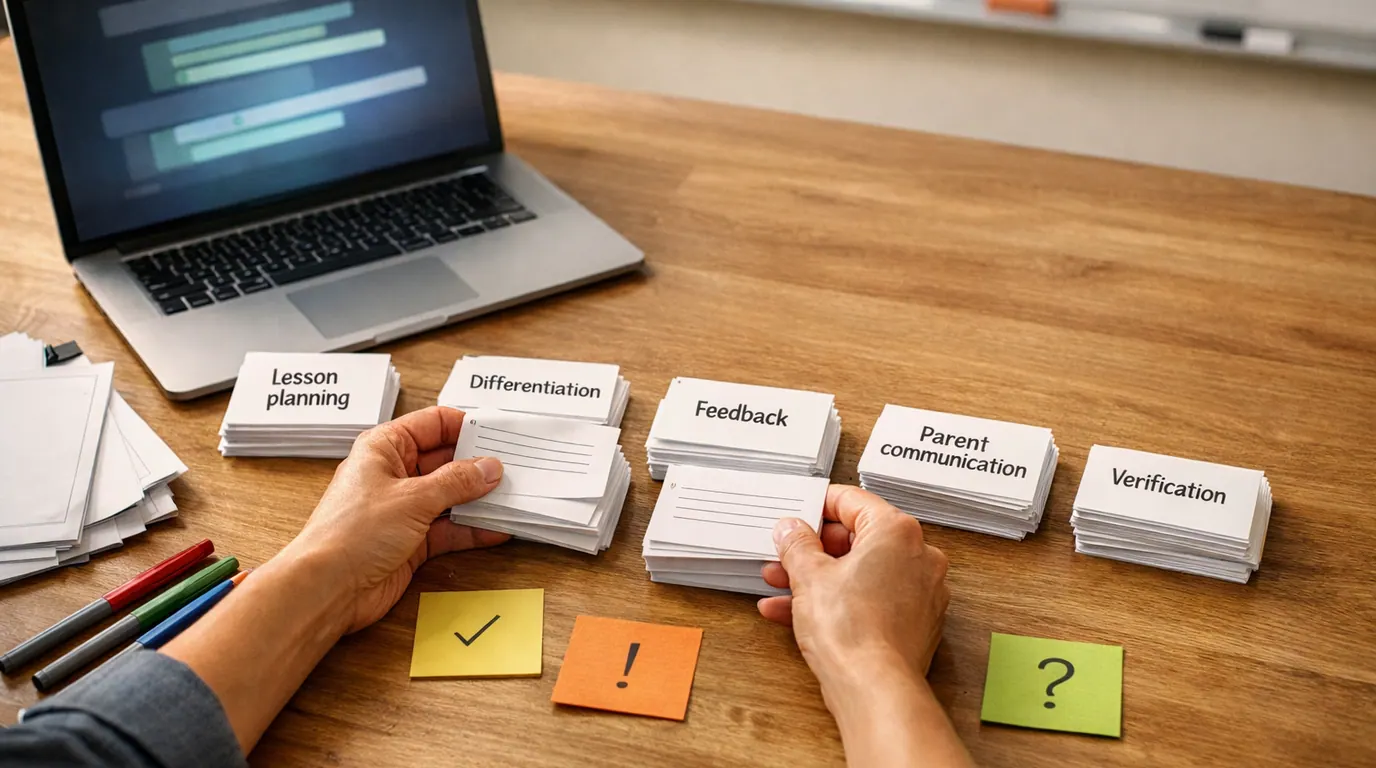
Most lists of AI design tools get cluttered because they mix UI generators, image models, brand-kit apps, presentation makers, code assistants, and research canvases as if they solve the same problem. Designers do not need every new product type in the category. They need the tool that resolves the current bottleneck without lowering the quality of the decision.
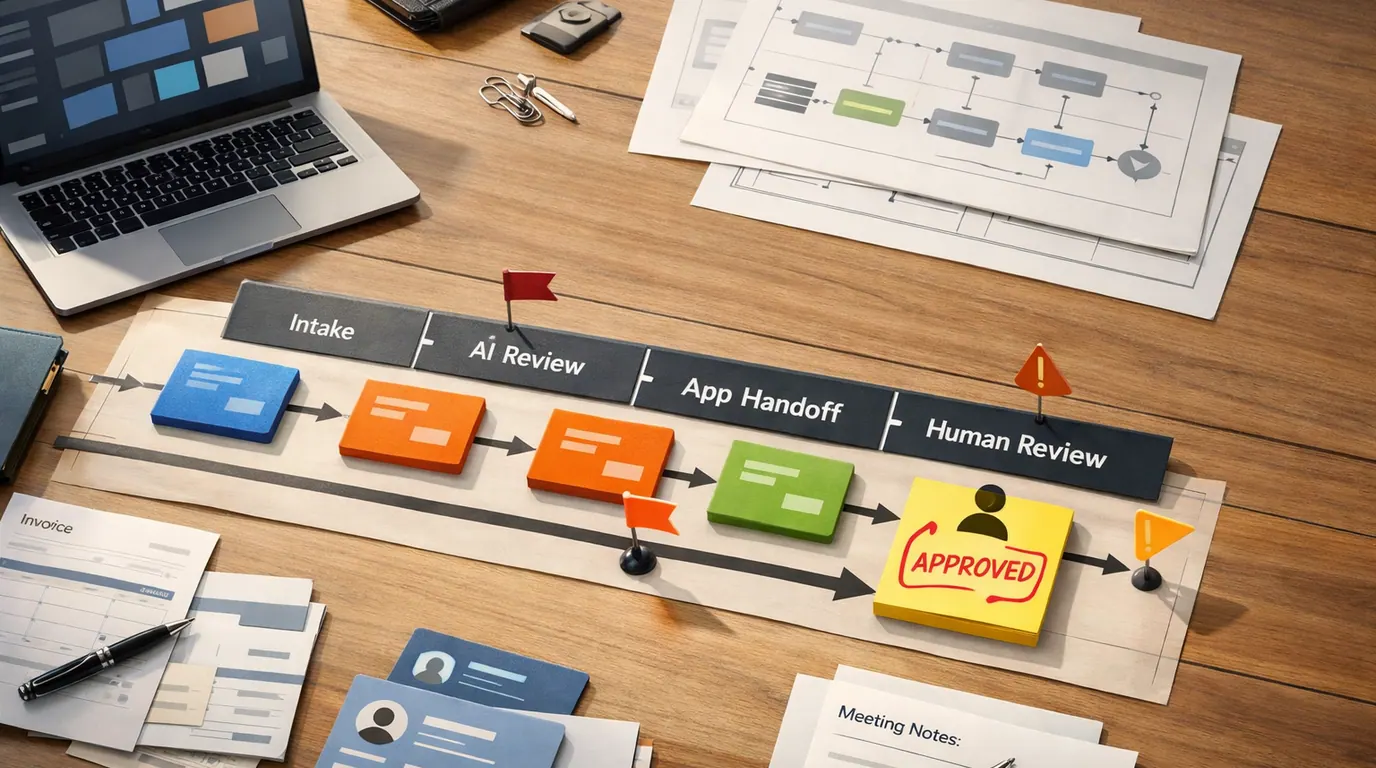
The best AI design tools for designers are rarely one “best” product. A stronger answer is a small stack: one tool for upstream thinking, one for visual exploration, one for production cleanup, and one for review or handoff. That stack should help you move faster while keeping taste, accessibility, user context, and brand judgment in human hands.
Choose the tool for the stage that is slow today: research, concepts, UI drafts, assets, review, or handoff.
Use AI to create alternatives, expose edge cases, and automate repetitive edits before you make the design call.
Check accessibility, rights, brand fit, responsive behavior, and whether the design actually solves the user problem.
Quick Picks: Best AI Design Tools by Job
Use this shortlist when you need a fast starting point. It is organized by design job because the best AI design tool for a social campaign is rarely the best tool for a product flow, research brief, or handoff prototype.
| Pick | Best for | Why it fits | Pricing/free-plan note | Human review point |
|---|---|---|---|---|
| Canva Magic Design | Marketing graphics and campaign variations | Prompt-to-template output is useful for social posts, presentations, thumbnails, and brand-kit variations. | Canva has a free entry point; check current plan limits for Magic Design, brand kits, exports, and team controls. | Review claims, hierarchy, typography, and whether generated assets stay on brand. |
| Microsoft Designer | Free AI graphics and quick image edits | It is built for AI-assisted image creation, stickers, invitations, collages, background edits, resizing, and lightweight design work. | Microsoft lists Designer as free with monthly credits; Microsoft 365 plans add more benefits and credits. | Good for fast assets, not for full product UI systems or complex design governance. |
| Figma Make | Product UI ideation inside a design workflow | It keeps AI-generated interface ideas close to the design surface where teams already review components, flows, and handoff. | Availability and AI limits depend on Figma's current plans and product rollout; check the Figma plan before relying on it. | Treat output as a first pass for IA, interaction logic, accessibility, and component reuse. |
| Google Stitch | Prompt-assisted UI directions and app screens | Google positions Stitch as an AI-native software design canvas for creating, iterating, and collaborating on high-fidelity UI from natural language. | Stitch is a Google Labs product; check current access, export, and collaboration limits before team adoption. | Use it for exploration, then verify responsive states, copy, navigation, and design-system fit. |
| Adobe Firefly | Commercial-aware image and asset exploration | Firefly is strongest when visual exploration needs to stay near Adobe's creative tools, generative credits, and editing workflow. | Adobe offers a free start and paid Firefly plans with generative credits; check current credit limits and model access. | Review usage rights, artifacts, text rendering, logos, people, and brand consistency. |
| Midjourney | Mood boards, art direction, and expressive visuals | It is useful for visual range, style exploration, campaign concepts, and reference imagery before final production. | Midjourney uses paid subscriptions; official plan details and privacy features change, so check current plans. | Do not treat generated visuals as final brand assets without rights, detail, and stakeholder review. |
| Uizard | Wireframes and first-pass UI for non-specialists | It turns prompts, screenshots, and sketches into editable UI drafts that are easy to discuss early. | Uizard lists a free plan with limited AI generations and paid tiers for more generations, projects, and handoff features. | Useful for speed, but designers still need to fix hierarchy, accessibility, components, and edge states. |
| Visily | Team wireframes, flows, and quick prototypes | It is approachable for PMs, founders, and teams that need wireframes, templates, flowcharts, and AI-assisted design without a steep learning curve. | Visily lists a free Starter plan with AI credits and paid plans for more credits, exports, and controls. | Check export needs, permission model, design depth, and whether the result can move into your real workflow. |
| v0 or Framer | Prototype and landing-page handoff | These tools help turn approved intent into responsive UI drafts, site structures, and implementation conversations. | v0 lists free credits and paid plans; Framer pricing depends on site/editor needs. Check current plan limits before committing. | Review code quality, responsiveness, empty/error/loading states, accessibility, and design-system alignment. |
How We Chose These AI Design Tools
This is not a lab benchmark or a claim that every product was hands-on tested in the same project. The shortlist is based on the jobs designers actually ask AI tools to handle, official product and pricing pages, and the recurring SERP pattern for this query: readers expect named tools, “best for” labels, plan caveats, and limitations, not only a general framework.
For current product claims, check the vendor pages before purchase: Canva Magic Design, Microsoft Designer, Figma Make, Google Stitch, Adobe Firefly plans, Midjourney plans, Uizard pricing, Visily pricing, v0 pricing, and Framer pricing. Pricing, credits, model access, export rights, and privacy controls can change faster than the design workflow itself.
What AI Design Tools Are Good For
AI design tools are strongest when the input is clearly defined and the output is easy to evaluate. They can turn a product brief into several screen directions, turn a rough brand prompt into social templates, remove backgrounds, suggest color systems, summarize research notes, or generate prototype code that helps a team discuss an idea earlier.
They are weaker when the problem itself lacks clarity. If you do not know the audience, constraints, content hierarchy, brand guardrails, or success criteria, the tool will still produce something polished. That polish can hide weak thinking. This is why a generated dashboard, logo, or landing page should be treated as a draft, not a decision.
Several current products show the range of the category. Canva Magic Design focuses on prompt-to-template generation for everyday graphics. Figma Make and Google Stitch point toward prompt-assisted UI ideation. Image models such as Midjourney, Adobe Firefly, DALL-E, and Stable Diffusion are better for visual direction, mood, and asset exploration than for final interface decisions.
Compare the Shortlist: Best AI Tools for Designers by Workflow
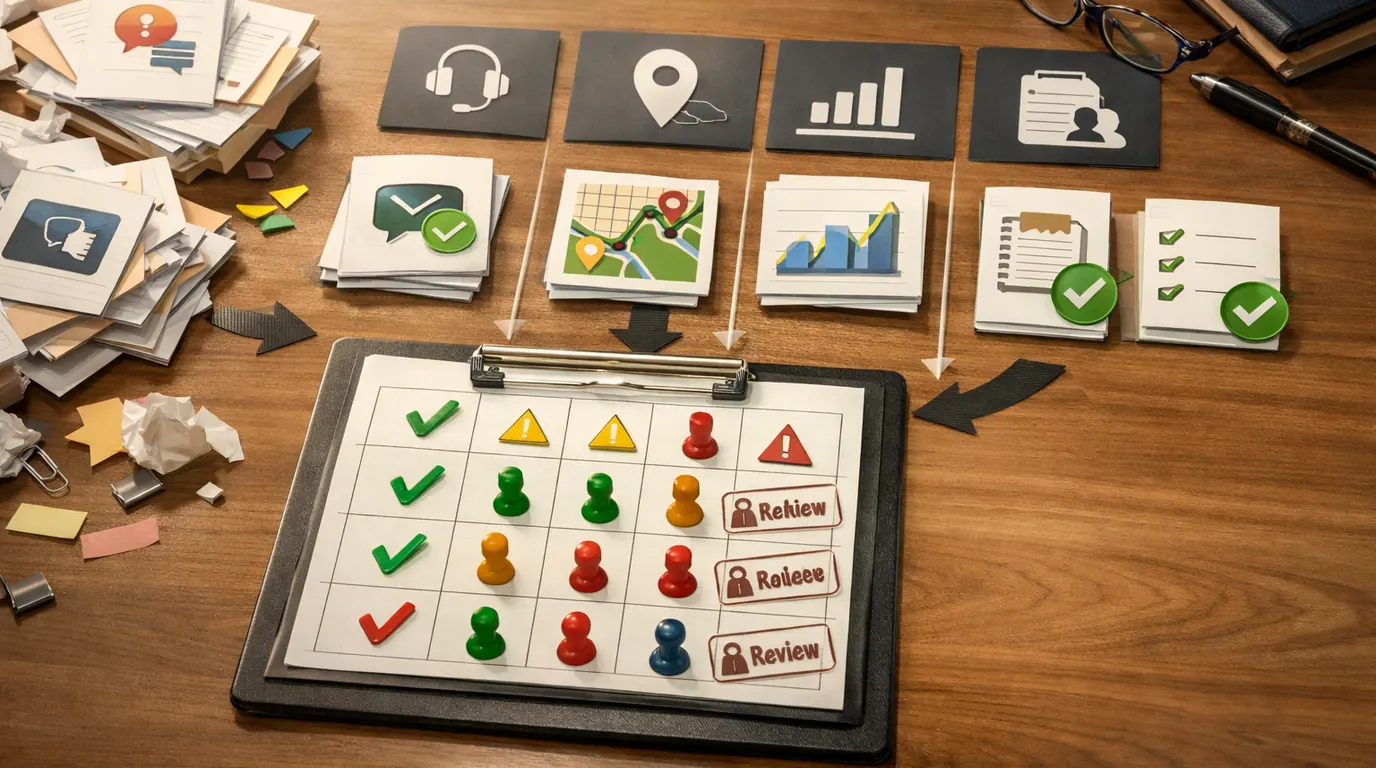
After the quick picks, compare tools by workflow stage instead of hype. A practical set of AI tools for designers should cover the work you repeat, the work you postpone, and the work that creates review bottlenecks.
| Design job | Tool pattern to try | Good output | Human review point |
|---|---|---|---|
| Marketing and social graphics | Canva Magic Design, Microsoft Designer, Designs.ai | Editable campaign layouts, resized assets, quick variations | Brand fit, claims, typography, and channel-specific details |
| UI and product screens | Figma Make, Google Stitch, Galileo-style UI generators, Uizard, Visily | Screen directions, first-pass flows, clickable prototype ideas | Information architecture, interaction logic, accessibility, and component reuse |
| Visual exploration and imagery | Midjourney, Adobe Firefly, DALL-E, Stable Diffusion | Mood boards, art direction, hero imagery, style references | Usage rights, brand consistency, hands, text, logos, and visual artifacts |
| Research, briefs, and upstream thinking | ChatGPT, Claude, Gemini, Storyflow, Miro AI | Synthesized notes, brief drafts, opportunity maps, question lists | Source grounding, bias, missing segments, and whether insights match real evidence |
| Design QA and critique | AI review assistants, screenshot critique workflows, accessibility helpers | Heuristic feedback, edge-case prompts, copy and layout issues | False positives, missed WCAG issues, and product context the model cannot know |
| Handoff and prototype code | v0, Lovable, Framer, Builder-style visual coding tools | Prototype components, landing pages, interaction demos | Responsive behavior, code maintainability, data states, and design-system alignment |
If you are new to using AI tools in your design workflow, do not install one tool from every row. Pick the row where work is currently slow. A product designer stuck on early flows may benefit from a UI generator or research canvas. A brand designer with a weekly content calendar may get more value from a template-heavy tool with brand controls. A founder trying to validate a landing page may need a prototype builder more than an image model.
AI Design Tools Comparison: Pick by Workflow Stage
An AI design tools comparison is only useful when the criteria match the job. The question is not “Which tool is smartest?” It is “Which tool gives me inspectable work at the point where my process stalls?”
| Stage | Best tool behavior | Useful test prompt | Pass condition |
|---|---|---|---|
| Discovery | Organizes messy inputs before visuals begin | Summarize these interview notes into user needs, objections, and unanswered questions. | You can trace every recommendation back to a real note or source. |
| Direction | Creates divergent visual routes without locking the team in | Create three visual directions for a calm B2B analytics dashboard for finance teams. | The options differ in hierarchy, density, and tone, not just color. |
| Production | Automates repeat edits while preserving brand rules | Resize this campaign into LinkedIn, newsletter, and in-app announcement versions. | The layouts remain readable and on-brand after resizing. |
| Review | Finds issues you can verify manually | Critique this checkout screen for friction, accessibility risks, and unclear microcopy. | The critique produces specific fixes, not generic advice. |
| Handoff | Turns approved intent into a prototype or implementation draft | Build a responsive settings page using this component structure and content. | The output handles empty, error, loading, and mobile states. |
This is where AI design automation tools become useful. Background removal, resizing, copy variations, palette exploration, asset tagging, and screenshot critique are not glamorous, but they save design time for creative work. The mistake is using automation for decisions that still need context, such as whether a flow answers the right user need or whether a visual concept is appropriate for the audience.
How to Build a Small AI Design Software Stack
Treat AI design software as a workflow layer, not a replacement department. The smaller the stack, the easier it is to remember when to use each tool.
- Name the bottleneck. Write one sentence: “We lose time when…” Examples include first UI directions, social resizing, image cleanup, stakeholder copy, or handoff prototypes.
- Collect real inputs. Use an actual brief, PRD, brand guide, screenshot, interview note set, or existing asset. Synthetic examples make weak tools look better than they are.
- Run two controlled trials. Give the same input to two tools or two workflows. Keep the prompt, constraints, and evaluation criteria consistent.
- Score the output by edit distance. Ask how much work remains before a human can use it. The winner is not the prettiest output. It is the one that gets you closer to a usable artifact.
- Save the repeatable pattern. Keep the prompt, source files, constraints, and review checklist together so the tool becomes a reusable system instead of another one-off experiment.
Large AI design platforms are useful when a team wants shared assets, permissions, brand controls, collaboration, and handoff in one place. Smaller point tools are better when the job is narrow: remove a background, generate icon directions, explore a palette, summarize research, or build a quick prototype for a meeting.
Generative AI design tools help you explore options when variety matters. Assisted editing tools help when quality control matters. Coding or prototyping tools are useful when the fastest way to learn is to put a rough interaction in front of a team. Mixing those roles is how teams end up disappointed: they ask an image generator to solve UX, or ask a UI generator to invent a brand strategy.
Everyday Examples You Can Reuse This Week
Here are practical ways to test AI in the design process without turning your workflow upside down.
- Product homepage sprint. Feed the same product brief into two UI tools and ask for three homepage structures. Compare the sections, not just the style. Which version explains the product fastest?
- Onboarding flow cleanup. Paste the steps of a messy onboarding flow into a reasoning tool and ask for missing states, edge cases, and friction points. Then sketch the revised flow yourself.
- Brand asset expansion. Use a brand kit or approved style reference to generate five social post directions for one announcement. Keep only the layouts that preserve hierarchy and tone.
- Research synthesis pass. Ask an assistant to group interview notes by user need, objection, and quote. Then check each theme against the raw notes before using it in a brief.
- Design QA pass. Upload or describe a screenshot and ask for accessibility, copy clarity, mobile layout, and empty-state risks. Treat the result as a checklist, not a verdict.
When budget is limited, start with free AI design tools for low-risk work: background removal, palette ideas, rough mood boards, early layout exploration, and copy alternatives. Free tiers are useful for learning the workflow, but watch export quality, commercial terms, privacy controls, file ownership, and whether the tool can work with your real brand assets.
Where AI Helps, and Where Human Review Must Stay
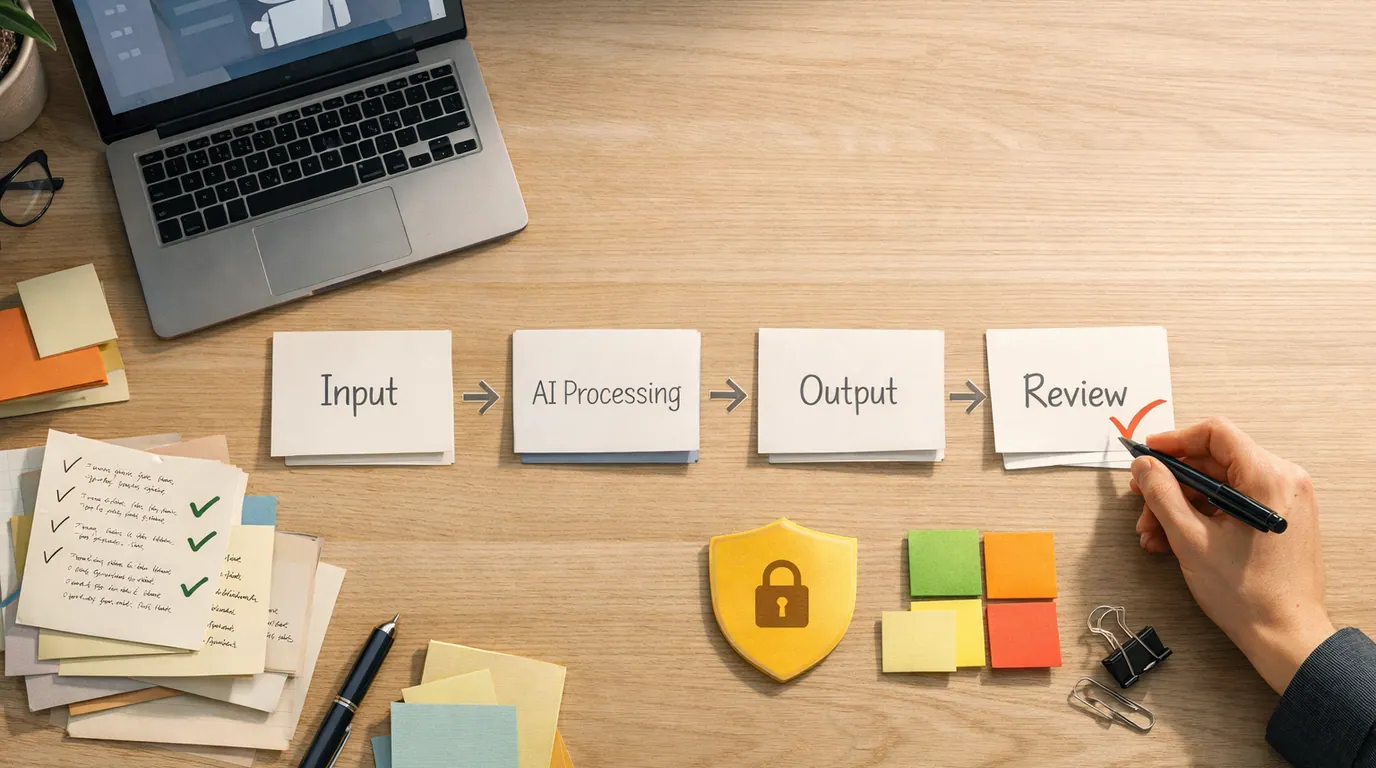
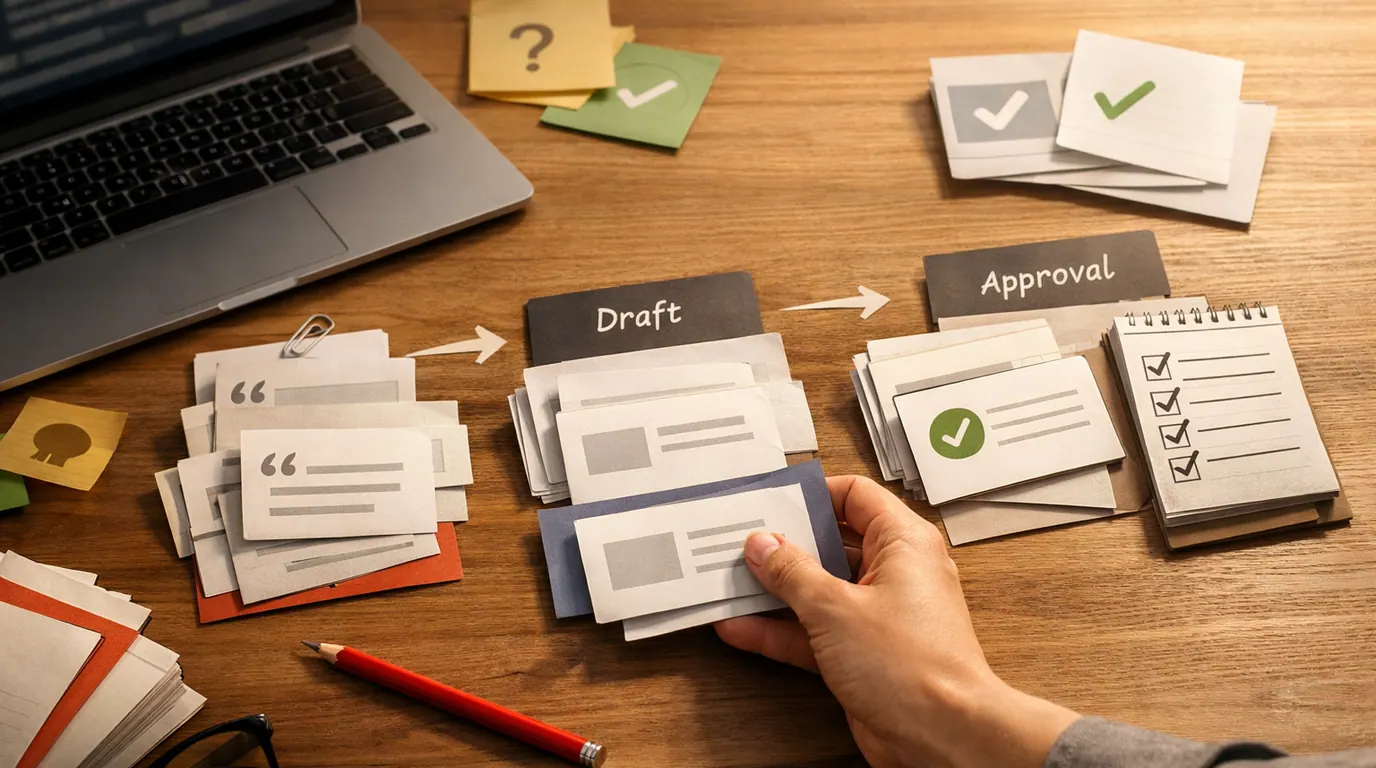
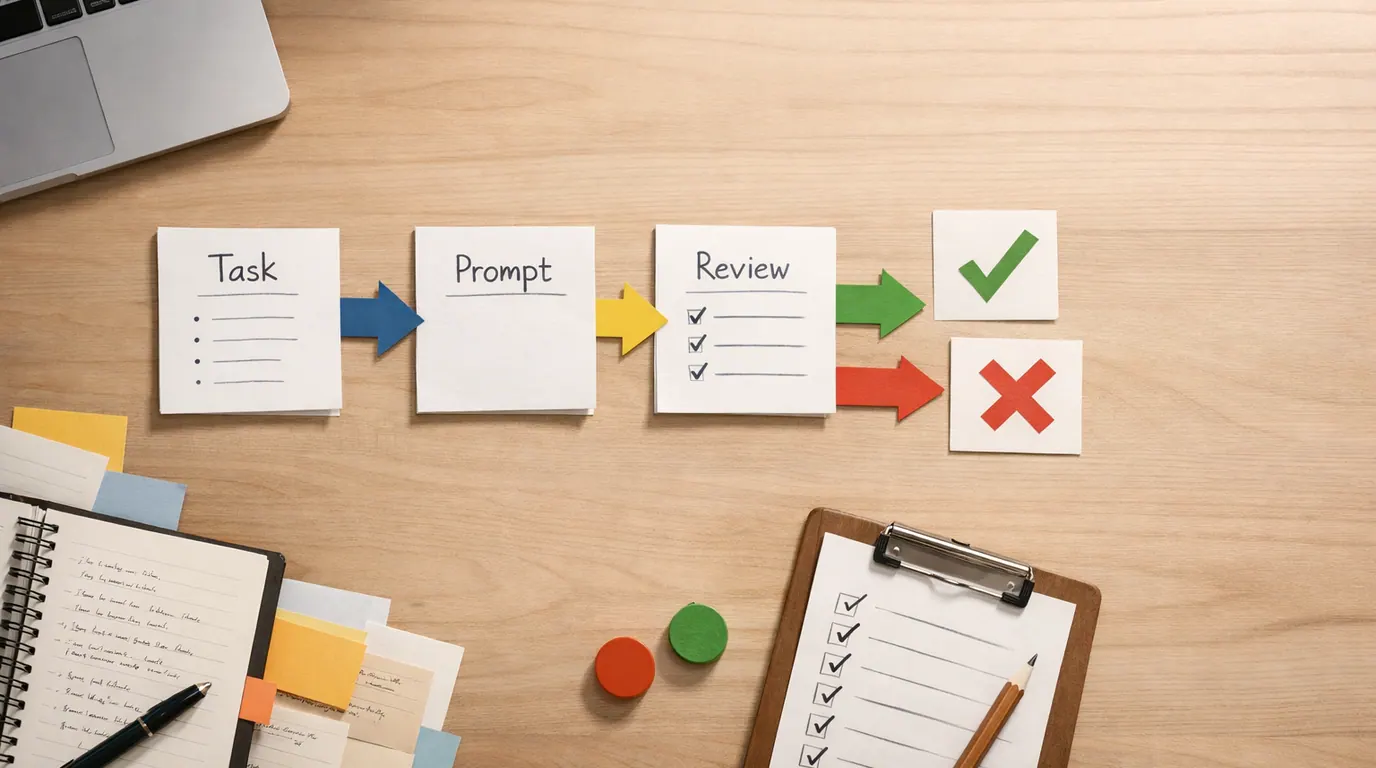
AI tools can speed up individual tasks, but design quality ultimately depends on what happens after generation. The most reliable pattern is “generate, compare, revise, inspect.” Skipping the inspection step creates review debt that shows up later as inaccessible UI, off-brand visuals, brittle prototypes, or stakeholder confusion.
Works Well When
- You need many rough directions before choosing one.
- The task is repetitive and the output is easily reviewed.
- You have source material such as a brief, brand guide, screenshot, PRD, or research notes.
- The tool exports editable files or code that your team can improve.
- The work is internal, exploratory, or otherwise covered by established review rules.
Watch Out For
- The tool cannot explain where recommendations came from.
- The workflow involves private customer data and the vendor controls are unclear.
- The generated work includes logos, people, claims, or assets with usage-rights questions.
- The output looks finished but has not been checked for accessibility or responsive states.
- The team starts accepting generated options because they are fast, not because they solve the problem.
Do
- Give tools real constraints, examples, and success criteria.
- Compare multiple outputs before committing to a direction.
- Keep brand, accessibility, legal, and user-context review visible.
- Save prompts and review checklists that produce repeatable quality.
Do not
- Ship generated visuals without checking details and rights.
- Let a polished mockup stand in for user research.
- Paste confidential information into unapproved products.
- Judge a tool by a launch demo instead of your own workflow.
A Next-Action Framework for Choosing Tools
Before you subscribe, migrate files, or change a team process, run a 45-minute trial.
- Pick one real asset you already need this week.
- Define three pass criteria before generation: speed, editability, and quality risk.
- Run the same input through two candidate tools or workflows.
- Count what still needs human work: structure, copy, hierarchy, brand fit, accessibility, assets, code, and edge states.
- Decide whether to adopt, keep testing, or drop the tool.
For a solo designer, the adoption test can be simple: does the tool save enough time on a weekly task to justify the extra review step? For a team, add governance: who owns prompts, which assets can be uploaded, where approved outputs live, and when generated work must be labeled or reviewed.
The best stack is often boring: one reasoning assistant for briefs and critique, one familiar design surface with AI features, one image or asset generator for exploration, and one automation tool for resizing or cleanup. That is enough to get value without scattering work across a dozen disconnected accounts.
The Bottom Line
The best choice depends less on the brand name and more on the point of friction. If you need first-pass screens, test UI generators. If you need visual range, test image and mood-board tools. If you need scale, test brand-kit and automation workflows. If you need cleaner decisions, test critique and research synthesis.
A good design stack should turn vague intent into options, not turn options into unattended decisions. Start with one real bottleneck, compare outputs against clear criteria, keep the human review step explicit, and only then decide which AI design tools deserve a permanent place in your process.
Frequently asked questions
What are the best AI design tools for designers in 2026?
The best picks depend on the design job: Canva Magic Design or Microsoft Designer for marketing graphics, Figma Make or Google Stitch for UI ideation, Adobe Firefly or Midjourney for imagery, Uizard or Visily for wireframes, and v0 or Framer for prototype handoff. Start with the bottleneck, then check export quality, rights, pricing, and review needs.
Which AI tools are best for UI and product design specifically?
For UI and product screens, the most useful AI design tools today are Figma Make, Google Stitch, Uizard, and Visily. They produce screen directions, first-pass flows, and clickable prototype ideas from prompts or wireframes. Treat their output as a draft for an information architecture, interaction, accessibility, and component-reuse review, not as a finished design.
Are there good free AI design tools?
Yes. Microsoft Designer, Adobe Firefly, Uizard, Visily, v0, Canva, and other design platforms offer free entry points or credits, but the useful limits differ by product. Before adopting one for client work, check current pricing, credit limits, export quality, commercial usage terms, privacy controls, file ownership, and brand-kit support.
Will AI design tools replace designers?
No. AI design tools are strongest at producing options, automating repetitive edits, and accelerating exploration. They are weakest at understanding the user, the brand, the business context, accessibility requirements, and the trade-offs between competing solutions. Design judgment, taste, research grounding, and stakeholder review still need a human. Expect AI to compress production time and expand exploration, not to remove the design role.
How should I choose between AI design tools?
Run a 45-minute trial. Take one real asset you need this week, define three pass criteria in advance (speed, editability, quality risk), run the same input through two candidate tools, then count what still needs human work in each output (structure, copy, hierarchy, brand fit, accessibility, code, edge states). Adopt the tool that gets you closest to a usable artifact with the least rework, not the one with the prettiest demo.
What can go wrong when using AI design tools?
The most common failures are: polished output that hides weak thinking, missing accessibility checks because the result looks finished, usage-rights problems with generated imagery, brand drift when templates are accepted without review, and confidential data leaking into vendor systems. Mitigate by keeping a generate-compare-revise-inspect loop, defining what the tool may and may not be fed, and explicitly assigning a human owner for brand, accessibility, and legal review.
Do AI design tools work for brand and marketing assets?
Yes, especially for high-volume repetitive work like resizing campaigns, generating social variations from a brand kit, mood-boarding, and template exploration. The pattern that works is to upload an approved brand reference and ask for variations, then keep only the layouts that preserve hierarchy, tone, and channel-specific details. Avoid generating brand-defining assets like logos or core visual identity end-to-end without senior brand review.