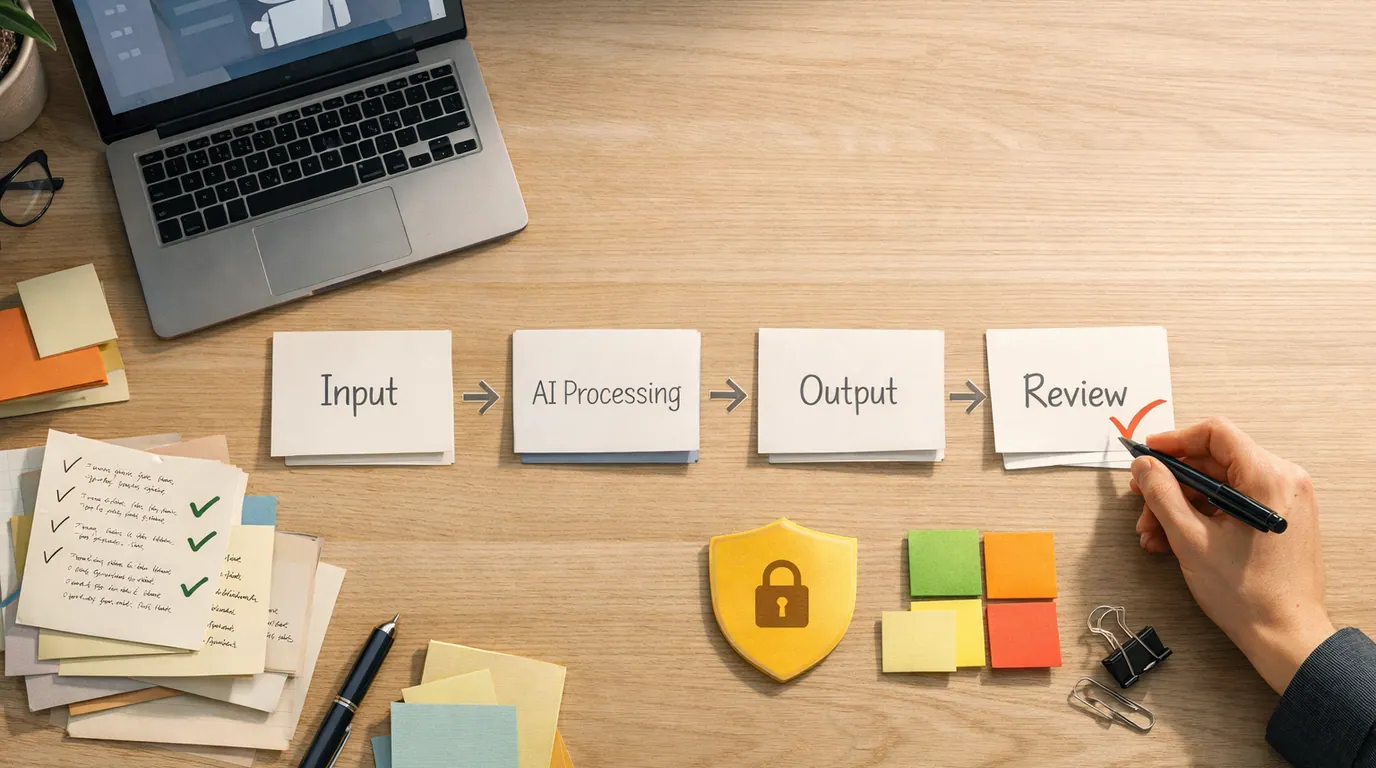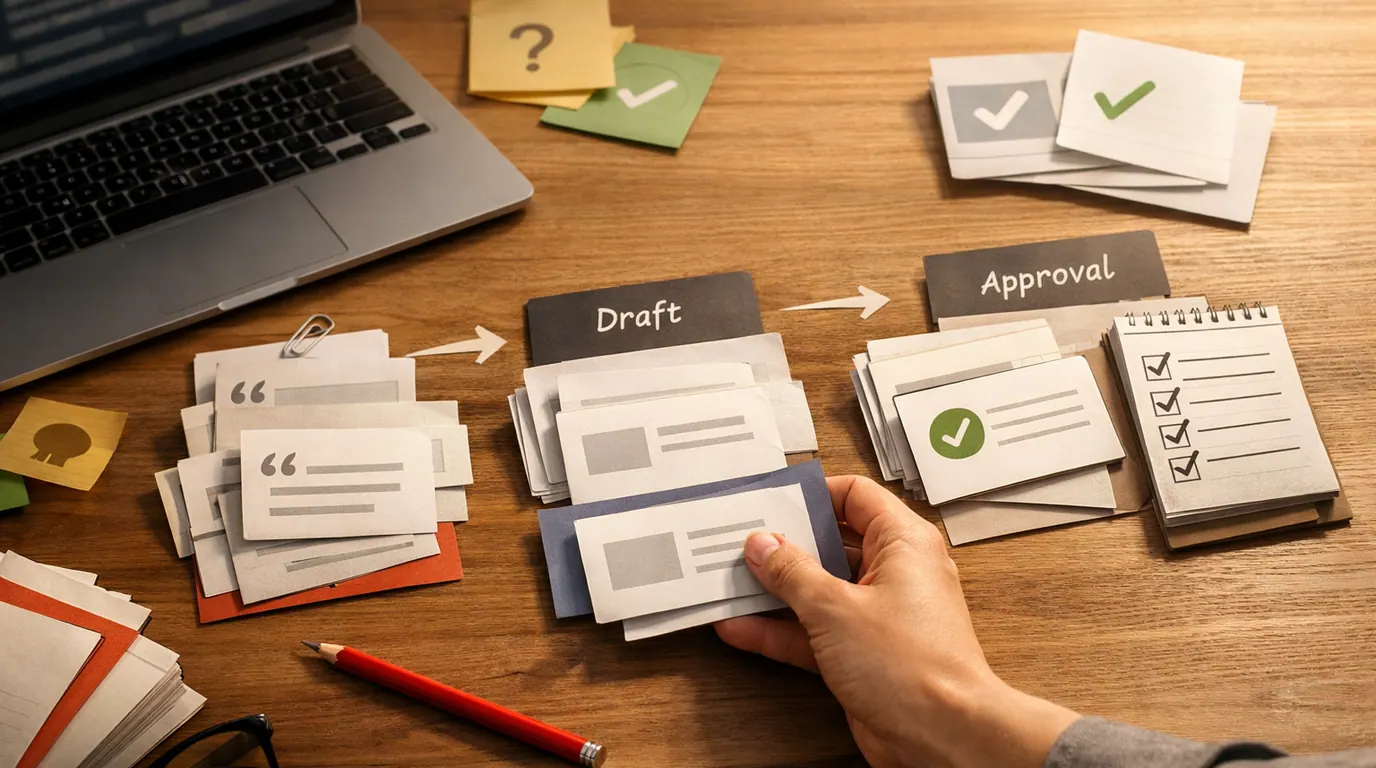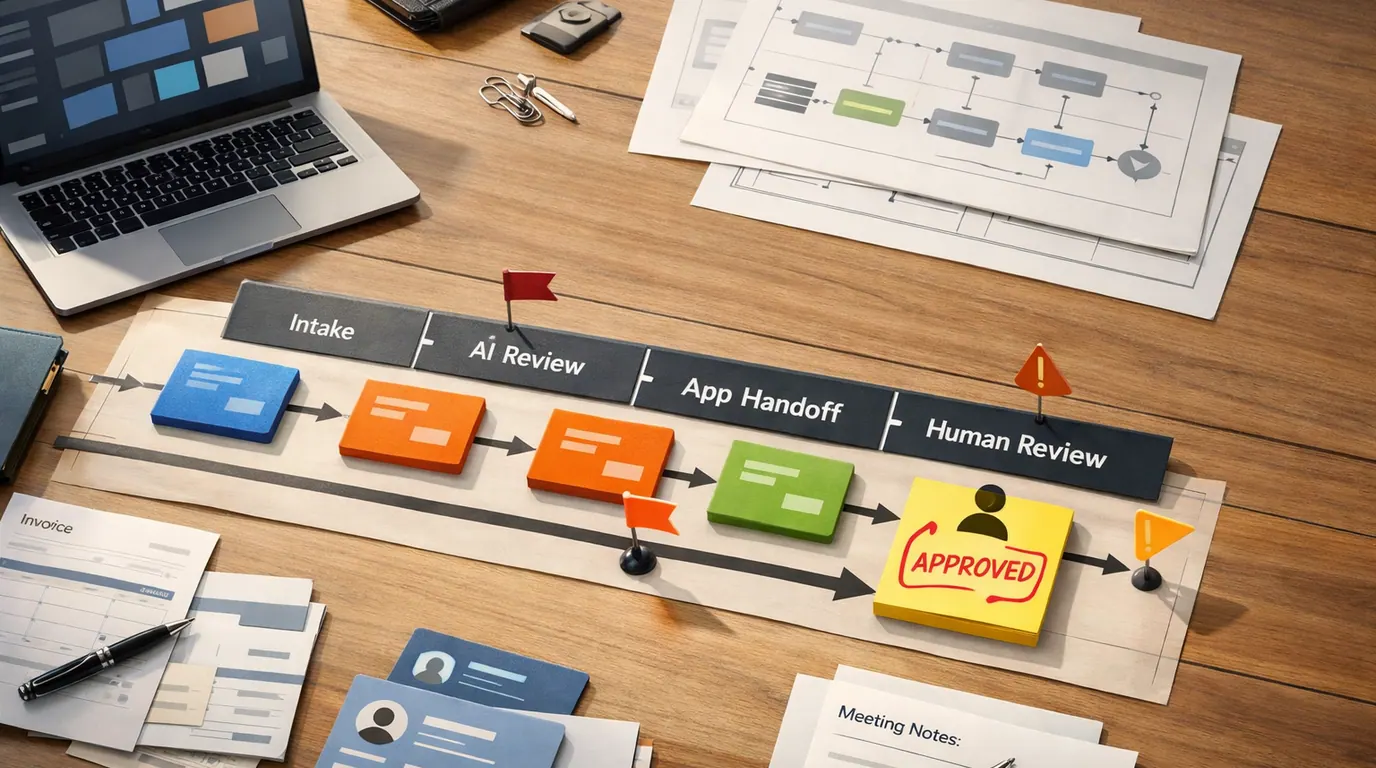
If you searched for “Best AI tools for email” or “ai email assistant”, the useful answer is not one universal app. Email work splits into different jobs: writing a reply, understanding a long thread, deciding what matters, scheduling, cleaning newsletters, handling a shared inbox, and keeping sensitive messages under human control.
An AI email assistant can help with all of those jobs, but not every tool should touch every inbox. A free writer is enough for a one-off apology draft. A team support queue needs shared ownership and auditability. An executive inbox needs conservative triage, tone matching, and clear review before anything leaves the account.
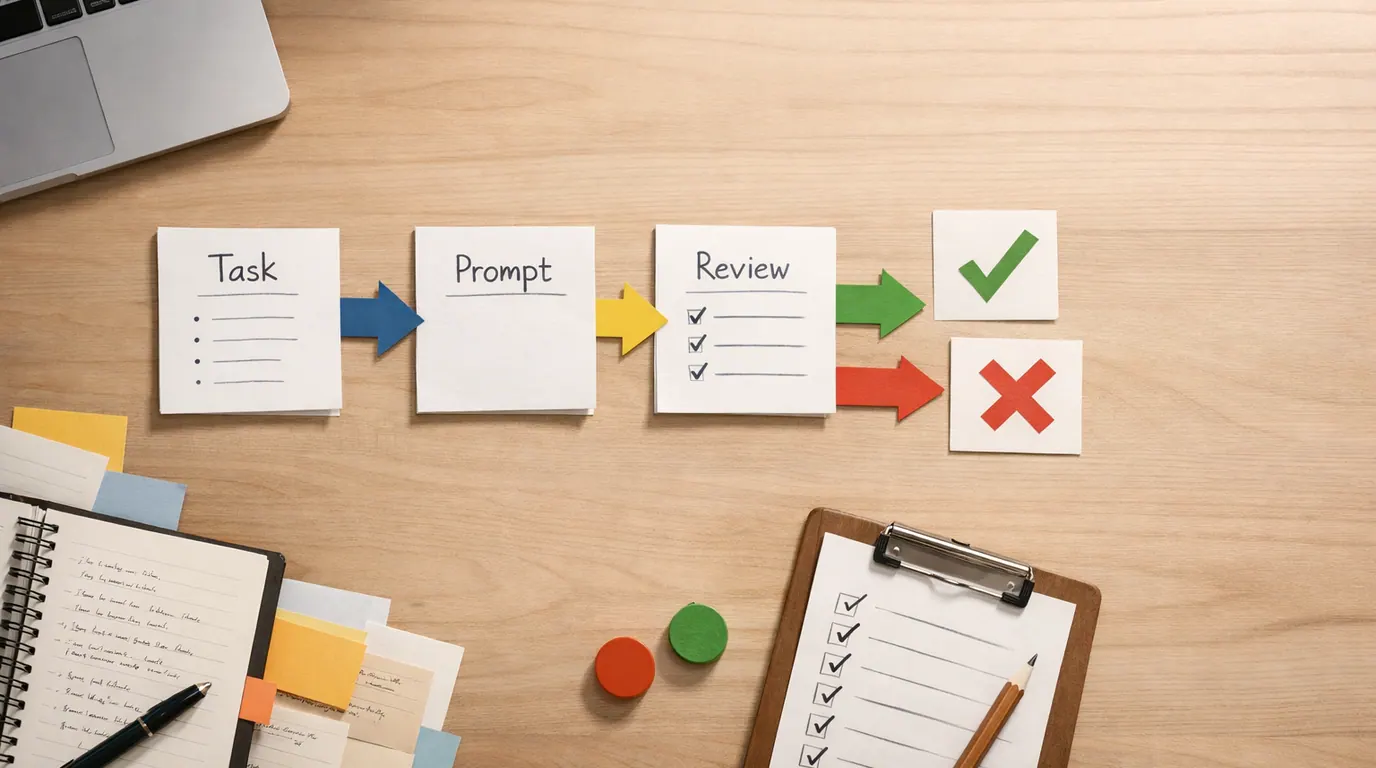
Use this AI email assistant guide as a practical shortlist. Pick the inbox problem first, test with real messages, and choose the tool that creates a cleaner review queue instead of a second place to manage email.
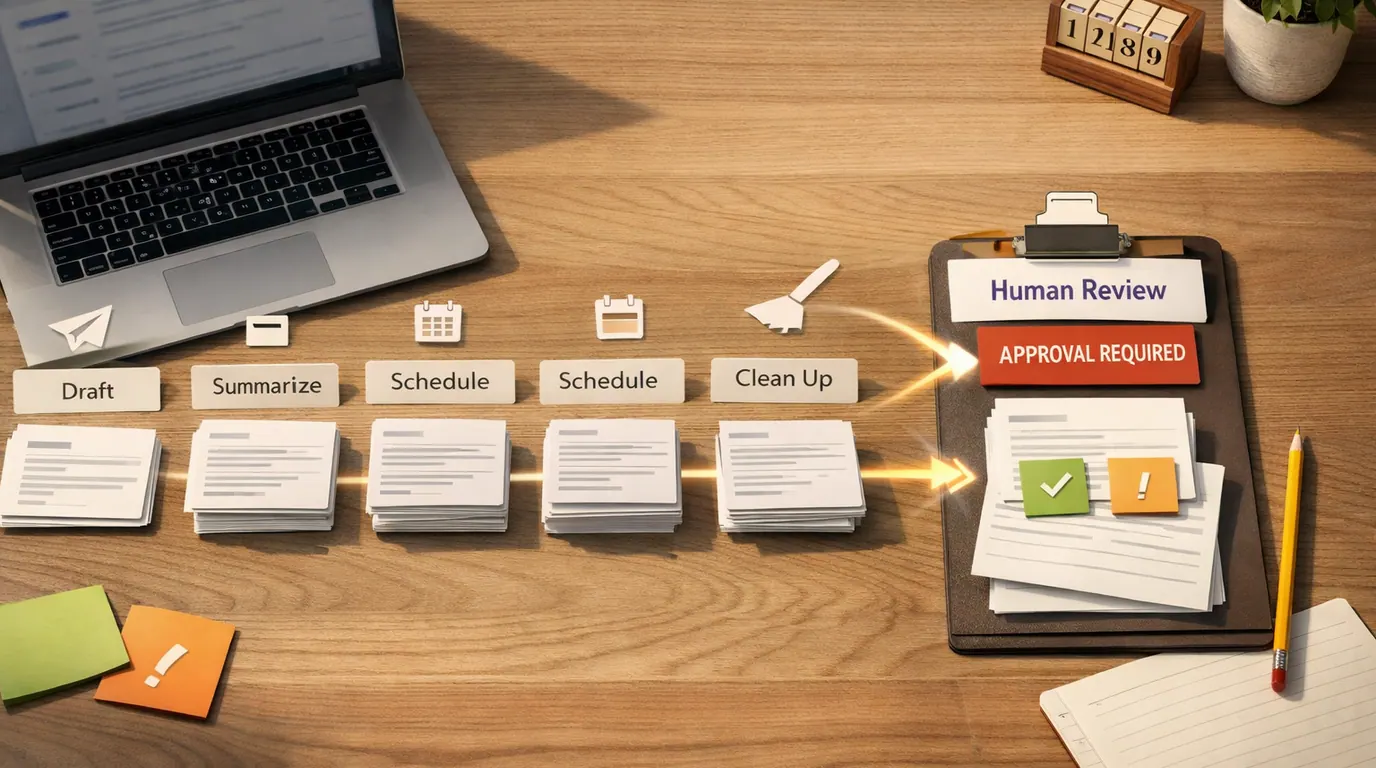
Choose by task: draft, summarize, prioritize, clean up, route, schedule, or collaborate.
The right tool needs fewer rewrites, fewer missed details, and fewer manual handoffs.
Keep people responsible for customer promises, sensitive data, legal terms, HR issues, and final sends.
Start With the Email Bottleneck
The best AI email assistant is usually the one that removes the most repeated friction in your day, not the one with the longest feature list. A founder drowning in investor, hiring, and customer threads has a different problem from a sales rep writing follow-ups or a support team routing shared inbox conversations.
In plain English, AI tools for email usually do one or more of these jobs:
- Draft: turn rough instructions into a polished reply, follow-up, introduction, escalation, or status update.
- Summarize: reduce a long thread into decisions, blockers, questions, dates, and action items.
- Prioritize: surface messages that need attention and push low-value email into a digest, bundle, folder, or later view.
- Coordinate: suggest meeting times, create calendar handoffs, remind you to follow up, or prepare post-meeting emails.
- Collaborate: assign conversations, route shared inbox work, reuse canned responses, and keep team ownership visible.
- Clean up: bulk unsubscribe, archive, label, filter, and reduce incoming noise before you ask AI to write more replies.
The practical win is not letting AI send more email; it is turning a messy inbox into a review queue with fewer blank-page drafts and fewer missed handoffs.
Quick Picks: Best AI Tools for Email by Job
Start here if you need a shortlist. Pricing, free-plan limits, AI credits, and inbox permissions change quickly, so treat the pricing column as a buying prompt, not a permanent quote.
| Pick | Best for | Why it fits | Limit | Pricing/free-plan note |
|---|---|---|---|---|
| Microsoft 365 Copilot in Outlook | Outlook users and Microsoft 365 teams | Copilot is closest to the work when messages, calendar, Word docs, Teams conversations, and files already live in Microsoft 365. | Permissions, mailbox hygiene, and source quality matter. Review drafts before sending and avoid treating summaries as a source of record. | Access depends on eligible Microsoft 365 and Copilot plans. Check current Microsoft pricing and admin controls. |
| Gemini in Gmail | Gmail and Google Workspace users | Gemini can help draft replies, summarize threads, and use Workspace context when the team already works in Gmail, Drive, Calendar, Docs, and Sheets. | It is strongest inside Google's ecosystem and still needs review for prompt-injection risk, private data, and nuanced replies. | Access depends on current Gmail, Google Workspace, Google AI, or Google One plan details. Check current availability. |
| Shortwave | AI-first personal inbox workflows | Shortwave is built around AI summaries, assistant-style drafting, bundles, scheduling, and inbox automation for people who want a more modern email client. | Switching clients creates learning curve and lock-in risk. Test search, account support, exports, and mobile fit before committing. | Plans and AI limits can change. Check current Shortwave pricing, account support, and workspace requirements. |
| Superhuman | Speed-focused professionals on Gmail or Outlook | Superhuman fits people who live in email and want fast keyboard-driven triage, thread summaries, drafting, follow-up help, and polished reply flow. | It is a premium email client, not a lightweight add-on. Teams should review retention, admin controls, and whether the speed workflow fits everyone. | Check current Superhuman pricing, AI feature access, retention notes, and Gmail or Outlook account requirements. |
| Missive | Shared inboxes and team email | Missive combines collaborative email with AI drafting, search, calendar context, canned responses, rules, assignments, and shared ownership. | It is best when the team actually works from shared queues. Solo users may find the collaboration layer heavier than needed. | AI access depends on current Missive plan and provider setup. Check pricing, AI credits, and connected account rules. |
| Fyxer | Delegated triage, drafts in your tone, meetings, and scheduling | Fyxer sits inside Gmail or Outlook, organizes messages, prepares drafts, captures meeting notes, and can use inbox or meeting context. | A delegate-style assistant needs trust. Keep review before send, exclude sensitive inboxes where needed, and watch how it categorizes edge cases. | Check current Fyxer pricing, trial terms, supported inboxes, security terms, and team controls. |
| MailMaestro | Native Outlook and Gmail drafting, summaries, and secure enterprise review | MailMaestro is useful when you want an add-on for writing, improving drafts, summarizing threads, extracting action items, and using language or tone controls. | It is not a full shared inbox operating system. Verify whether its workflow fits your email client and approval process. | The official site promotes starting free and no credit card. Check current plan, compliance, retention, and marketplace terms. |
| SaneBox | Inbox cleanup without switching email clients | SaneBox focuses on filtering unimportant mail, reminders, snooze, one-click unsubscribe, and digesting low-priority messages across email clients. | It is stronger for triage and clutter reduction than generative reply writing. You still need a separate drafting tool if writing is the bottleneck. | SaneBox promotes a free trial with no credit card. Check current plan tiers and mailbox access requirements. |
| Clean Email | Bulk cleanup, smart folders, unsubscribe, rules, and privacy-conscious inbox maintenance | Clean Email is a good fit when the real problem is volume: newsletters, promotions, stale messages, and recurring senders you need to remove or organize. | It is cleanup-first. Do not choose it as your main writing assistant unless its writing tool is enough for your use case. | Check current Clean Email plans, provider support, free tool limits, and privacy terms. |
| Mailmeteor AI Email Writer | One-off email drafts and simple writing help without a full inbox assistant | Mailmeteor is useful when you need a quick professional email from instructions and do not want to adopt a new inbox workflow. | It will not triage your inbox, assign team ownership, or reliably understand private thread context unless used inside its supported workflow. | The research packet and official pages describe free entry points. Check current usage limits and sending-plan details. |
How We Chose the Shortlist
This is not a hands-on benchmark, live pricing audit, security certification, or claim that one product is universally best. The shortlist is based on the supplied research packet, official product pages checked during drafting on June 2, 2026, and a workflow-first reading of the search intent: readers want named AI email assistants, “Best for” labels, limitations, pricing caveats, and a next step.
The evaluation criteria were practical:
- Inbox fit: Gmail, Outlook, shared inbox, or standalone writer.
- Core output: draft reply, summary, priority queue, rule, calendar handoff, cleanup action, or team assignment.
- Reviewability: whether a person can inspect the source thread, edit the output, and approve the next action.
- Workflow drag: whether the tool works where email already happens or forces a costly client switch.
- Risk controls: permissions, retention, data handling, admin controls, and ability to keep sensitive messages out.
- Commercial fit: free/trial entry points, plan caveats, team packaging, export risk, and lock-in.
For current product details, check the vendor pages before subscribing: Microsoft’s Outlook AI email assistant, Gemini in Gmail, Shortwave, Superhuman AI, Missive AI docs, Fyxer, MailMaestro, SaneBox, Clean Email, and Mailmeteor AI Email Writer. Vendor feature names, limits, and pricing can change faster than roundup pages.
Product Recommendations by Workflow
Microsoft 365 Copilot for Outlook-first teams
Choose Microsoft 365 Copilot when your day already lives in Outlook, Teams, Word, Excel, OneDrive, SharePoint, and Microsoft Calendar. Its advantage is not just “write an email.” It is proximity to the work graph: messages, files, meetings, and calendar context that a separate writer may not see.
Best for: an operations manager who needs to catch up on a long vendor thread, draft a reply based on internal documents, and turn a scheduling conversation into a next step.
Human review point: Outlook summaries can make a messy thread sound cleaner than it is. Before sending, check the actual thread for unanswered questions, attachments, pricing, dates, names, and commitments.
Gemini in Gmail for Google Workspace users
Gemini is the natural first comparison for Gmail users because it works inside the Google environment many teams already use. It can help with draft replies, thread summaries, and context-aware writing when the surrounding work lives in Google Workspace.
Best for: a project lead using Gmail, Calendar, Docs, Sheets, and Drive who wants to turn a thread into a concise update or a meeting follow-up without copying context into another app.
Human review point: AI email summaries are convenient, but email is a hostile input surface. Review suspicious links, payment requests, account changes, and urgent instructions directly in the original message.
Shortwave for AI-first inbox work
Shortwave is a fit when you are willing to make the email client itself more AI-native. Instead of adding a small writer to Gmail, it aims to reshape inbox flow with summaries, assistant prompts, bundles, scheduling, and AI filters.
Best for: an individual contributor, founder, or small team member who wants the inbox to feel like a managed queue instead of a chronological pile.
Human review point: client switching is real cost. Test account support, search quality, keyboard flow, mobile experience, export options, and how it handles old threads before moving your main inbox.
Superhuman for speed-focused professionals
Superhuman is best understood as a premium speed layer with AI features, not just an AI email writer. It fits people who already process high volumes of email and want thread summaries, drafting, follow-up help, and a fast interface around Gmail or Outlook.
Best for: an executive, investor, founder, recruiter, or sales leader who handles many short but consequential threads and values speed, reminders, and polished replies.
Human review point: speed can hide risk. Keep a slower review habit for negotiations, HR messages, legal language, sensitive customer replies, and anything where tone matters more than velocity.
Missive for shared inbox teams
Missive is the strongest fit in this shortlist when email is a team surface. Shared inbox work needs assignments, comments, rules, canned responses, ownership, and a clear handoff between the person, the AI assistant, and the customer conversation.
Best for: support, operations, sales, finance, or agency teams that manage queues like support@, billing@, partnerships@, or client-specific shared inboxes.
Human review point: a shared inbox fails when ownership is vague. Use AI to prepare replies or find context, but keep assignment, escalation, approval, and source-of-record rules visible.
Fyxer for delegate-style triage and drafts
Fyxer is a good fit when you want something closer to an inbox delegate: organize incoming mail, highlight urgent items, prepare drafts in your tone, capture meeting notes, and support scheduling. It is especially relevant for people who want proactive help without changing their core Gmail or Outlook account.
Best for: an executive, founder, consultant, or client-facing operator who wants drafts staged for review and meeting follow-ups prepared from real context.
Human review point: delegated drafting needs boundaries. Exclude HR, legal, finance, health, or confidential inboxes when appropriate, and spot-check categories until the tool proves reliable in your actual communication patterns.
MailMaestro for native drafting, summaries, and thread help
MailMaestro fits buyers who want a focused email add-on for Outlook or Gmail rather than a full replacement client. It is useful for drafting from prompts, improving rough copy, summarizing threads, extracting action items, and creating response options in different languages or tones.
Best for: professionals who want faster writing inside the email client they already use and prefer a tool with visible security and compliance positioning.
Human review point: response options are not decisions. Check whether the reply answers every question, preserves your meaning, and avoids inventing attachments, deadlines, policy details, or commitments.
SaneBox and Clean Email for clutter before drafting
SaneBox and Clean Email are not the same type of assistant as Copilot, Gemini, Shortwave, or Fyxer. That is the point. Many inboxes do not need more generative writing first; they need fewer low-value messages reaching the top of the queue.
Best for: people who lose time to newsletters, promotions, recurring senders, unread piles, and manual inbox cleanup before they ever get to real replies.
Human review point: bulk cleanup can create its own failure mode. Review rules, folders, unsubscribe actions, and auto-clean suggestions before applying them widely, especially for invoices, client emails, receipts, and travel messages.
Mailmeteor for quick drafts without an inbox overhaul
Mailmeteor AI Email Writer is useful when the job is simple: generate a professional email from instructions. It belongs in the “lightweight writer” category, not the “manage my inbox” category.
Best for: occasional follow-ups, polite declines, meeting confirmations, outreach drafts, and first versions you will paste into Gmail, Outlook, or a campaign workflow.
Human review point: standalone writers only know what you tell them. Add audience, goal, relationship, facts, tone, and constraints before drafting. For stronger reusable prompt structure, use our guide to writing better AI prompts.
Match the Tool to AI Email Assistant Use Cases
Common AI email assistant use cases are easier to compare when you map them to a real inbox moment. Use this table before buying anything.
| Use case | Best tool pattern | Everyday example | Human review point |
|---|---|---|---|
| Long thread summary | Built-in assistant or AI-first client | Summarize a 27-message vendor thread into decision, open questions, dates, and blockers. | Open the original thread before relying on dates, names, prices, attachments, or commitments. |
| Routine reply drafting | Email writer, Copilot, Gemini, MailMaestro, Shortwave, Superhuman, or Fyxer | Turn 'yes, Thursday works, ask for agenda' into a clean reply. | Read for tone, missing context, and invented details before sending. |
| Inbox priority | Fyxer, SaneBox, Shortwave, Superhuman, Copilot, or rules-based cleanup | Surface emails from clients, executives, recruiters, or invoices while bundling newsletters. | Review misfiled messages until you trust the categories. |
| Shared inbox routing | Missive or another team inbox tool | Assign billing questions, technical issues, refunds, and partnerships to the right owner. | Keep ownership, escalation, and approval visible to the team. |
| Meeting follow-up | Fyxer, Copilot, Gemini, MailMaestro, Read AI-style tools, or calendar-aware assistants | Draft next steps after a call and suggest a scheduling reply. | Confirm attendees, action items, dates, and promised deliverables. |
| Newsletter cleanup | SaneBox, Clean Email, or mail-provider rules | Unsubscribe from old lists and move low-priority senders into a digest. | Avoid bulk actions on receipts, travel, support, legal, or finance messages. |
| Sales or marketing outreach | Mailmeteor, ChatGPT, campaign tools, or sales-specific assistants | Draft a concise follow-up after a demo or webinar. | Check deliverability, consent, brand voice, claims, and personalization quality. |
For sales workflows, pair email drafting with the judgment in our AI lead generation guide. For broader team rollout, the governance pattern in AI productivity tools for teams applies directly: define the workflow owner, allowed data, review point, and what happens when the tool is wrong.
Build a Safe AI Email Assistant Workflow
A practical AI email assistant strategy starts with one repeatable workflow. Do not connect every inbox, rule, assistant, and automation on day one.
- Pick five real messages. Use one long thread, one scheduling email, one sensitive reply, one customer or client question, and one clutter example.
- Test the same task in two tools. Ask each tool to summarize, draft, prioritize, or clean up the same sample so you can compare edit distance instead of marketing claims.
- Mark the review point. Decide who approves replies, rules, labels, assignments, meeting follow-ups, and bulk cleanup actions.
- Classify inbox data. Separate public, internal, confidential, customer, HR, legal, financial, health, and regulated messages before granting access.
- Start with staged output. Let AI prepare drafts, summaries, labels, and suggested actions before it sends, archives, deletes, or assigns anything automatically.
- Review after one week. Count missed messages, bad drafts, saved time, privacy concerns, support tickets, and how often humans ignored the assistant.
This AI email assistant workflow keeps the automation useful without giving it more authority than the organization can supervise. If private data is involved, use the risk checklist in our AI privacy concerns guide before connecting a mailbox or uploading attachments.
Pricing, Privacy, and Free-Plan Caveats
AI email assistants sit close to sensitive data. That makes procurement less like buying a note-taking app and more like reviewing a communication system.
Works Well When
- The tool works inside Gmail, Outlook, or the shared inbox your team already uses
- Drafts and summaries are easy to inspect before anything is sent
- The vendor explains data access, retention, training use, security controls, and deletion options
- Admins can control connected accounts, permissions, team settings, exports, and offboarding
- Pricing still makes sense after AI credits, seats, mailboxes, add-ons, and higher-volume usage
Watch Out For
- The tool asks for broad mailbox access but gives vague privacy or retention terms
- It hides sources, original thread context, or why a message was prioritized
- It encourages automatic sending, deleting, routing, or archiving before trust is established
- Free-plan limits make the workflow look useful during testing but unreliable in daily use
- The assistant creates more review work than it removes
Free tools are worth using for low-risk drafts. They are a weaker basis for an organization-wide email process unless they provide the permissions, retention, admin controls, support, and reliability your team needs.
AI Email Assistant Checklist Before You Buy
Use this AI email assistant checklist after you have narrowed the shortlist to two or three tools:
- Workflow: Which exact job will this improve: drafting, summaries, triage, cleanup, scheduling, routing, or shared inbox collaboration?
- Inbox fit: Does it support your real Gmail, Outlook, IMAP, shared inbox, calendar, and mobile workflow?
- Output quality: How much editing does a real reply need before you would send it?
- Source awareness: Can you see which email, thread, calendar event, document, or rule the assistant used?
- Human control: Can you force draft-only mode before sending, deleting, archiving, routing, or assigning?
- Privacy: What can the vendor access, store, train on, retain, export, and delete?
- Team fit: Can managers set permissions, remove users, review activity, and preserve handoff when someone leaves?
- Pricing: Are AI credits, inboxes, connected accounts, seats, add-ons, and higher-volume limits clear?
- Exit plan: Can you export data, remove labels or rules, revoke OAuth access, and return to your normal inbox cleanly?
The best AI email assistant for a serious workflow should make human review easier. If the tool makes every email feel faster but every mistake harder to notice, it is the wrong fit.
The Bottom Line
The best AI tools for email are job-specific. Use Microsoft 365 Copilot or Gemini when your main need is built-in help inside Outlook or Gmail. Use Shortwave or Superhuman when the email client experience itself is the bottleneck. Use Missive when email belongs to a team. Use Fyxer when you want delegated triage and staged drafts. Use MailMaestro when native writing and summaries are enough. Use SaneBox or Clean Email when clutter is the real enemy. Use Mailmeteor when you only need a quick draft.
Start with one workflow, test with real messages, and keep the first month in review-first mode. AI email is useful when it reduces inbox judgment load without hiding the judgment humans still need to make.
Frequently asked questions
What is an AI email assistant?
An AI email assistant is software that helps read, summarize, draft, classify, prioritize, or route email. Some tools only write replies from prompts, while stronger assistants work inside Gmail, Outlook, or a shared inbox and can use thread context, calendar data, labels, rules, or past writing style.
What is the best AI email assistant?
The best AI email assistant depends on the workflow. Microsoft 365 Copilot fits Outlook-heavy teams, Gemini fits Gmail and Google Workspace users, Shortwave and Superhuman fit fast individual inbox work, Missive fits shared inbox teams, Fyxer fits delegated triage and drafts, and SaneBox or Clean Email fit cleanup.
Are free AI email tools enough?
Free AI email writers are useful for occasional drafts, subject lines, and rewrites, especially when you do not want to connect your inbox. They are usually weaker for thread-aware replies, inbox triage, admin controls, security review, team workflows, and reliable automation. Check current limits before relying on them.
Can an AI email assistant send replies for me?
Some assistants can prepare replies, route messages, create rules, or support automated actions, but most important email should still pass human review before sending. Review customer commitments, pricing language, legal terms, HR issues, executive messages, confidential details, and anything that could damage a relationship.
Should I use a Gmail AI assistant or an Outlook AI assistant?
Use the assistant that lives closest to your real inbox and calendar. Gmail users should compare Gemini, Shortwave, Fyxer, MailMaestro, and Gmail add-ons. Outlook users should compare Microsoft 365 Copilot, Superhuman, Fyxer, MailMaestro, SaneBox, and cleanup tools that support Microsoft accounts.
What privacy risks matter with AI email assistants?
Email assistants may process customer messages, attachments, calendar details, contracts, HR notes, sales conversations, and private history. Before connecting one, check data access, retention, training use, admin controls, permission scopes, deletion options, audit logs, and whether the vendor can work with your compliance needs.
How should I compare AI tools for email?
Test each tool with the same five real messages: a long thread, a scheduling request, a customer question, a newsletter pile, and a sensitive reply. Compare draft quality, edit distance, source awareness, privacy settings, handoff, integrations, cleanup control, and how clearly a human can review the result.