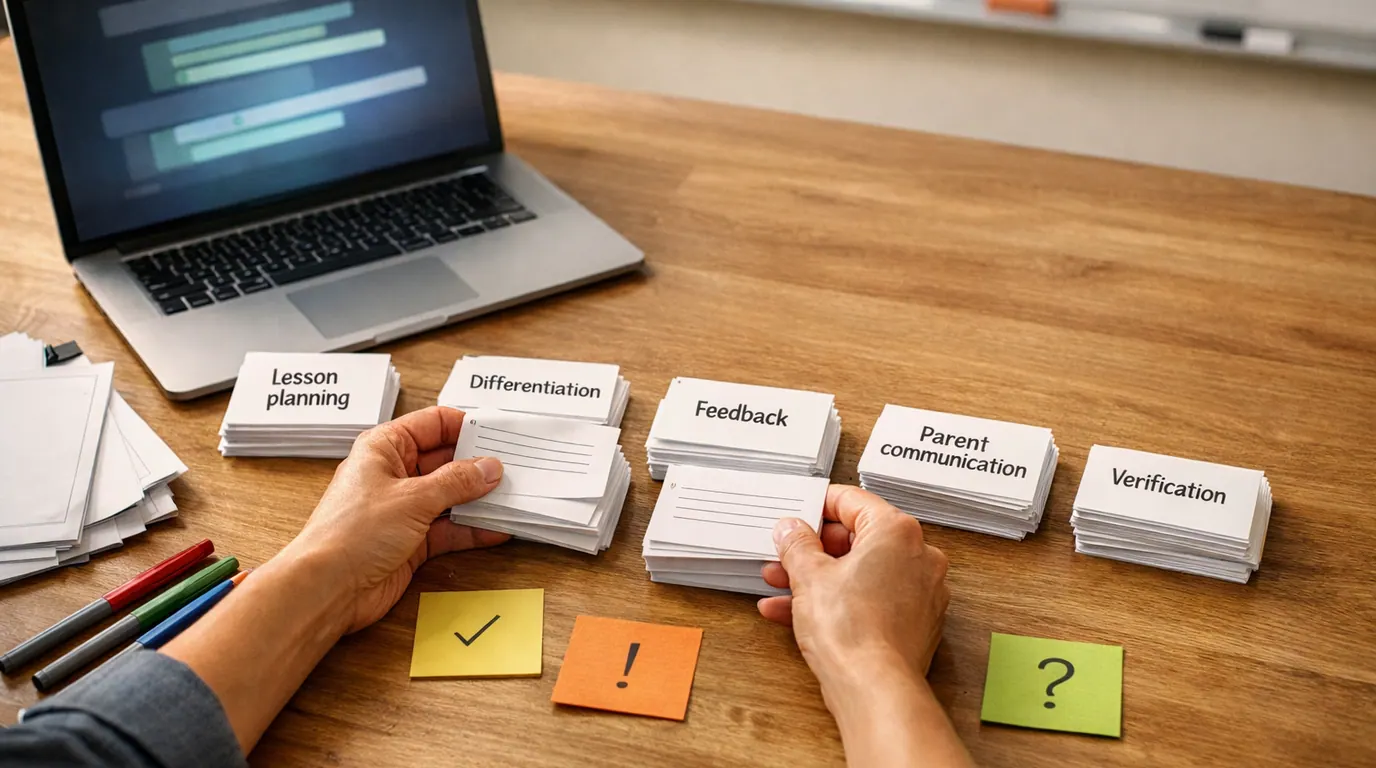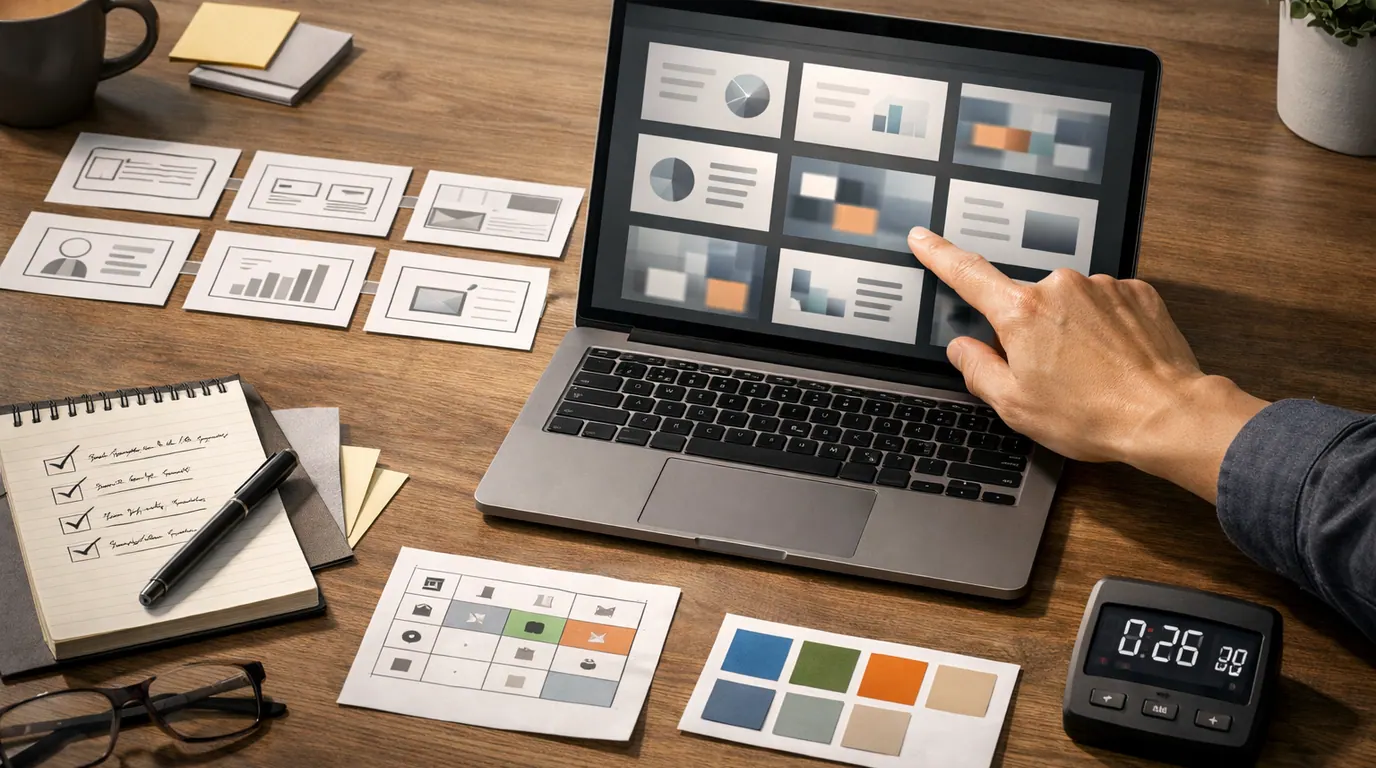
If you searched for “how to use AI for presentations”, the answer is not to let a tool decorate a weak argument. The useful move is to use AI where it is strong: turning raw notes into structure, giving you several story options, drafting a slide sequence, and helping you tighten the deck before a human takes responsibility for it.
An AI presentation can save hours, but only if you give it better input than “make slides about this topic.” A deck is only useful when the audience knows what to believe, feel, decide, or do next. The tool can help you get there faster, but it cannot know your audience, politics, risks, or evidence standard unless you put those constraints into the workflow.
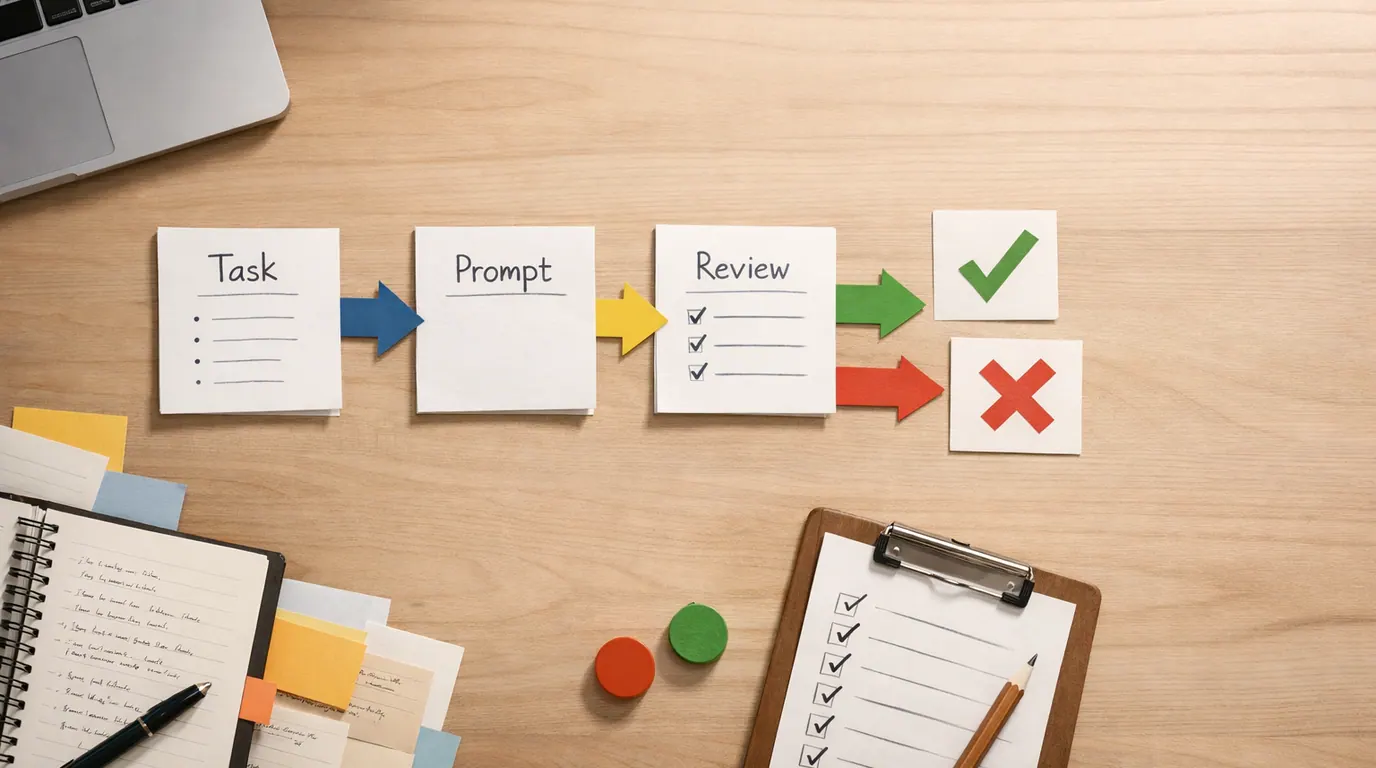
Use this AI presentation maker guide as a practical operating system: choose the right tool for the deck job, brief it like a designer, review the first draft like an editor, and polish the final deck like a presenter.
Write what the audience should understand, approve, buy, learn, or do before you generate slides.
Use notes, source documents, examples, numbers, brand rules, and speaker context instead of a vague topic prompt.
Check the story, facts, charts, claims, privacy, accessibility, and export quality before anyone sees the deck.
What an AI Presentation Maker Actually Does
An AI presentation maker is software that turns a prompt, outline, notes, or source file into a presentation draft. Depending on the product, that draft may include a slide sequence, layouts, visuals, speaker notes, editable text, charts, brand styling, or export options such as PowerPoint and PDF.
That definition matters because it keeps expectations realistic. These tools are usually good at the first 60 percent of the work: structure, layout, first-pass wording, and design suggestions. They are weaker at the final 40 percent: strategic judgment, source quality, claim accuracy, stakeholder nuance, and presenter delivery.
The best AI presentation maker is the one that fits the handoff. If your team must edit in PowerPoint, a beautiful web deck is not enough. If your audience will click a link after a sales call, a web-first deck may be better than a traditional file. If you are teaching, template quality and activity design may matter more than corporate brand controls.
Quick Picks: Match the Tool to the Deck Job
This is not a full product roundup. For a broader buying view, use our Best AI Tools for Presentations guide. Here, the goal is simpler: pick a starting point for your workflow, then judge the draft by how much useful editing remains.
| Pick | Best for | Why it fits | Human-review point | Pricing/free-plan caveat |
|---|---|---|---|---|
| Gamma | Fast web-first presentations, proposal links, async updates, course-style explainers | It is useful when you want a polished narrative from a rough idea and may share the result as a hosted deck. | Check whether exported PPT or PDF files preserve the structure, fonts, charts, and editability your audience needs. | Check current credits, export rules, analytics, brand controls, and team limits before committing. |
| Canva | Visual marketing decks, education, social repurposing, small-business pitches | It combines AI presentation drafts with templates, brand assets, writing help, images, animation, and collaboration. | Review whether the deck is stronger inside Canva than after export, and verify generated images and translated text. | Canva lists limited free use for Magic Design features; check current usage caps and paid-plan packaging. |
| Microsoft 365 Copilot in PowerPoint | PowerPoint-native teams, existing company templates, decks from Microsoft files | It keeps the AI work close to PowerPoint, Word, comments, themes, and enterprise file workflows. | Confirm that the right source documents were used and that old data or unsupported claims did not slip into the deck. | Requires eligible Microsoft 365 Copilot access. Check current plan requirements before assuming availability. |
| Adobe Express | Prompt-to-deck or file-to-deck drafts inside a general creative workspace | It can generate an editable outline and presentation draft, then support collaboration and PDF or PowerPoint download. | Review the outline before designing, because file-to-deck tools can compress or over-simplify the source material. | Adobe lists a free plan with limited complimentary generations; check current generation and export limits. |
| Slidesgo | Free or low-cost starts, students, teachers, simple topic-to-PPTX decks | It emphasizes text-to-PPT generation, templates, editable downloads, and compatibility with PowerPoint and Google Slides. | Check originality, slide density, accessibility, citations, and whether the deck looks too template-like. | Slidesgo lists a small free monthly allowance and account requirement; check current limits and premium terms. |
| Google Slides with Gemini | Workspace teams that want help inside Google Slides and Drive-connected material | It can support slide creation, visual generation, summarization, and Drive-context workflows where available. | Verify permissions, source freshness, and whether generated visuals or summaries match the approved material. | Availability depends on current Google Workspace plan, account, region, and feature rollout. |
| QuillBot or Chronicle | Simple prompt-to-deck work, business proposals, classroom material, or note-to-slide drafts | Both are positioned around turning text, notes, or documents into structured slide material quickly. | Open the exported file and review layout control, brand fit, source accuracy, and what remains editable. | Check current pricing, export formats, free-trial rules, and whether PowerPoint export is fully available. |
The practical AI presentation maker strategy is to match the tool to the bottleneck: blank-slide structure, visual polish, PowerPoint handoff, classroom templates, file summarization, or team collaboration. Do not start by comparing every feature. Start with the deck you need to ship.
Selection Method and Pricing Caveats
This shortlist is based on the supplied research brief, SERP patterns for “ai presentation maker”, and official product pages reviewed during drafting on June 22, 2026. It is not a hands-on benchmark, security audit, live pricing database, or claim that each tool was tested with the same deck.
The evaluation criteria were practical:
- Input fit: Does the tool accept the material you actually have, such as a prompt, outline, PDF, Word doc, existing presentation, Drive file, or rough notes?
- Story quality: Does the first draft create a coherent beginning, middle, and ending, or does it simply spread bullets across slides?
- Editability: Can a human revise the words, layout, visuals, chart labels, speaker notes, and slide order without rebuilding the deck?
- Handoff: Does the deck need to live as a web link, PowerPoint, PDF, Google Slides file, classroom resource, or branded team asset?
- Risk shape: What facts, private files, image rights, customer claims, and brand rules need review before sharing?
- Commercial caveats: Free generations, AI credits, exports, brand kits, collaboration, privacy controls, and admin features can change, so check the vendor’s current plan page before uploading sensitive work or subscribing.
Official pages for Canva, Adobe Express, Gamma, Microsoft PowerPoint Copilot, Slidesgo, QuillBot, Chronicle, and Google Workspace presentation AI describe overlapping but different workflows. Treat each page as a starting claim to verify against your own deck, not as proof that the product is right for every presentation.
The AI Presentation Maker Workflow to Use First
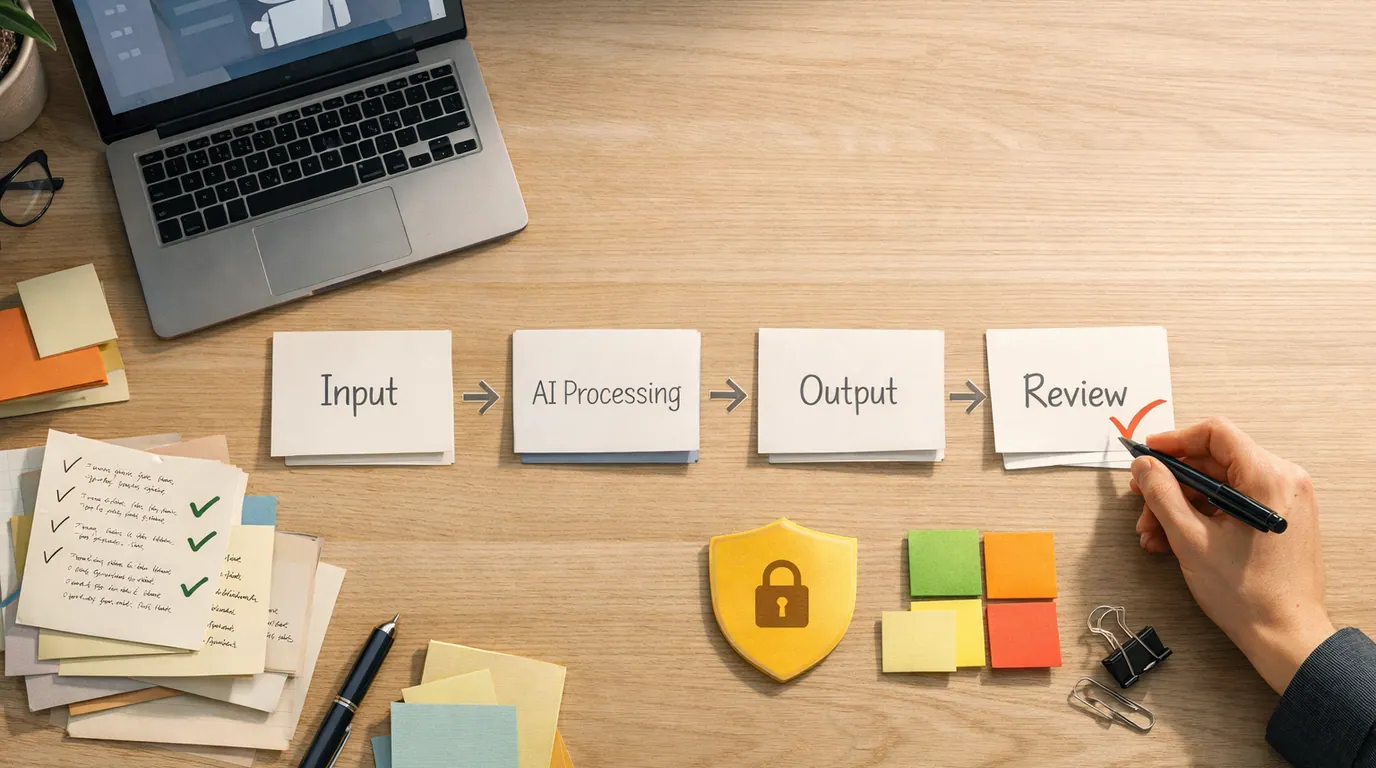
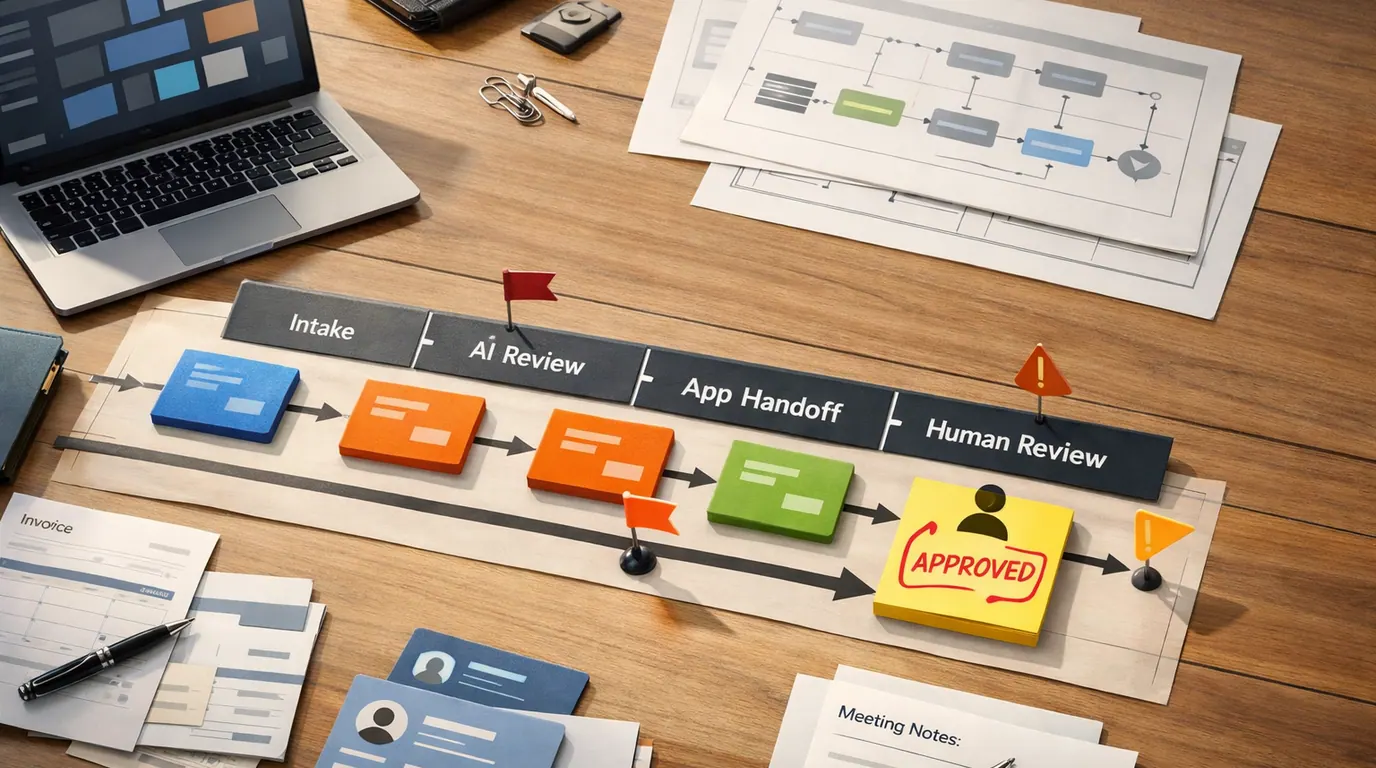
A reliable AI presentation maker workflow has five passes. Do them in order. If you skip the first two, the tool may produce attractive slides that do not solve the actual communication problem.
- Write the audience decision. Finish this sentence: after this presentation, the audience should understand, approve, buy, teach, fund, remember, or do [specific outcome].
- Prepare the source packet. Gather the facts, examples, numbers, customer quotes, research notes, brand rules, constraints, and must-avoid claims. For evidence-heavy decks, adapt the source checks from our guide on using AI for research.
- Ask for an outline first. Before generating slides, ask for a slide-by-slide story with purpose, key point, evidence, visual idea, and speaker note. Fix the sequence while changes are cheap.
- Generate the first deck. Give the approved outline to the tool and ask for the right format: executive update, sales proposal, lesson, webinar, investor pitch, training deck, or client report.
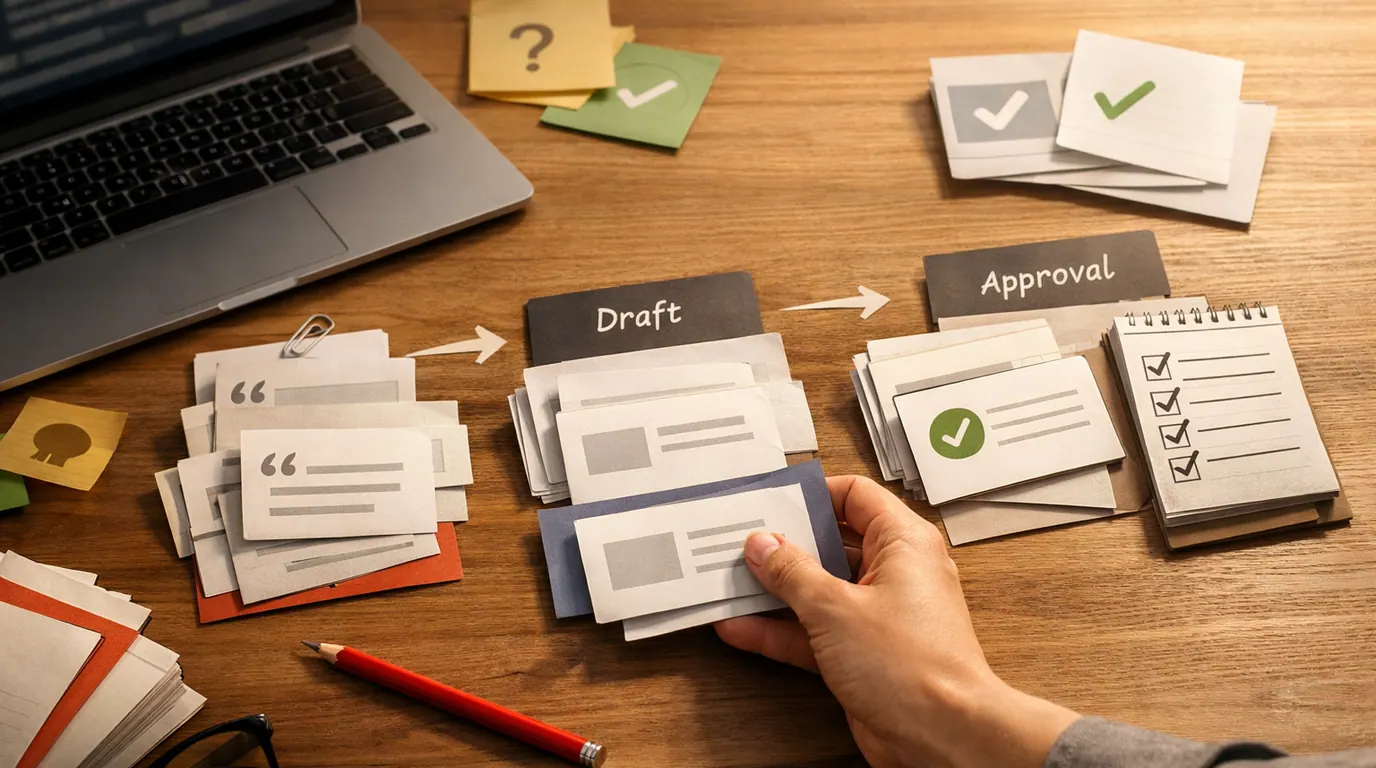
- Review and revise in layers. First review the argument, then the evidence, then the design, then the speaker notes, then the export. Do not try to fix everything in one pass.
- Practice the delivery. AI can create slides, but it cannot test whether your transitions, timing, objections, demos, and Q&A plan work with real people.
For the prompt itself, use the same task, context, criteria, format, and review pattern from our guide to writing better AI prompts. Presentation prompts need one extra field: the audience decision.
Here is a reusable starting prompt:
Create a presentation outline before making slides.

Audience: [who will see this]
Goal: [what they should decide, learn, approve, or do]
Context: [background, source material, constraints, deadline]
Evidence to use: [facts, examples, metrics, quotes, links, documents]
Tone: [executive, practical, persuasive, teaching, technical, calm]
Format: [number of slides, deck type, desired handoff]

Return a table with:
Slide number, slide purpose, main point, evidence needed, visual idea, speaker note, and human review risk.
Do not invent facts, numbers, quotes, customers, or sources.
Flag missing information before drafting the deck.
AI Presentation Maker Examples You Can Reuse
Good AI presentation maker examples are not fancy prompts. They are clear briefs attached to real deck jobs. These AI presentation maker use cases cover common everyday work.
| Use case | Useful AI request | What to review |
|---|---|---|
| Team status update | Turn this project memo into a 7-slide executive update with decisions, risks, owners, and next steps. | Dates, owners, blockers, stale metrics, and whether the ask is obvious. |
| Sales proposal | Create a client-specific proposal outline from these discovery notes, with pain points, proposed approach, proof, timeline, and next step. | Customer promises, pricing language, legal claims, proof quality, and whether confidential details are allowed. |
| Class lesson | Build a 12-slide lesson with a warm-up, three concepts, examples, activity prompts, and a short quiz for this grade level. | Age fit, accessibility, source accuracy, activity timing, and whether examples match the students. |
| Webinar deck | Convert this article outline into a 30-minute webinar deck with story arc, transition notes, interactive moments, and recap slide. | Slide density, pacing, examples, audience questions, and whether the deck works without the speaker. |
| Investor update | Summarize this monthly report into a board-ready deck with metrics, progress, risks, asks, and appendix suggestions. | Financial accuracy, investor-sensitive claims, data source, chart labels, and what belongs in the appendix. |
| Research summary | Turn these verified source notes into a presentation for non-specialists, separating evidence, interpretation, and open questions. | Source traceability, missing counterpoints, overconfident conclusions, and citation quality. |
For most people, the highest-leverage move is not a more advanced model. It is a clearer source packet and a better review pass. A vague prompt produces a generic deck. A brief with audience, evidence, constraints, and desired action gives the tool something real to organize.
The AI Presentation Maker Checklist Before You Present
Use this AI presentation maker checklist before a deck leaves your workspace. It is intentionally practical, because most presentation failures are not caused by bad AI. They are caused by unclear goals, weak evidence, crowded slides, and skipped review.
- Audience: Is the deck written for this audience’s knowledge level, objections, incentives, and decision power?
- One sentence: Can you summarize the point of the deck in one sentence without using a tool’s phrasing?
- Slide order: Does each slide earn its place, or did the generator add filler because you asked for a slide count?
- Evidence: Are names, dates, quotes, numbers, customer claims, charts, and source references verified outside the AI output?
- Visuals: Do images, icons, charts, and diagrams clarify the message, or are they decoration covering a weak point?
- Accessibility: Is text readable, contrast adequate, charts labeled, and speaker context available for people who cannot see every detail?
- Brand and rights: Are fonts, colors, logos, templates, image licenses, and third-party assets appropriate for the setting?
- Privacy: Did you avoid uploading private customer data, unreleased financials, internal strategy, student records, or regulated information into an unapproved tool?
- Export: If the deck must be sent as PPTX, PDF, or Google Slides, did you open the exported file and edit a few slides to test handoff quality?
- Delivery: Do speaker notes, transitions, timing, Q&A, and backup slides support the person presenting?
What to Avoid When Using AI for Presentations
AI can make a bad deck look finished. That is the main risk. A clean layout may hide unsupported claims, missing context, stale numbers, or a story that does not answer the audience’s real question.
Works Well When
- Use AI to outline, compare story arcs, summarize verified source material, draft speaker notes, and create a first visual direction.
- Use AI to rewrite crowded slides, suggest simpler titles, generate alternative examples, and prepare review checklists.
- Use AI when the output is easy to inspect and the final deck still has a named owner.
Watch Out For
- Do not paste confidential files into a tool without checking policy, permissions, retention, and training-use terms.
- Do not let generated charts, statistics, quotes, citations, customer promises, or legal claims ship without source verification.
- Do not choose a tool because the first demo looks polished if your real handoff requires editable PowerPoint, team comments, or strict brand controls.
For team workflows, this is where AI presentation work overlaps with broader AI productivity tools for teams. The tool is only useful if the team knows who owns the source material, who approves the message, and where the final deck lives.
The Bottom Line
An ai presentation maker is best used as a drafting partner for structure, options, layout, and revision. It is not a replacement for audience judgment, source verification, or presentation skill.
Start with the decision the deck must create. Choose a tool that fits the handoff. Give it real source material. Review the outline before design. Check the final deck for facts, rights, privacy, accessibility, brand fit, and export quality. That workflow will beat a prettier one-click deck in any setting where the presentation actually matters.
Frequently asked questions
What is an AI presentation maker?
An AI presentation maker turns prompts, notes, documents, or existing files into a slide outline or editable deck. The useful ones help with structure, layout, visuals, and speaker notes, but they still need a human to check the story, facts, brand fit, and final delivery.
What is the best AI presentation maker?
The best AI presentation maker depends on the job. Gamma fits fast web-first decks, Canva fits visual marketing and education work, Microsoft Copilot fits PowerPoint-native teams, Adobe Express fits file-to-deck drafts, and Slidesgo fits simple template-based starts. Test export quality before choosing.
Can AI make a whole presentation from one prompt?
Yes, many tools can create a full first draft from a prompt, but a single prompt rarely produces a presentation you should present untouched. Use the generated deck as a storyboard, then revise the message, evidence, examples, slide density, accessibility, and speaker notes.
How do I write a good prompt for presentation AI?
Give the tool a brief, not just a topic. Include the audience, goal, desired decision, number of slides, tone, source material, must-use facts, things to avoid, and the output format. Ask the tool to draft an outline first so you can fix the story before it designs slides.
Are free AI presentation makers good enough?
Free AI presentation makers are good for quick drafts, class projects, early brainstorming, and testing whether the workflow helps. They are usually weaker for brand control, privacy, exports, collaboration, usage limits, and high-stakes client or executive decks. Check current plan limits before relying on them.
What should I review before presenting AI-generated slides?
Review the central argument, slide order, facts, numbers, source claims, chart accuracy, audience fit, brand style, image rights, accessibility, and whether the file exports cleanly. A person should own every promise, metric, quote, and recommendation in the final deck.